# Digital Twin - ENG
# Introduction
# Introduction - Digital Twin
### Intro to Digital Twin DBR77
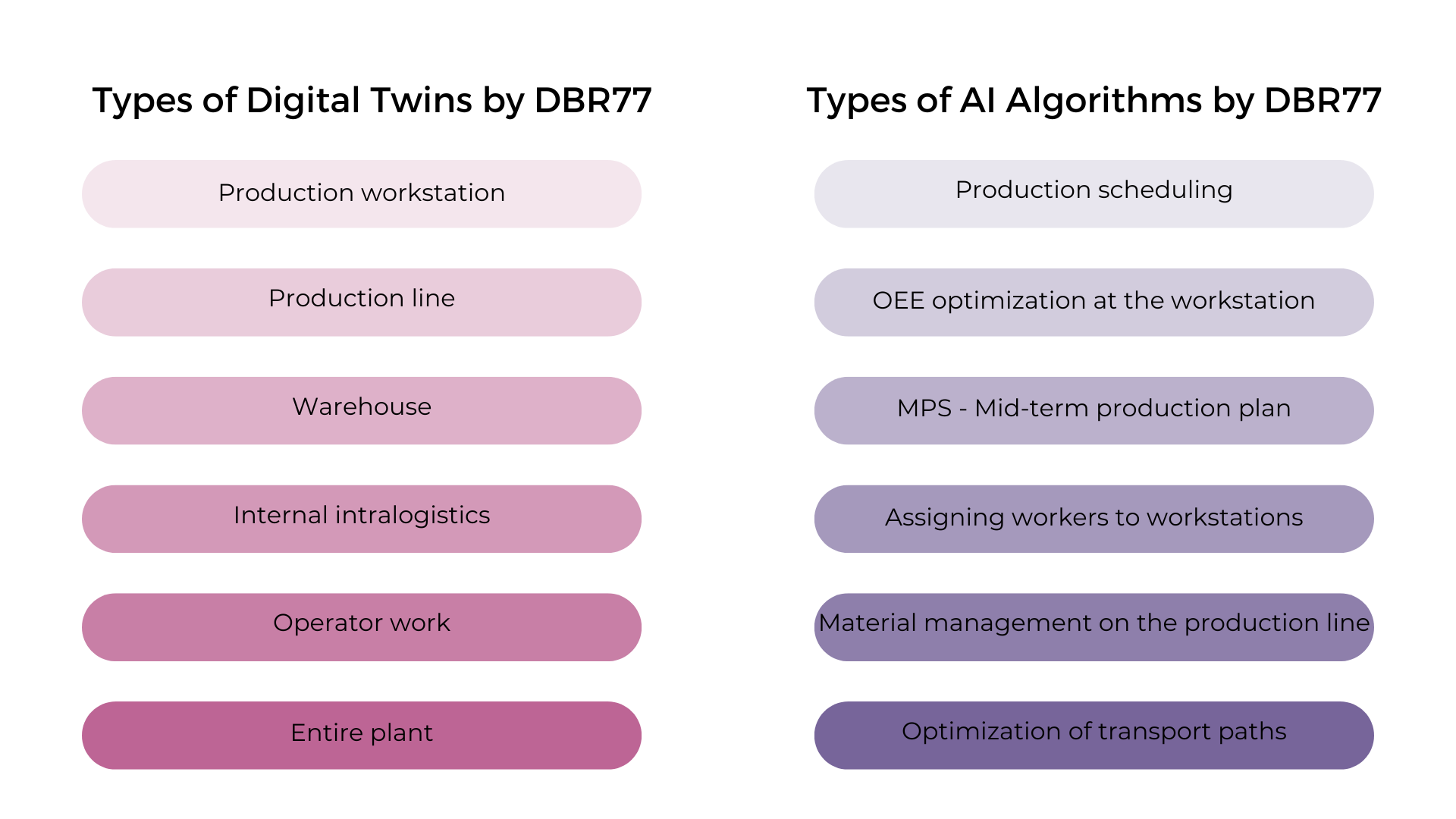
The Digital Twin DBR77 is a virtual replica of all elements within the production environment (people, machines, robots, etc.) designed for data management, visualization, simulation, and optimization of all operational processes using AI algorithms.
This innovative tool reduces downtime and enhances resource efficiency by identifying potential issues early and testing solutions first within the virtual environment.
Implementing the Digital Twin in a production facility or logistics process offers measurable advantages:
- **Rapid Design** – Precise replication of real processes from workstations to production lines, or even entire plants.
- **Efficient Prototyping** – The ability to visualize and simulate based on historical data, without making changes to the physical process.
- **Increased Process Efficiency** – Virtual simulation enables the selection of optimal workflows, production lines, or entire operations and optimizes business processes with AI algorithms.
[](https://learn.dbr77.com/uploads/images/gallery/2024-10/n1thNJqu6VanFEaU-dodaj-naglowek-15.png)
We prioritize the security and data privacy of our users, providing advanced protection mechanisms and compliance with the latest standards. We also offer technical support and training to ensure our users can fully leverage the platform's potential.
Looking to the future, we plan continuous updates and development of our platform to provide even more advanced and market-driven solutions.
Join us at DBR77.com and discover how we can shape the future of industry together.
# List of Digital Twins
# Add a New Subscription
### How to Add a New Subscription on the Platform
- There are three ways!
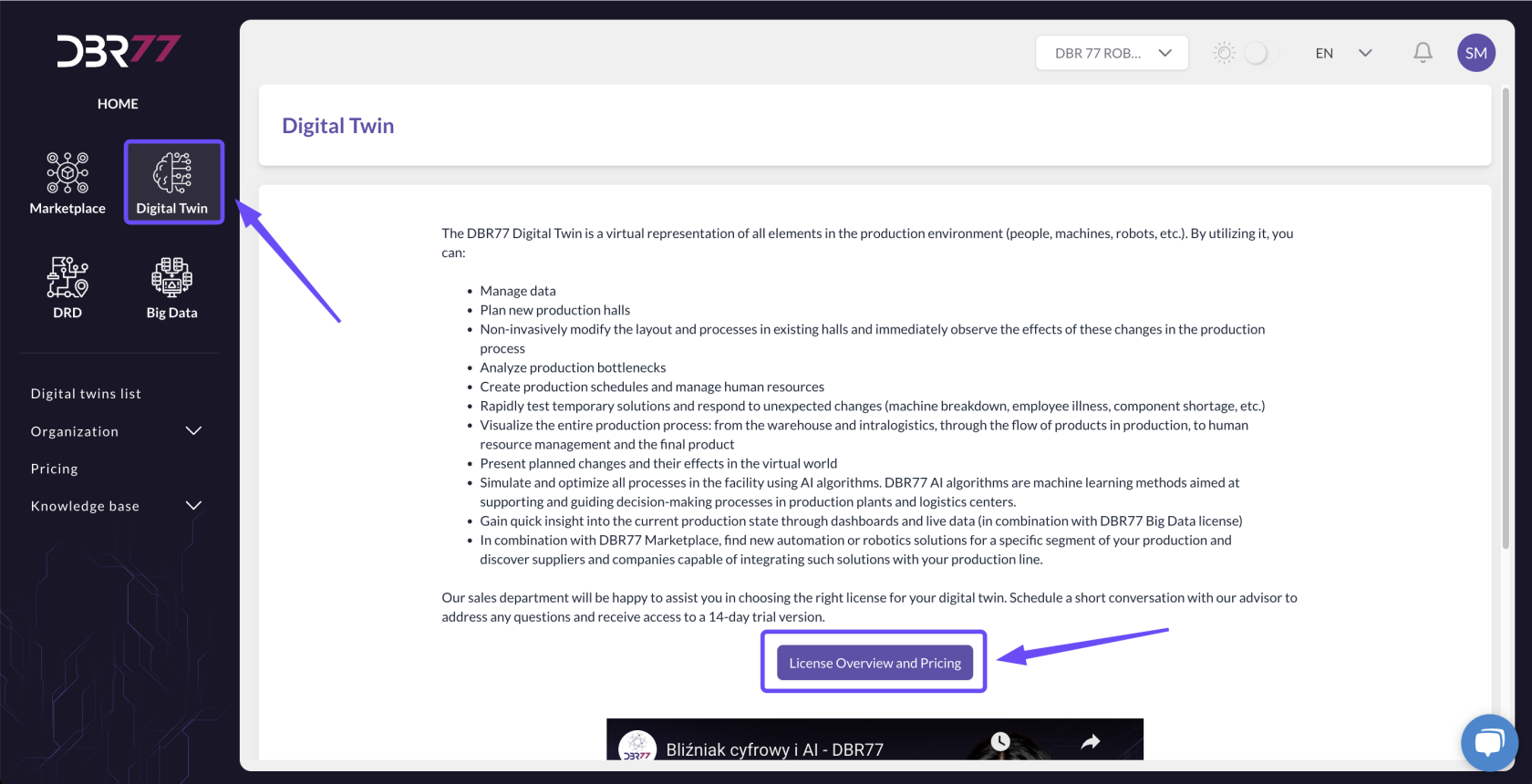
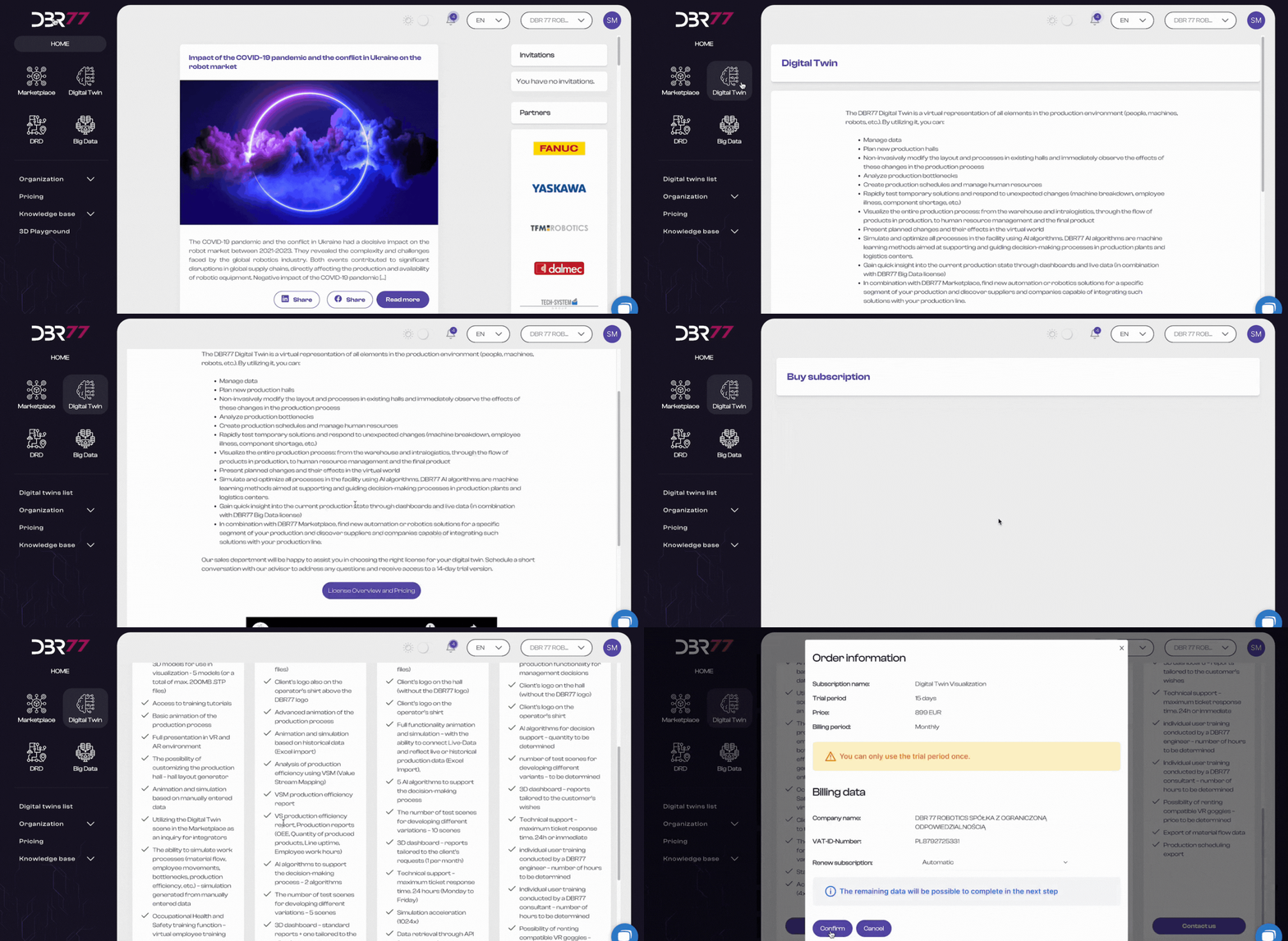
#### 1. Log in to the platform and go to the "Digital Twin" section:
- Click on "License Overview and Price List" to view the available subscription packages.
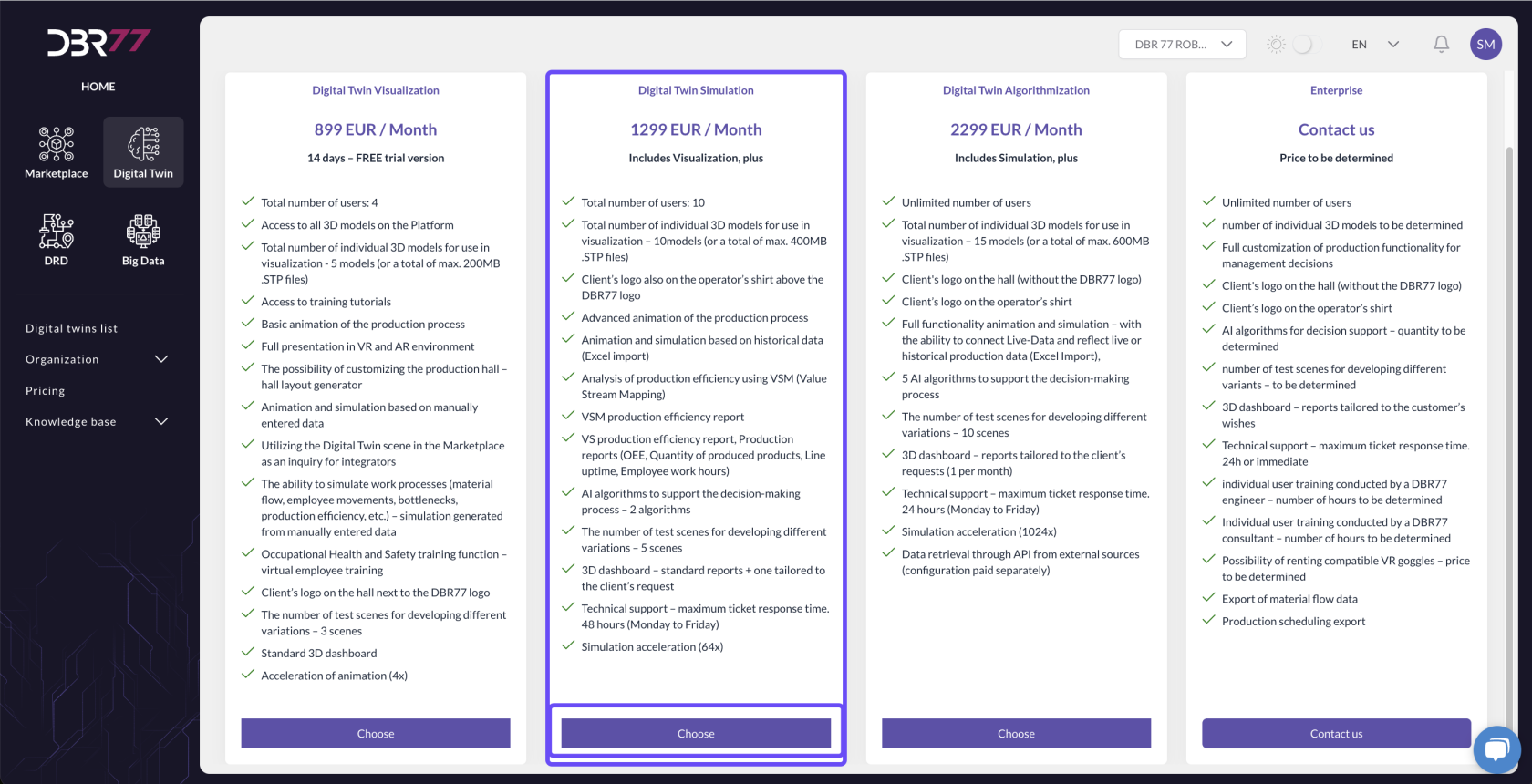
- Select the package you are interested in.
[](https://learn.dbr77.com/uploads/images/gallery/2024-10/SFkE3tHO0KZ1YacO-image.png)
[](https://learn.dbr77.com/uploads/images/gallery/2024-10/pspdS6IuIzV4pniY-image.png)
[](https://learn.dbr77.com/uploads/images/gallery/2024-07/pWJRQ9xbAzkBQ7yC-projekt-bez-nazwy-9.gif)
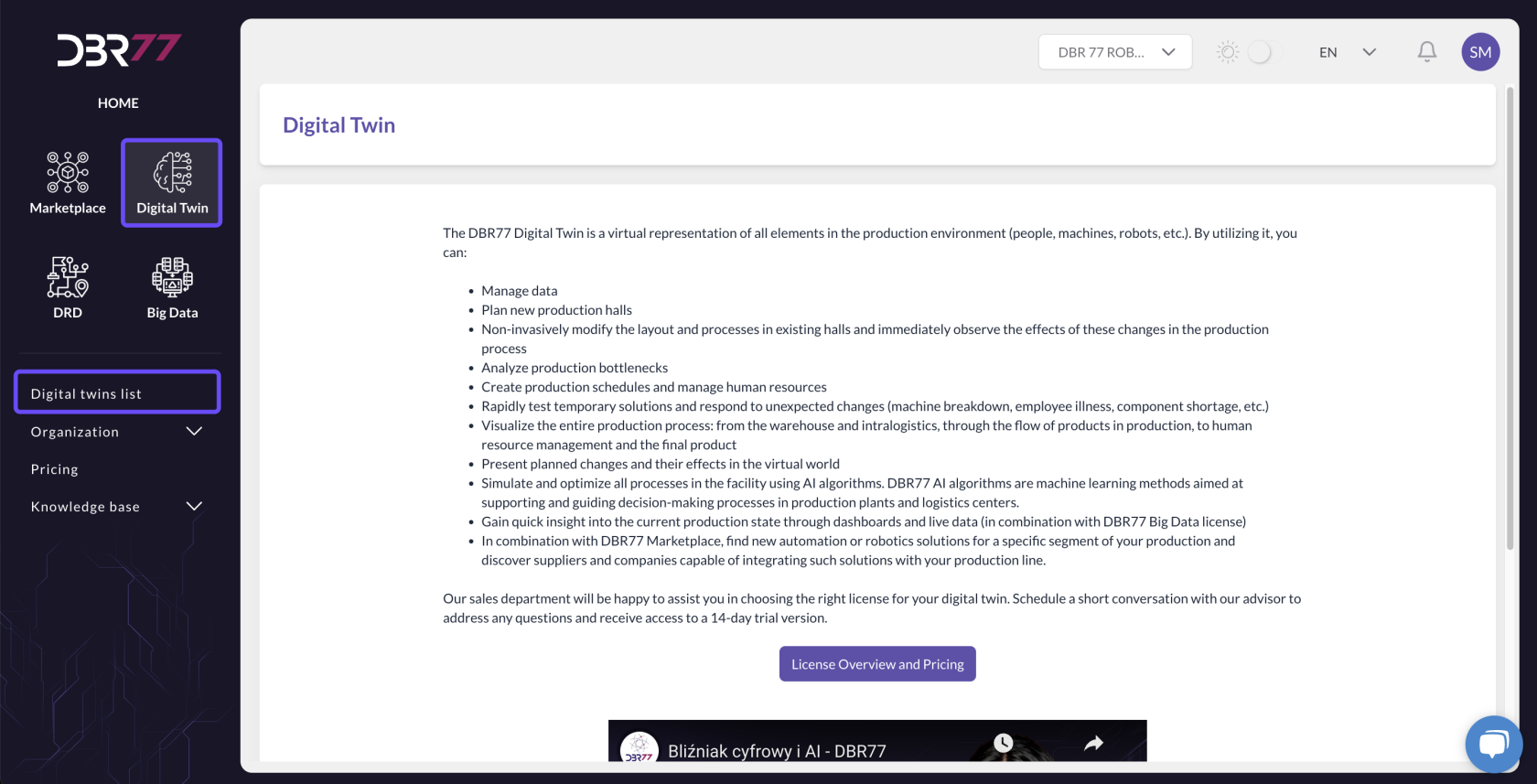
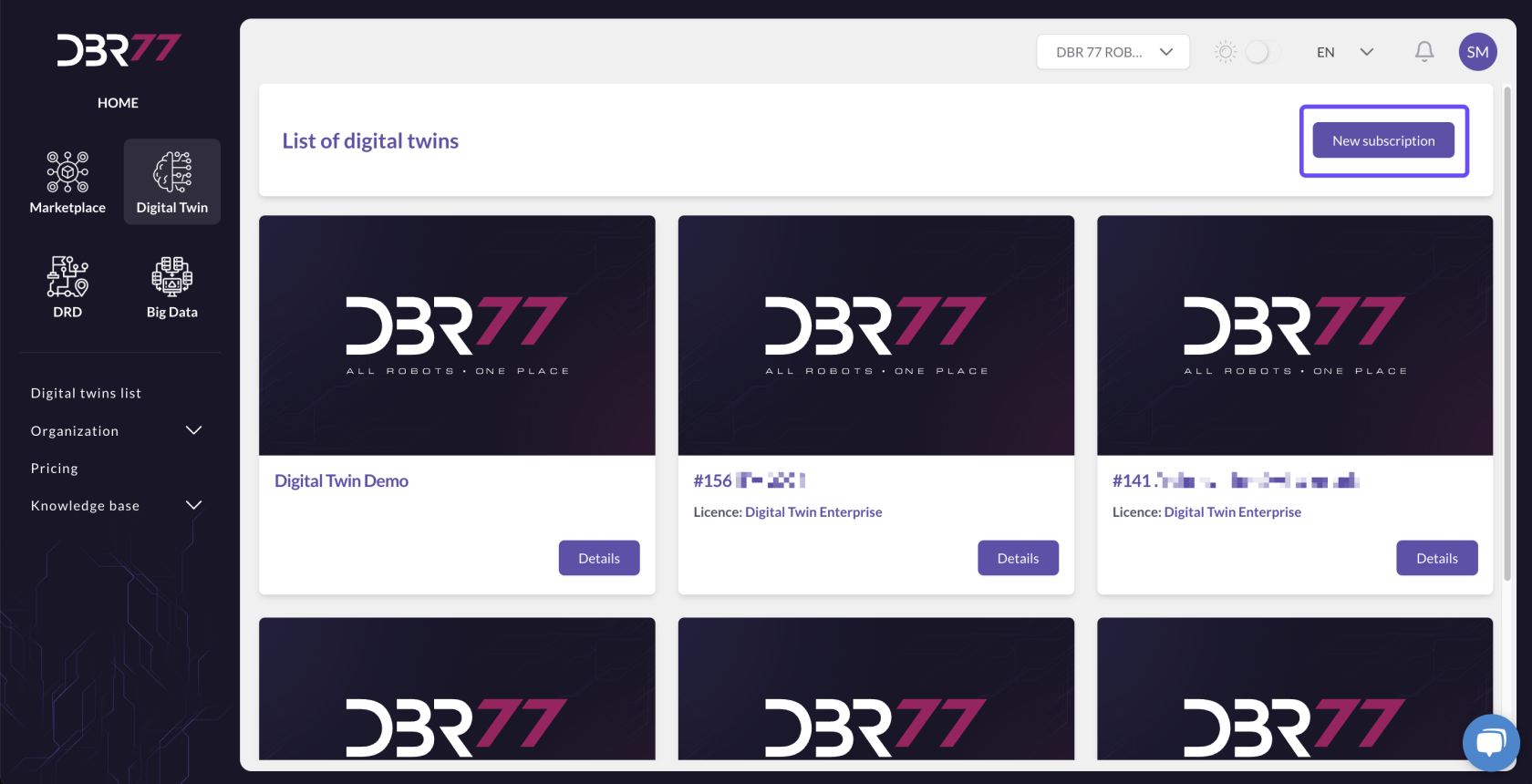
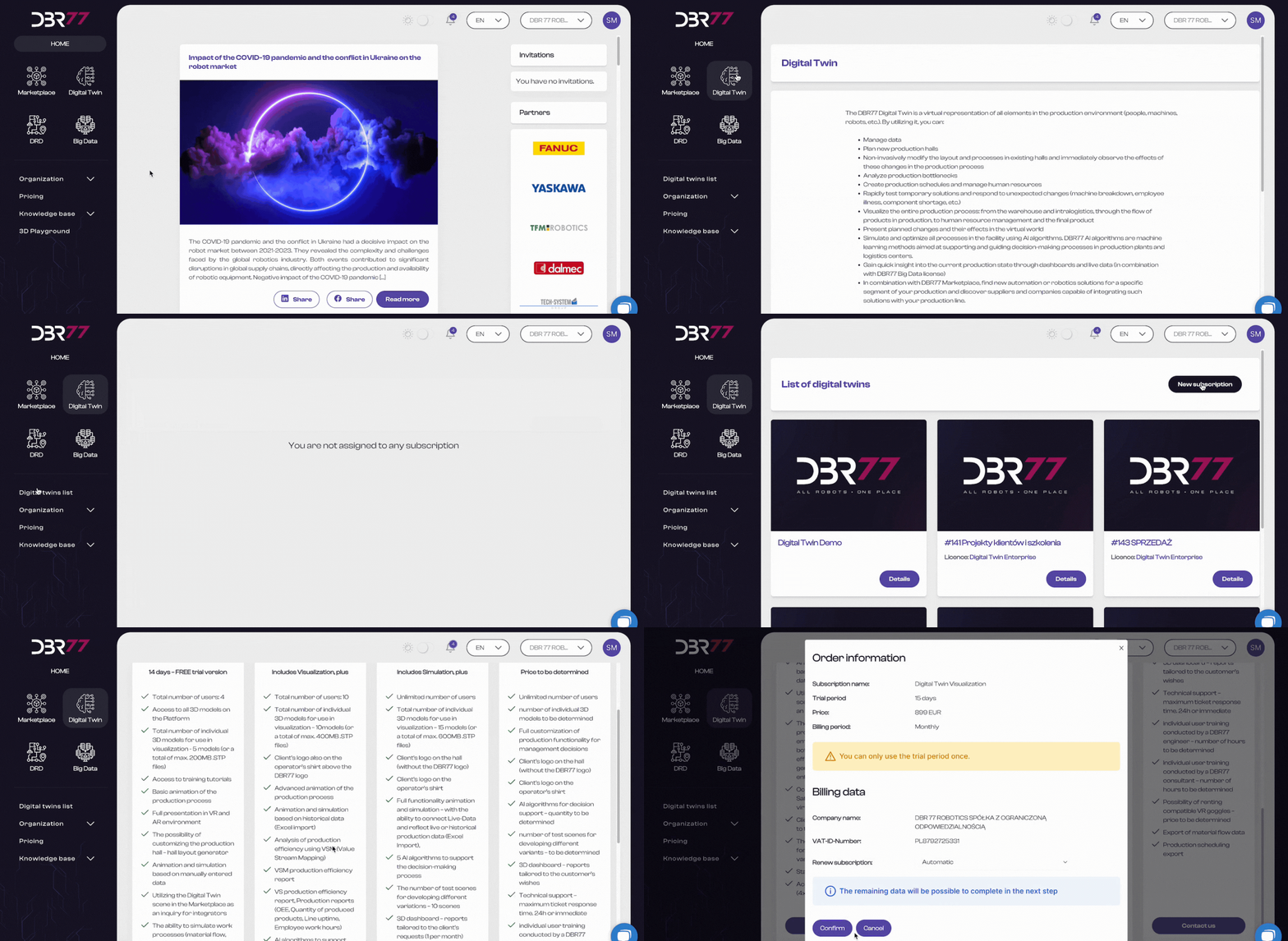
#### 2. Via the "New Subscription" Button:
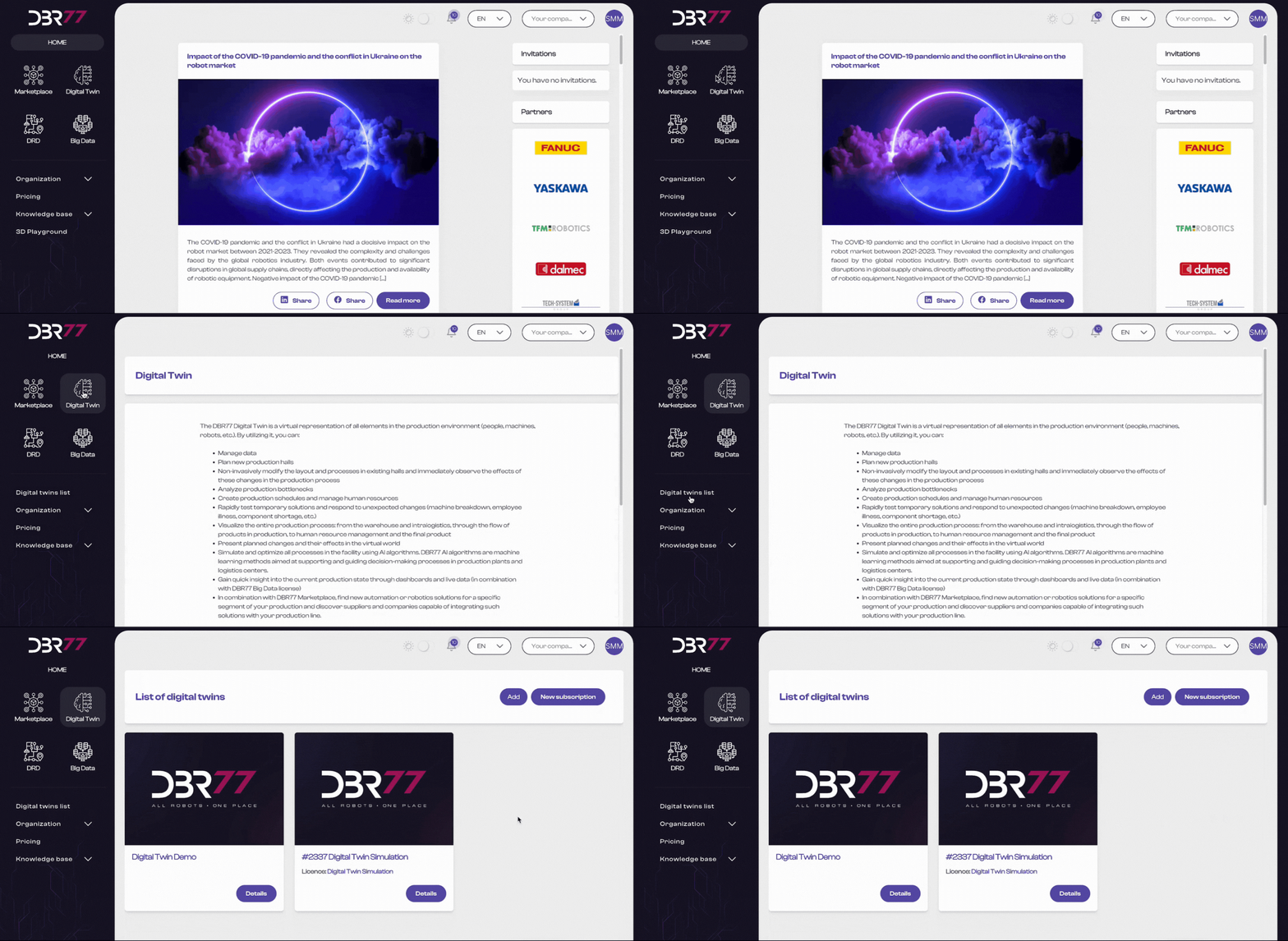
1. Go to the Digital Twin section.
2. In the left sidebar, select List of Digital Twins.
3. Click on "New Subscription."
4. Choose the desired package.
#### [](https://learn.dbr77.com/uploads/images/gallery/2024-10/iUVh8iziYshMifOk-image.png)
[](https://learn.dbr77.com/uploads/images/gallery/2024-10/vSL8KbxfbqNpgyxh-image.png)
[](https://learn.dbr77.com/uploads/images/gallery/2024-10/pspdS6IuIzV4pniY-image.png)
[](https://learn.dbr77.com/uploads/images/gallery/2024-07/AsGCIHN2RdJ4AWDs-projekt-bez-nazwy-10.gif)
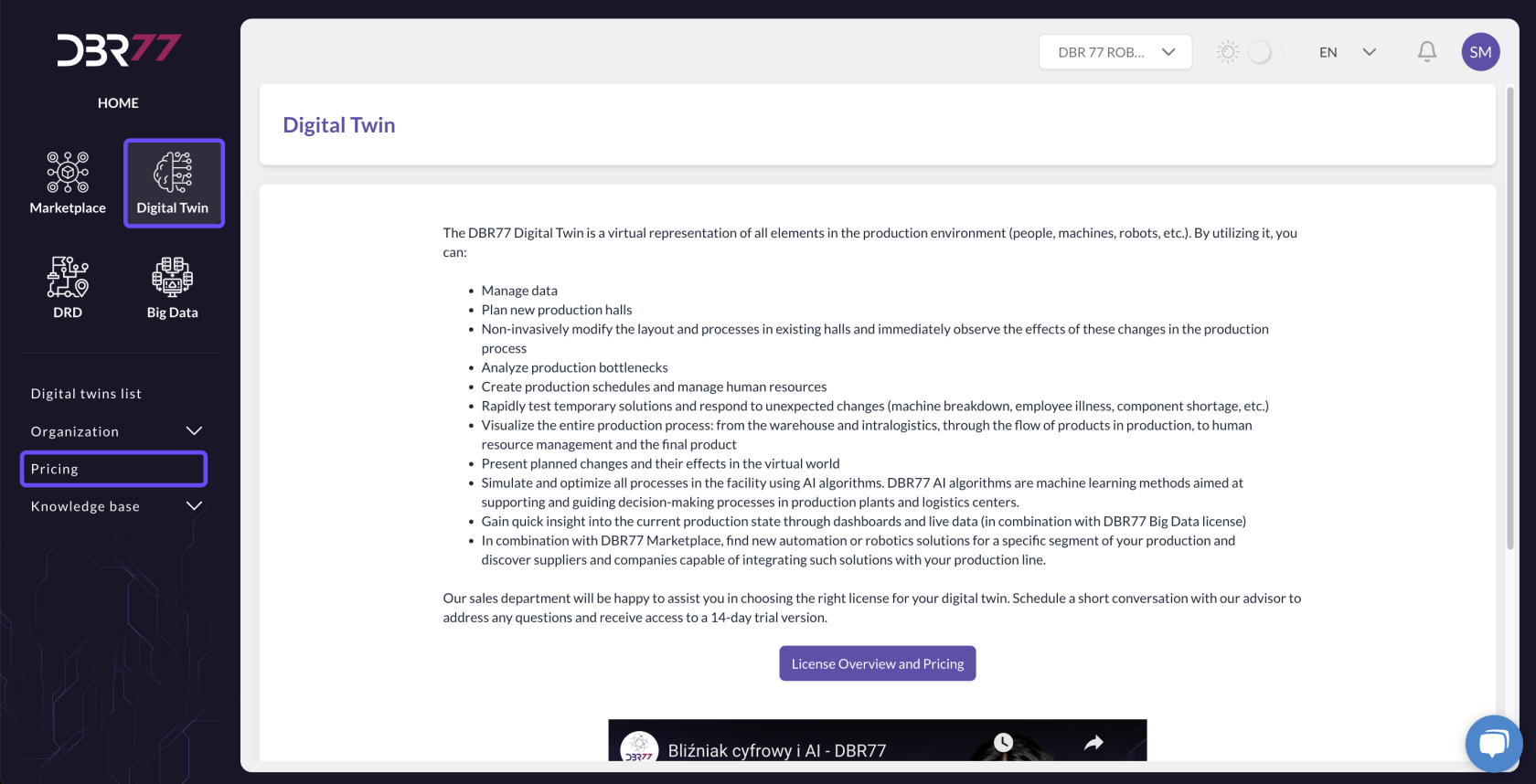
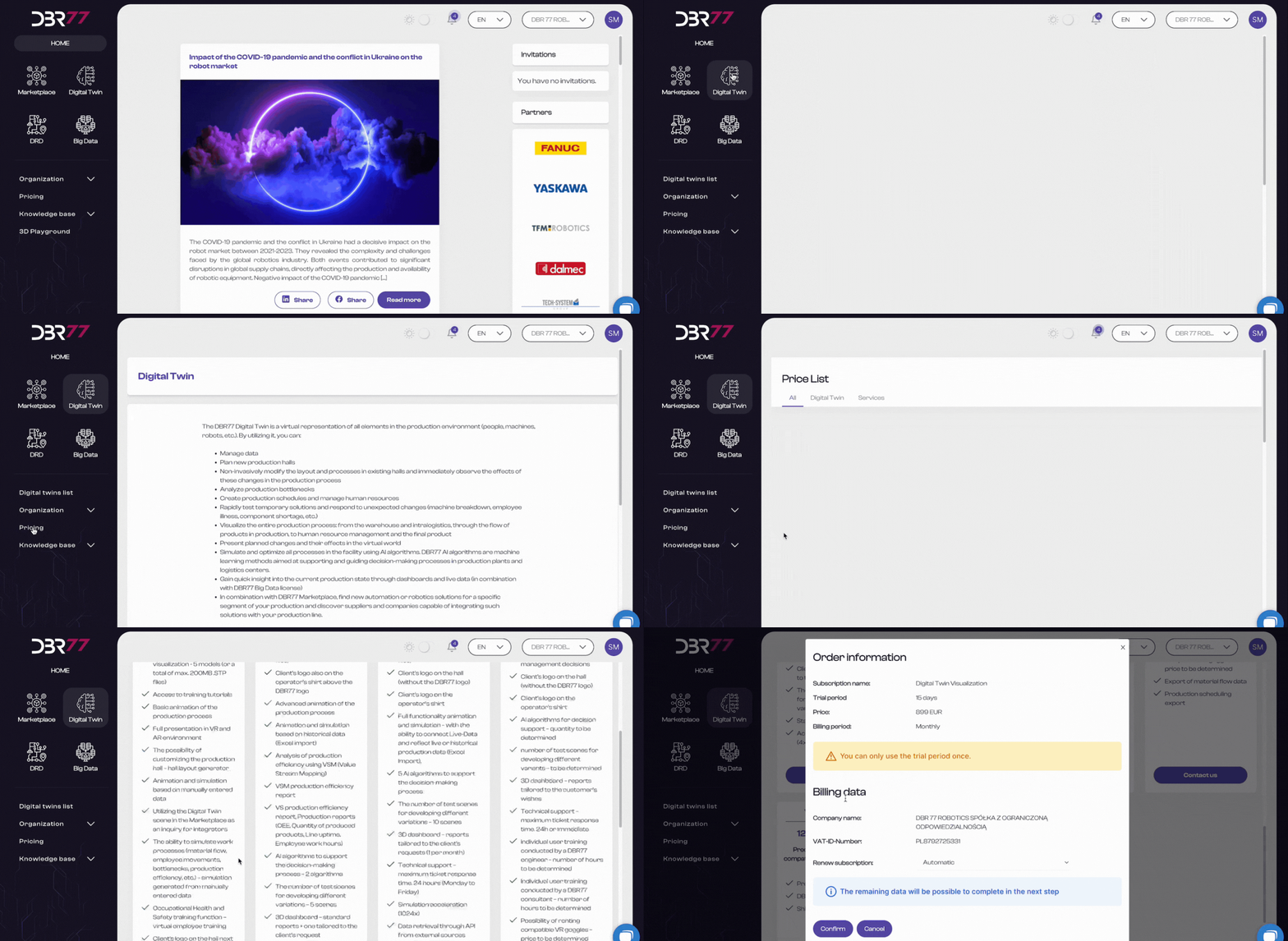
#### 3. Directly through the Price List:
1. Go to the Digital Twin section.
2. In the left sidebar, select Price List.
3. Select the package you are interested in.
[](https://learn.dbr77.com/uploads/images/gallery/2024-10/EUIAzUUPrSMM86t6-image.png)
[](https://learn.dbr77.com/uploads/images/gallery/2024-10/pspdS6IuIzV4pniY-image.png)
[](https://learn.dbr77.com/uploads/images/gallery/2024-07/A19Ou6KWcW5CKUf2-projekt-bez-nazwy-11.gif)
***\_\_\_\_\_\_\_\_\_\_\_\_\_\_\_\_\_\_\_\_\_\_\_\_\_\_\_\_\_\_\_\_\_\_\_\_\_\_\_\_\_\_\_\_\_\_\_\_\_\_\_\_\_\_\_\_\_\_\_\_\_\_\_\_\_\_\_\_\_\_\_\_\_\_\_\_\_\_\_\_\_\_\_\_\_\_\_\_\_\_\_\_\_\_\_\_\_\_\_\_\_\_\_\_\_\_\_\_\_\_\_\_\_\_\_\_\_\_\_\_\_\_\_\_\_\_\_\_\_\_\_\_\_***
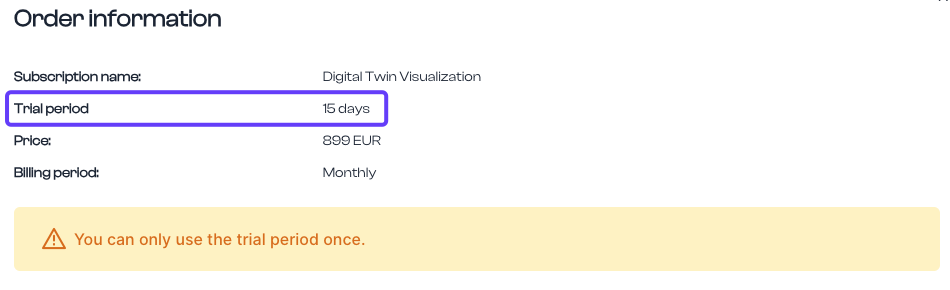
**IMPORTANT!** For your first subscription purchase, you have the option to use a 14-day trial period. After this time, you can cancel the subscription at no cost. However, if you decide to continue using the Digital Twin after the 14-day trial, the subscription will automatically renew.
[](https://learn.dbr77.com/uploads/images/gallery/2024-07/RiAtPvDtv7SzZMoG-image.png)
If the trial period is not canceled, the subscription fee will be charged monthly. If you do not cancel within the 14-day trial period, the paid subscription will begin automatically.
#### To cancel the subscription, go to...
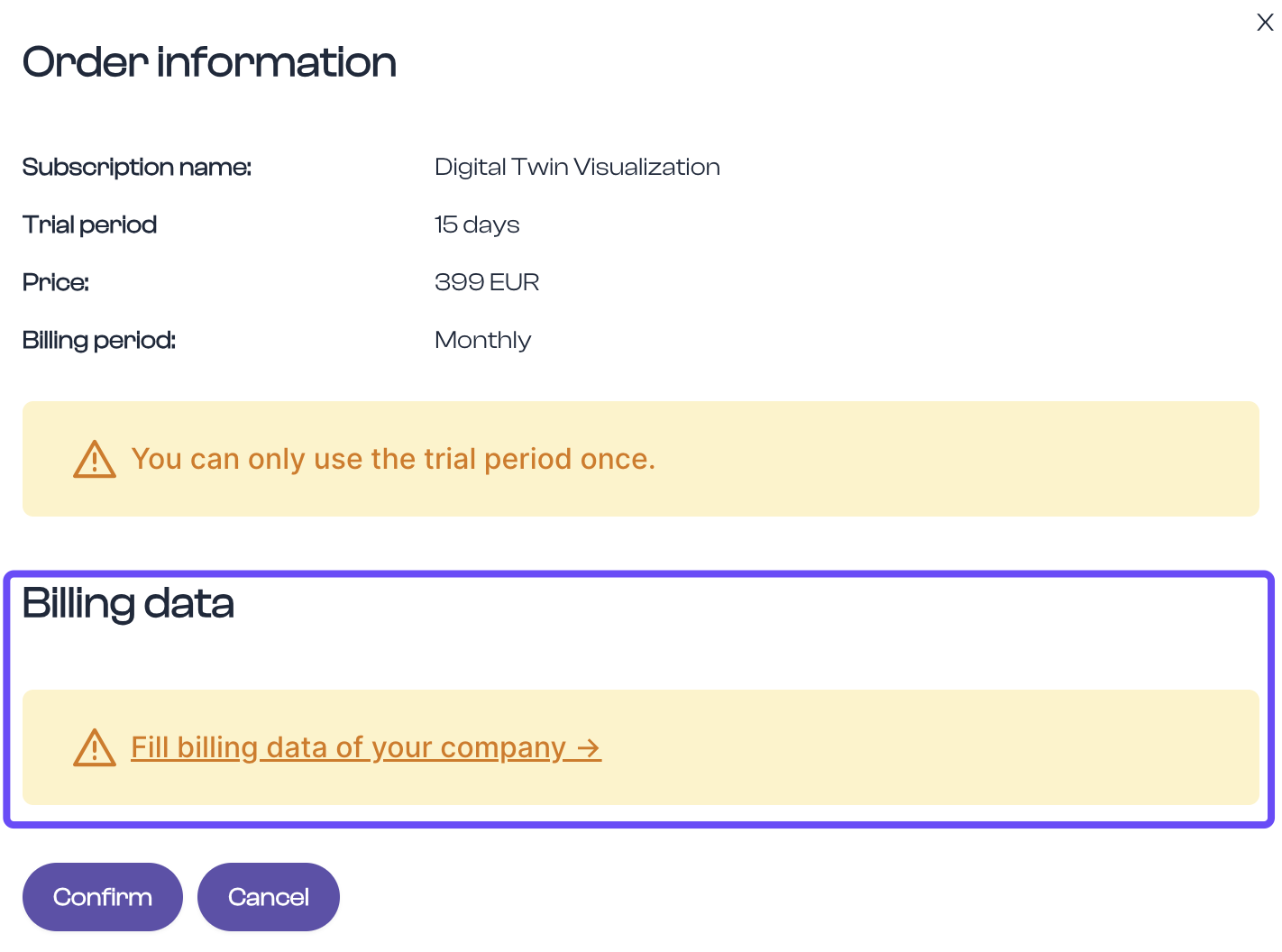
- Enter and Verify Billing Information
Ensure your billing details are correct. If you have not yet entered them, open the form by clicking on the underlined text in the window. If you have already entered the data and would like to edit them, click [HERE ](https://learn.dbr77.com/books/getting-started-eng/page/company-data)to learn how to do so.
[](https://learn.dbr77.com/uploads/images/gallery/2024-07/Ewx24oKVs8XHhCgD-image.png)
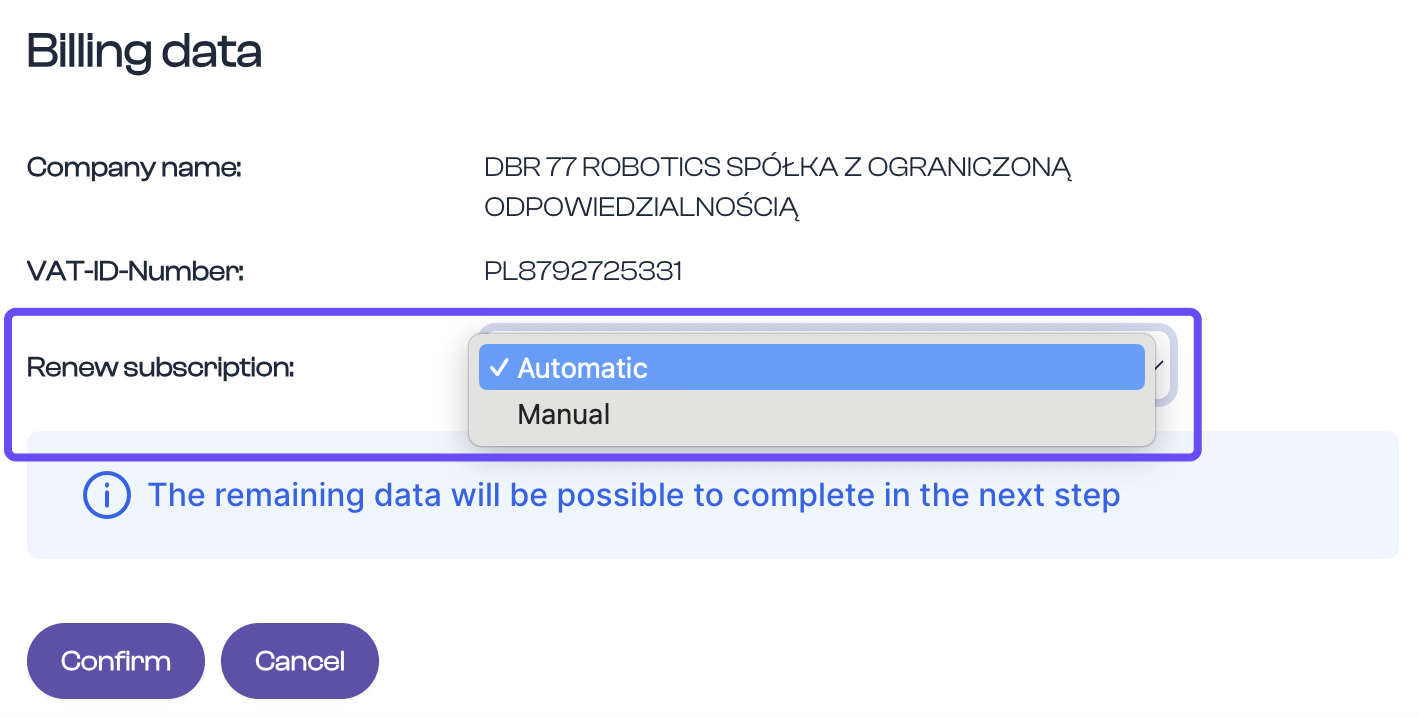
#### Decide whether the subscription should renew automatically or manually.
[](https://learn.dbr77.com/uploads/images/gallery/2024-07/xXGCtrMzLoXBZCkl-image.png)
#### Automatic Renewal
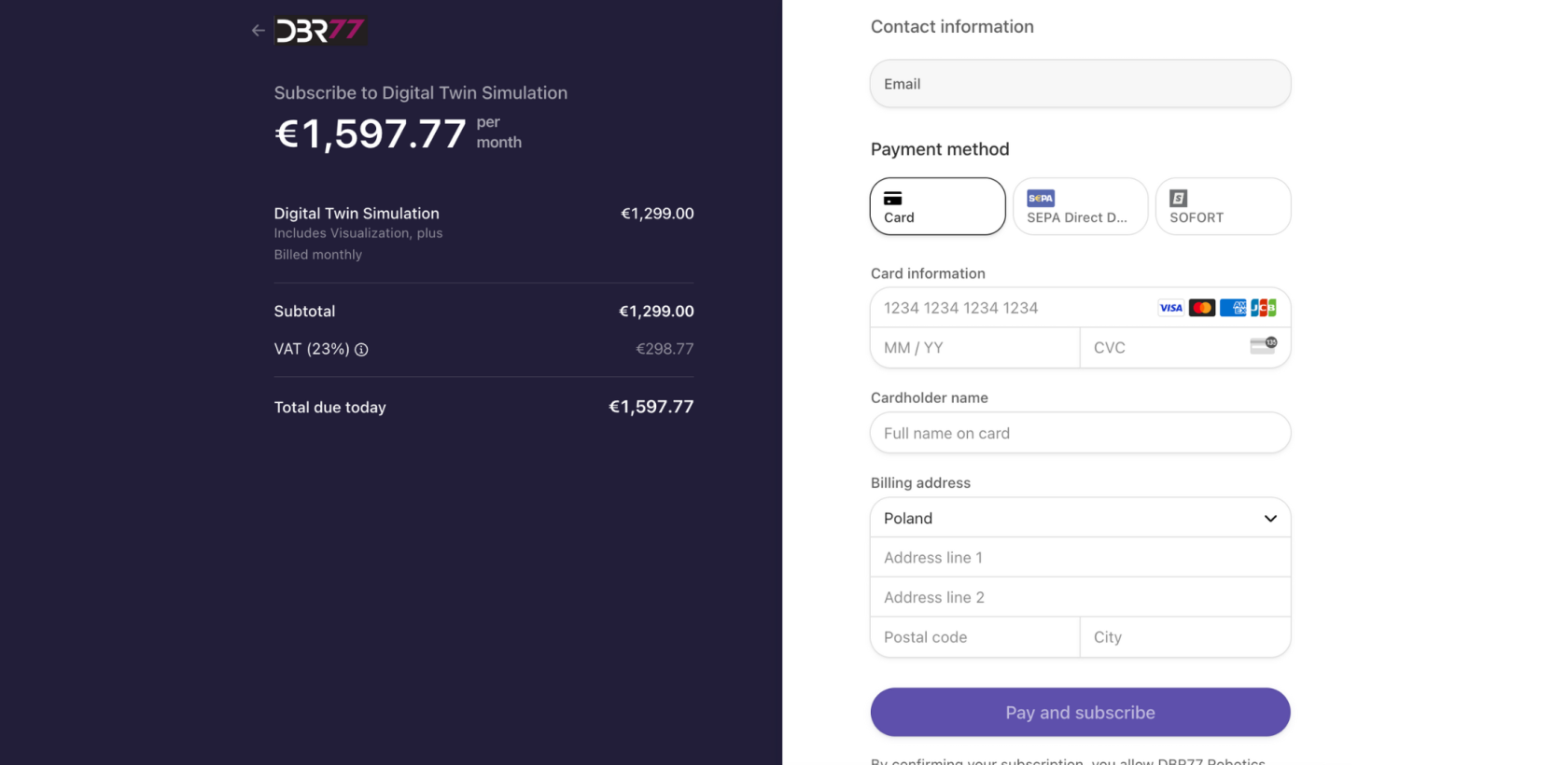
Automatic renewal of a subscription means a monthly automatic debit—either from your card or by direct debit—for the next usage period.
- Select "Automatic" in the "Subscription Renewal" dropdown menu.
- Confirm the order and billing information.
- You will be directed to the payment panel, where you can select your payment method and enter card or account details.
- Click "Pay and Subscribe" to activate your Digital Twin subscription.
[](https://learn.dbr77.com/uploads/images/gallery/2024-07/J48cd8dLKdDxvaVm-projekt-bez-nazwy-5.png)
#### Manual Renewal
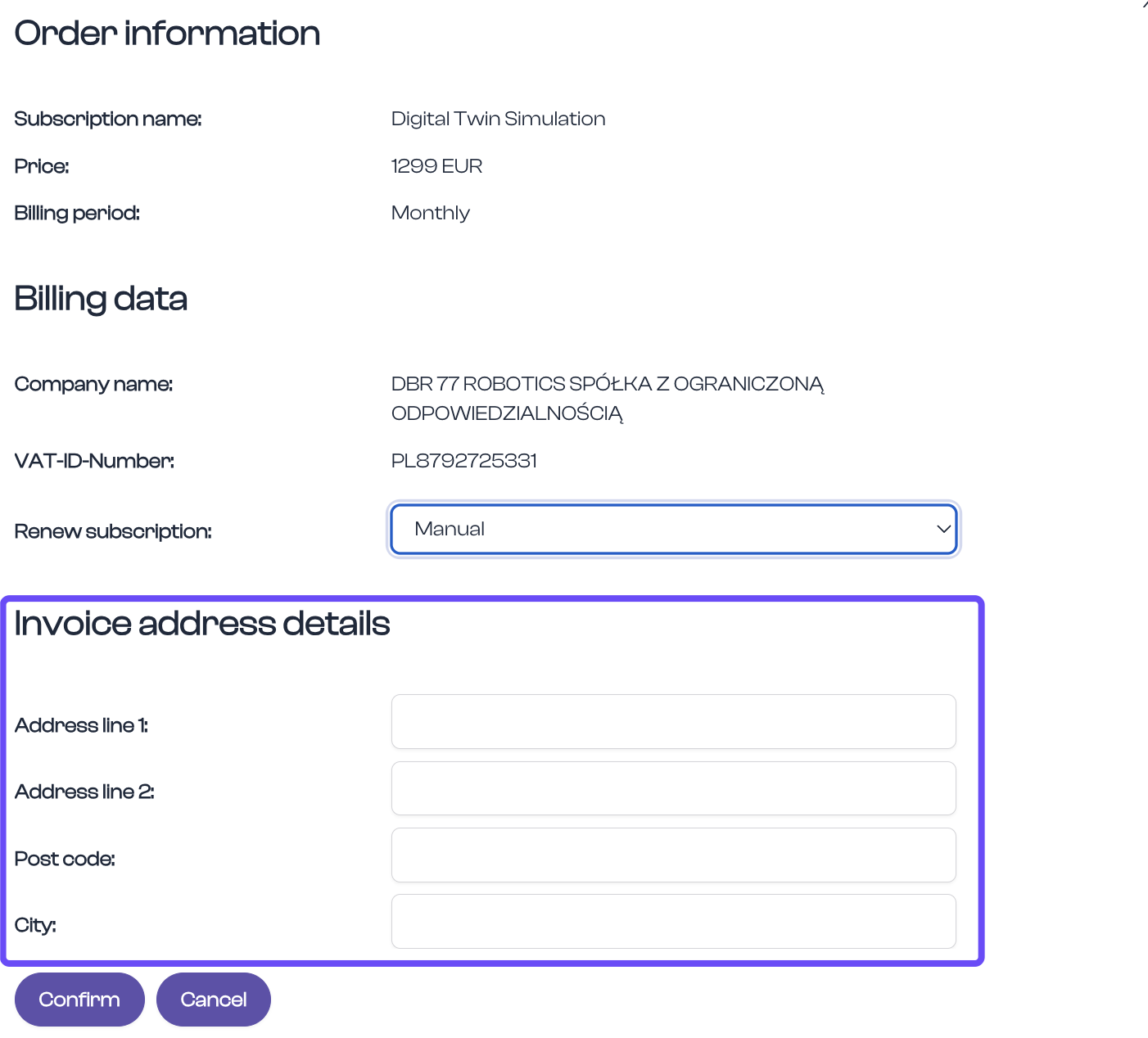
With manual renewal, the system generates an invoice each month and sends it to the subscription owner's email address. Access is extended once the invoice for the next subscription period has been issued.
- Select "Manual" in the "Subscription Renewal" dropdown menu.
- Add address information to the billing details provided.
- Confirm the displayed data to activate the Digital Twin subscription.
[](https://learn.dbr77.com/uploads/images/gallery/2024-07/iYgbQrcbZkfQphvA-image.png)
To learn how to cancel the subscription, click on the "Subscription" chapter in "Digital Twin - ENG".
# List of Digital Twins
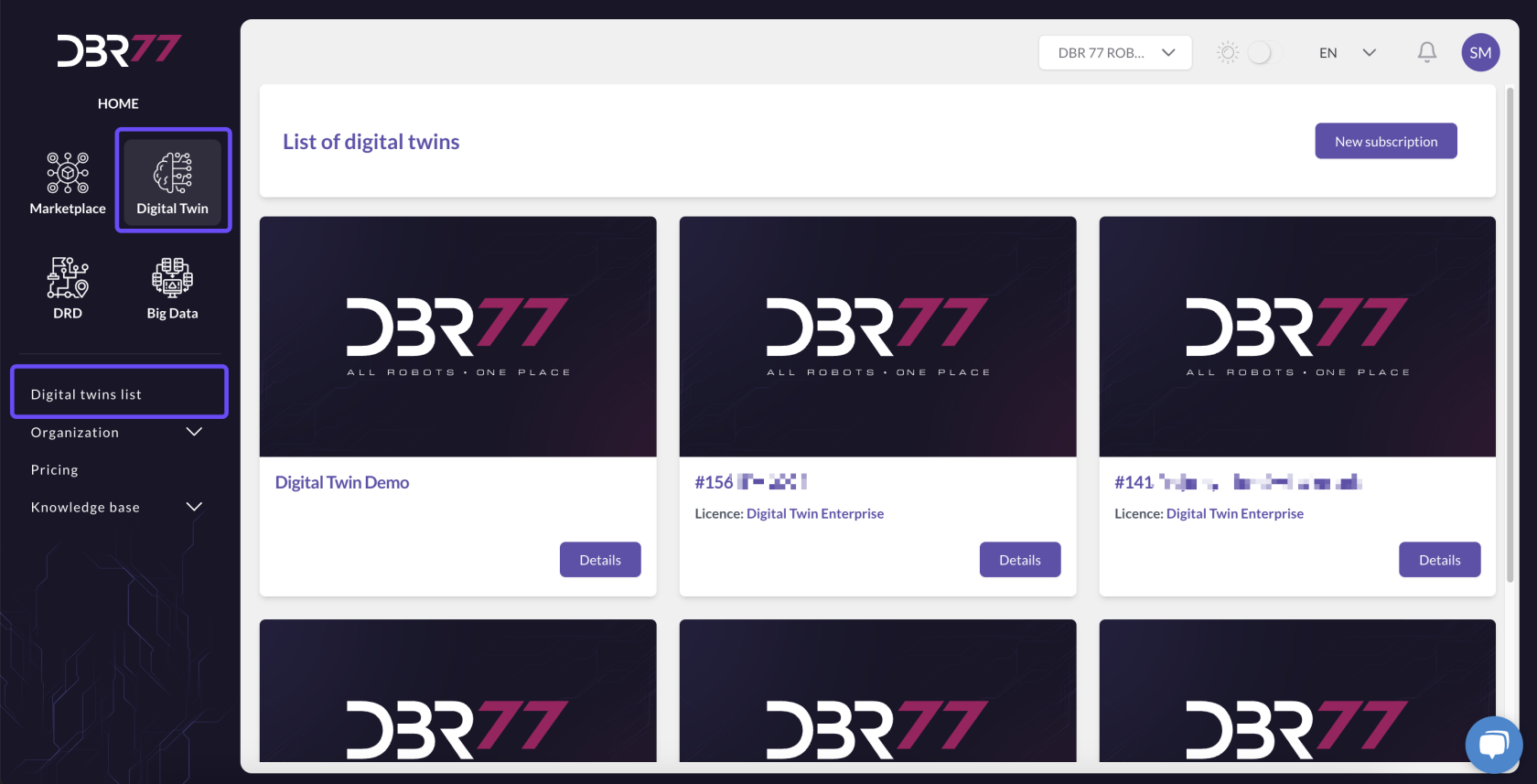
On the Digital Twin Subscription List page, you will find all the information needed to manage your subscriptions, as well as the option to purchase new subscriptions.
[](https://learn.dbr77.com/uploads/images/gallery/2024-10/8y5cukxlF1aUwUdD-image.png)
[](https://learn.dbr77.com/uploads/images/gallery/2024-07/dzJmkiRgL3oN65Pr-projekt-bez-nazwy-12.gif)
#### Demo Version
[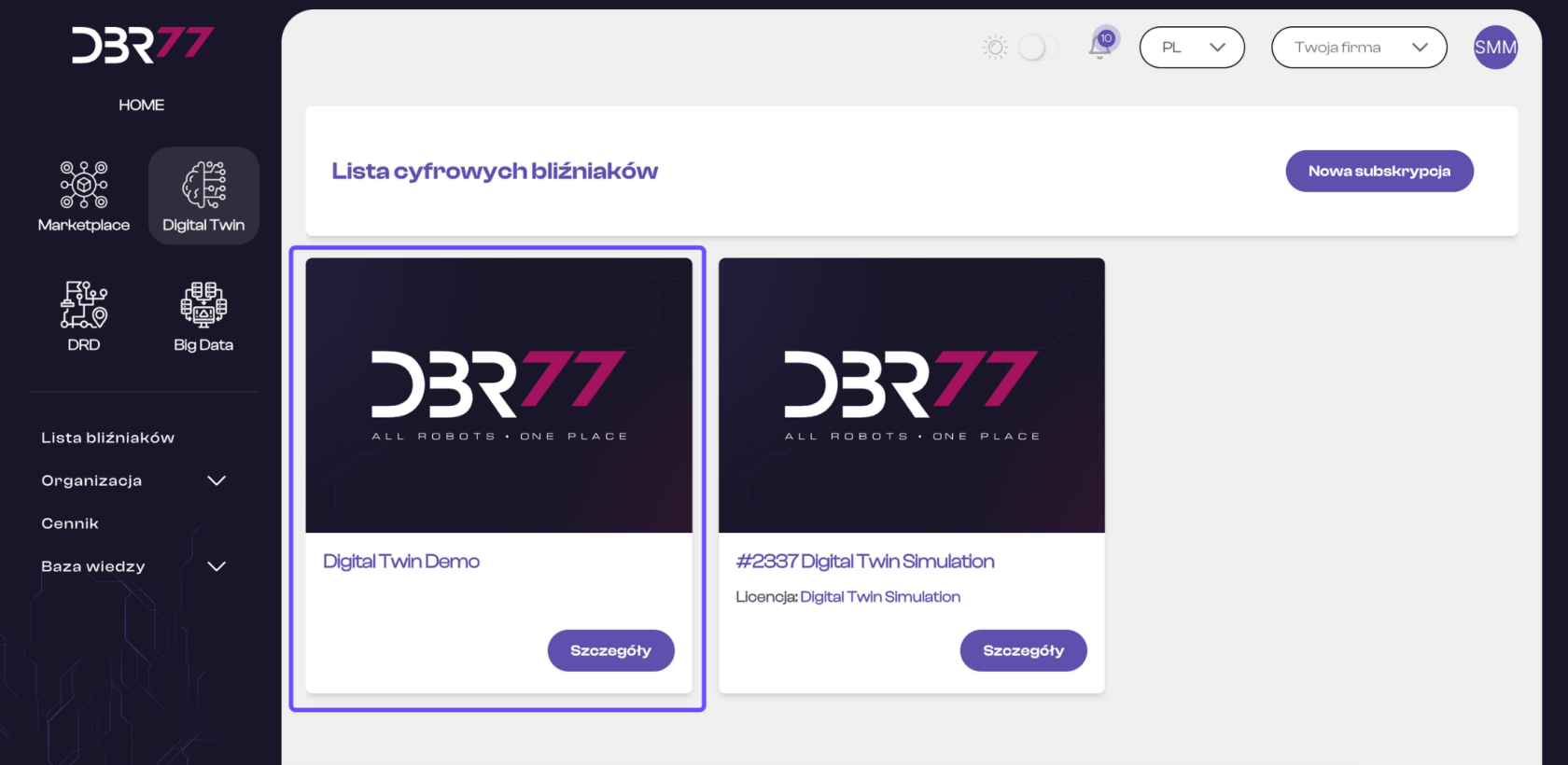](https://learn.dbr77.com/uploads/images/gallery/2024-07/llS7oAwRJRr780VO-image.png)
At the top of the page, you will find a demo version of the Digital Twin. This demo allows you to test the features of our technology in three different scenarios of varying complexity. It’s an ideal way to explore the potential of the Digital Twin before purchasing a full subscription. For more information about the demo, click **HERE**.
#### Tiles with Purchased Subscriptions
[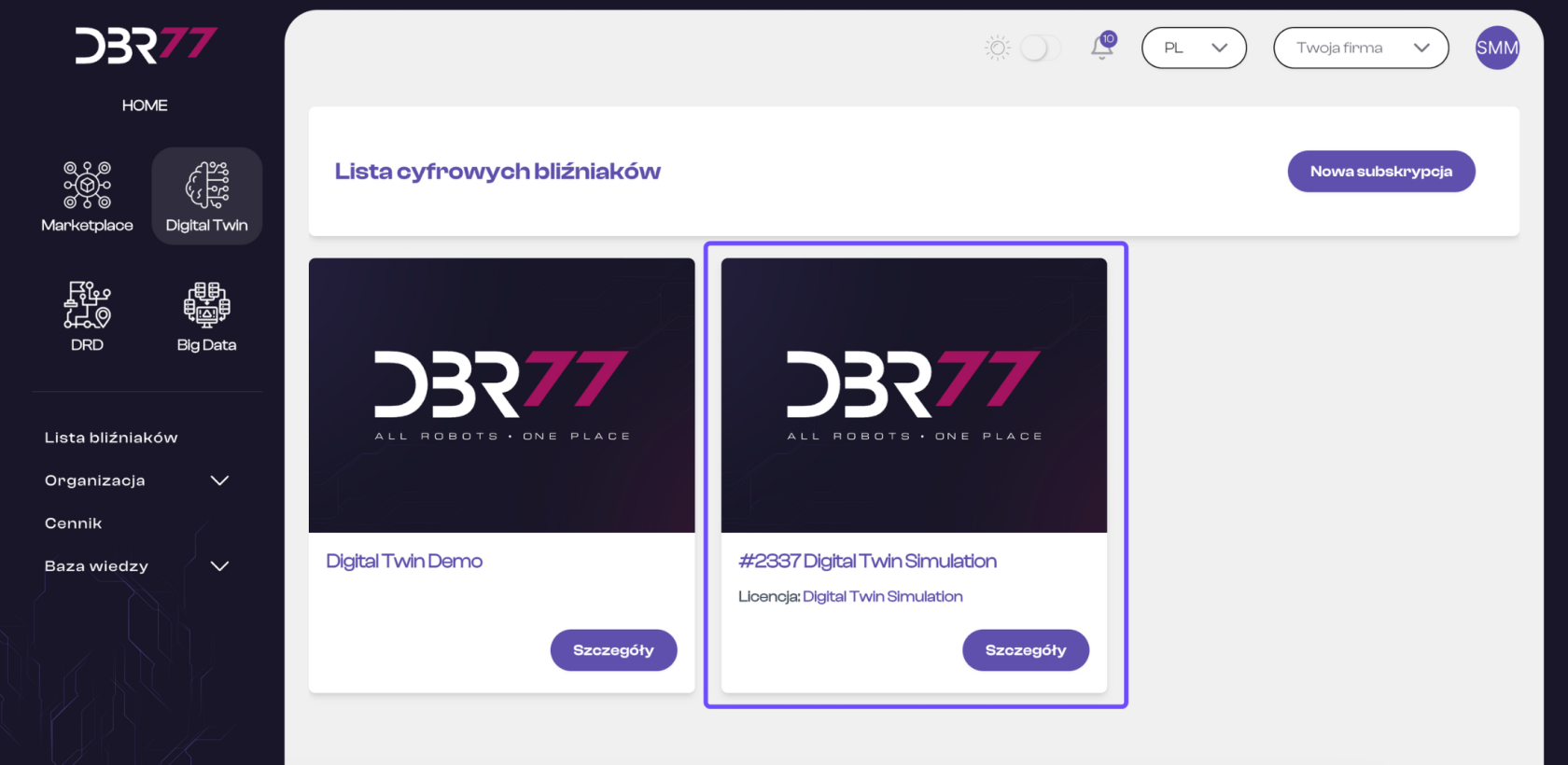](https://learn.dbr77.com/uploads/images/gallery/2024-07/Qcw6Rp3dHnKElJTN-projekt-bez-nazwy-7.png)
Next to the demo version, you’ll see tiles representing your purchased Digital Twin subscriptions. Each tile represents a separate subscription and, when opened in detail view, includes key information such as:
- Descriptive information
- License details
- Users with subscription access
- Scenes within the Digital Twin
#### Purchasing a New Subscription
[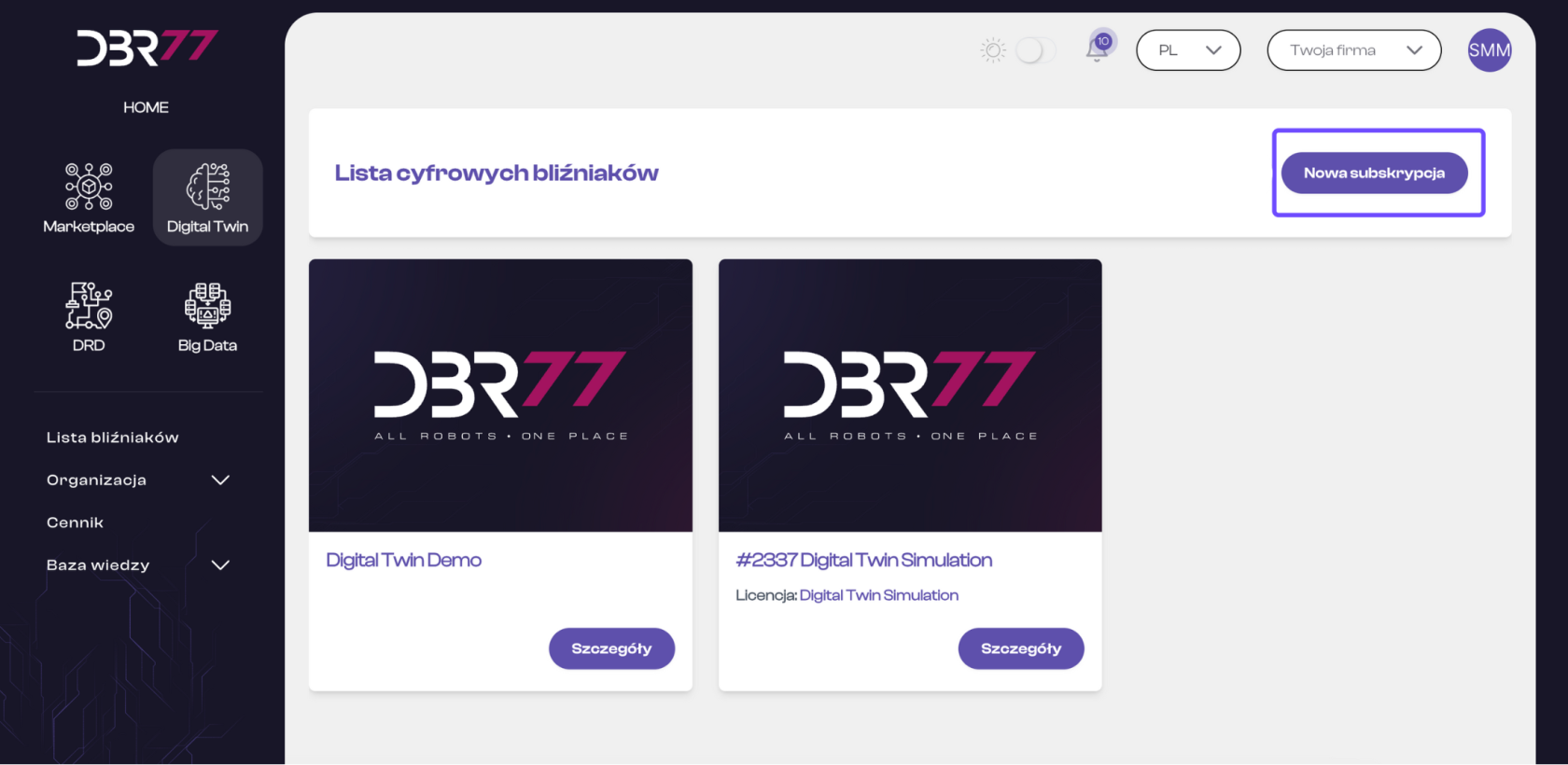](https://learn.dbr77.com/uploads/images/gallery/2024-07/OQnIkLZvxgyFiqen-projekt-bez-nazwy-8.png)
If you wish to add a new subscription, you can do so directly from this page. Simply click the “New Subscription” button to start the purchase process. This allows you to easily expand your options and add more Digital Twins to your account.
# The demo version of the DBR77 Digital Twin
Each purchased subscription includes access to the demo version of the Digital Twin, allowing you to test the technology across three scenarios with varying levels of complexity.
This enables all subscribers to become familiar with the diverse features of the Digital Twin.
[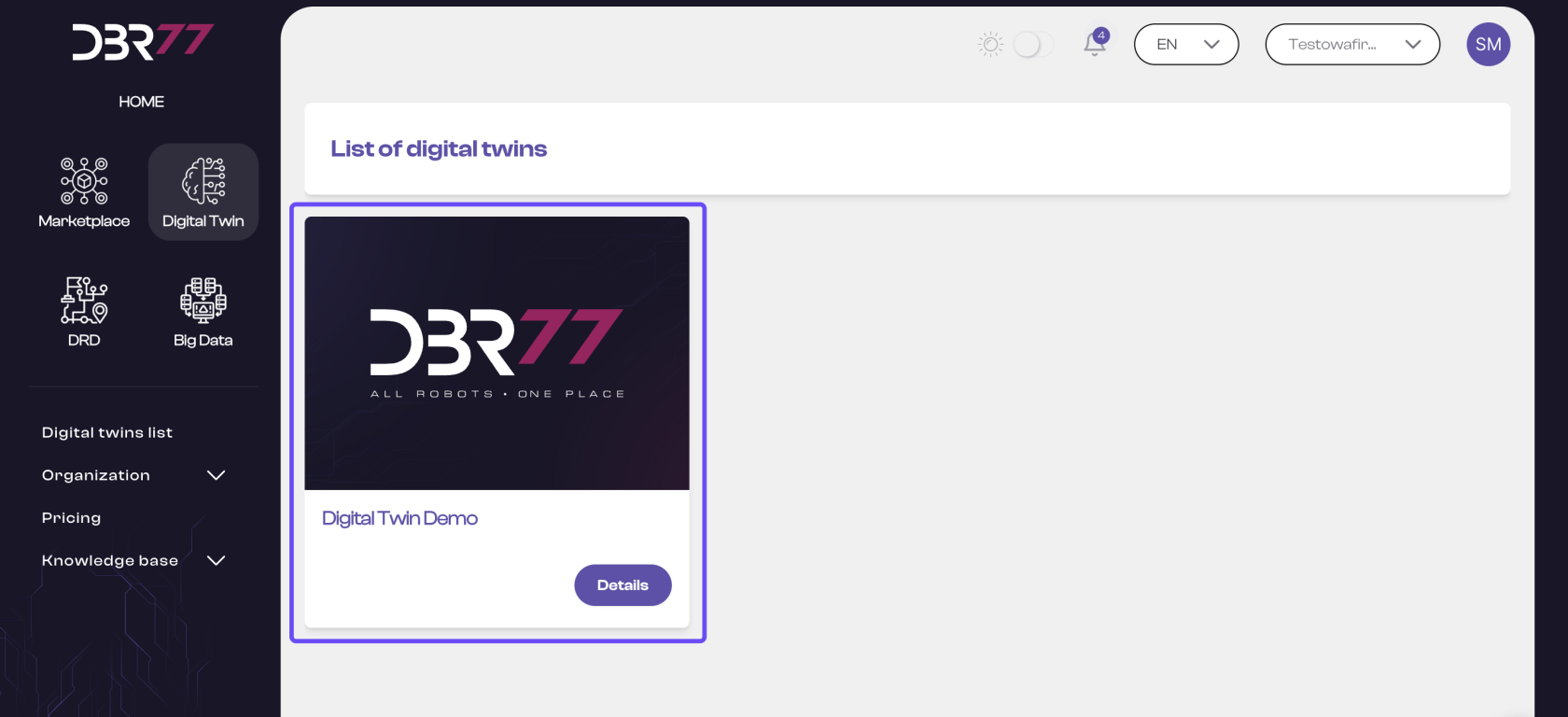](https://learn.dbr77.com/uploads/images/gallery/2024-07/14rA1UVCHJ1lYlWz-image.png)
By clicking on "Details," you can learn more about each scenario and explore the capabilities of the Digital Twin in the DBR77 3D Studio.
[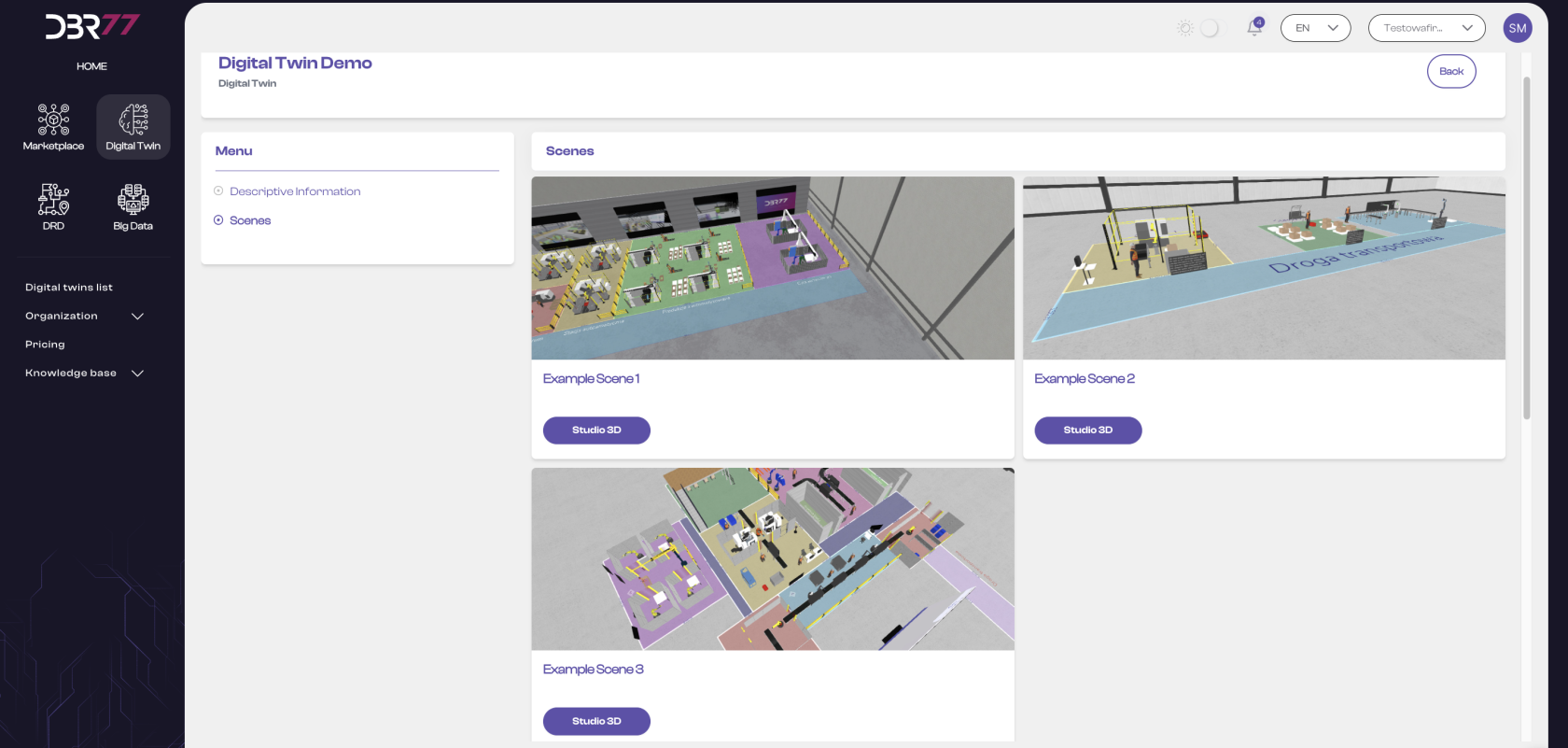](https://learn.dbr77.com/uploads/images/gallery/2024-07/JPOa972bKcR9xS7F-image.png)
Access to the demo scenes is unlimited, but these scenes cannot be copied or overwritten. Any changes made will be lost upon exiting the studio and cannot be restored.
#### Example Scene 1
This scene presents sample processes that can be created in the 3D Studio. You’ll see several similar processes—some operator-assisted, others fully automated. You can adjust work times, set movement paths, and compare the performance of different workstations. Additionally, you can create layouts, work with the grid (G), and use various camera settings. Screens are also integrated, which can display videos, such as a real process for background context.
[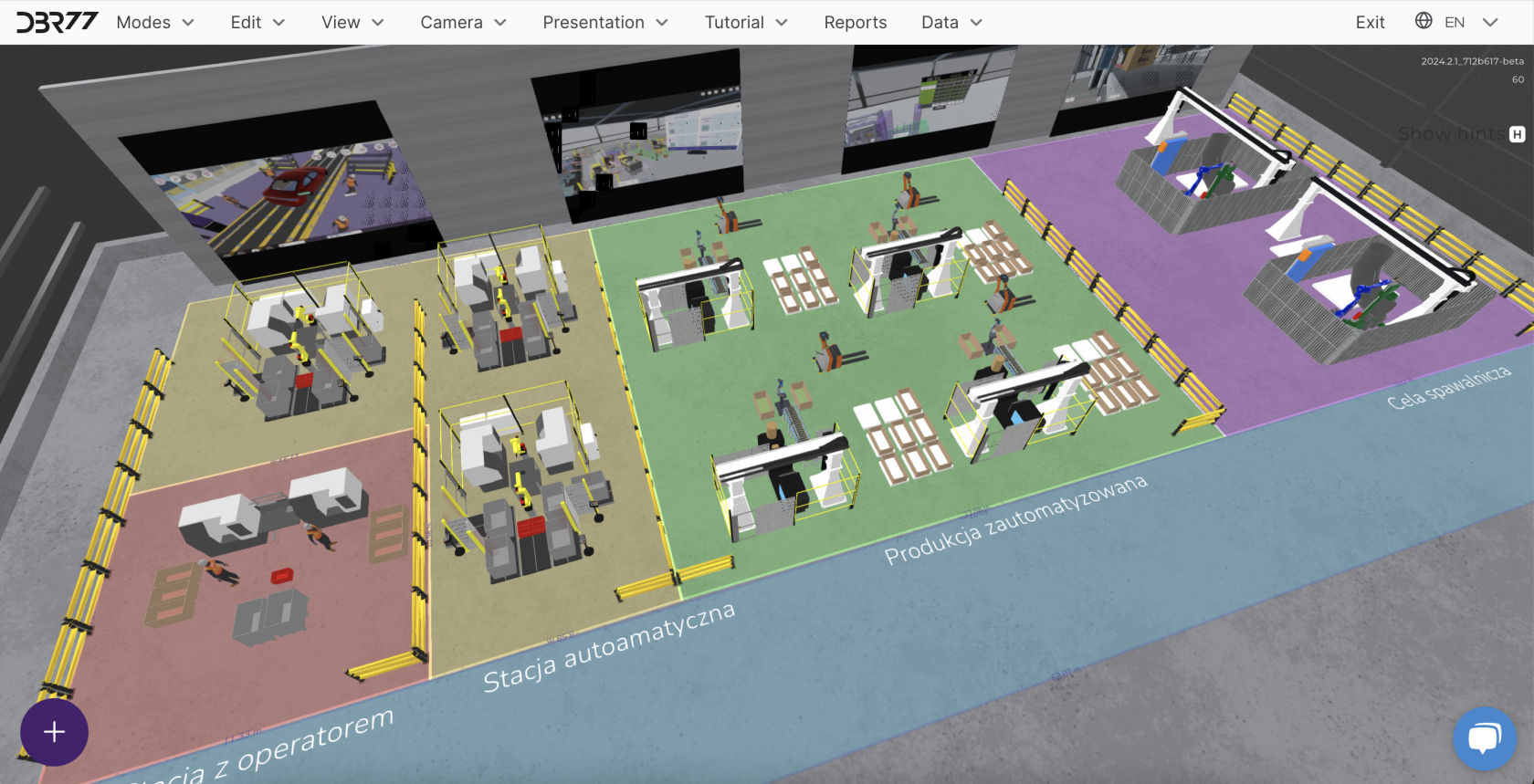](https://learn.dbr77.com/uploads/images/gallery/2024-07/ceuXjGqowgrgAHuC-image.png)
#### Example Scene 2
This scene depicts a simple process across three stations, divided into two phases. In the first phase, the component is transferred to the processing station, transported by conveyor, and then moved by a robotic arm to the storage area. The second phase involves further processing by robots and placing the component on a selected pallet, depending on a signal sent by the process. Here, you can test how animations are controlled based on different start and repeat modes.
[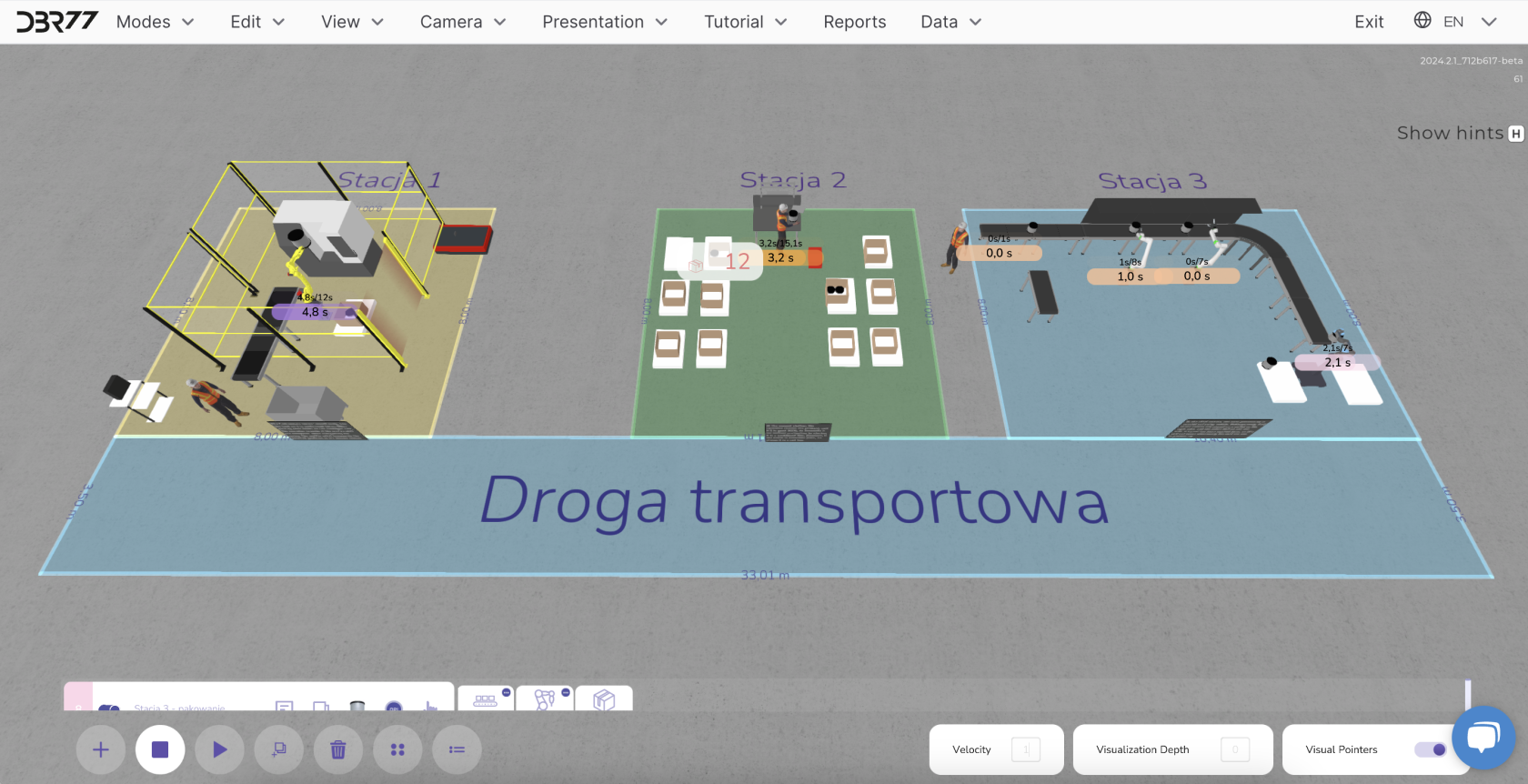](https://learn.dbr77.com/uploads/images/gallery/2024-07/mb1XNQaadDdDL31h-image.png)
#### Example Scene 3
A scene featuring a multi-stage process with various start and runtime options. In addition to the main process, you can observe dependencies between animations at a painting station. Several interdependent processes are shown, along with a production screen displaying sample data from the current process.
[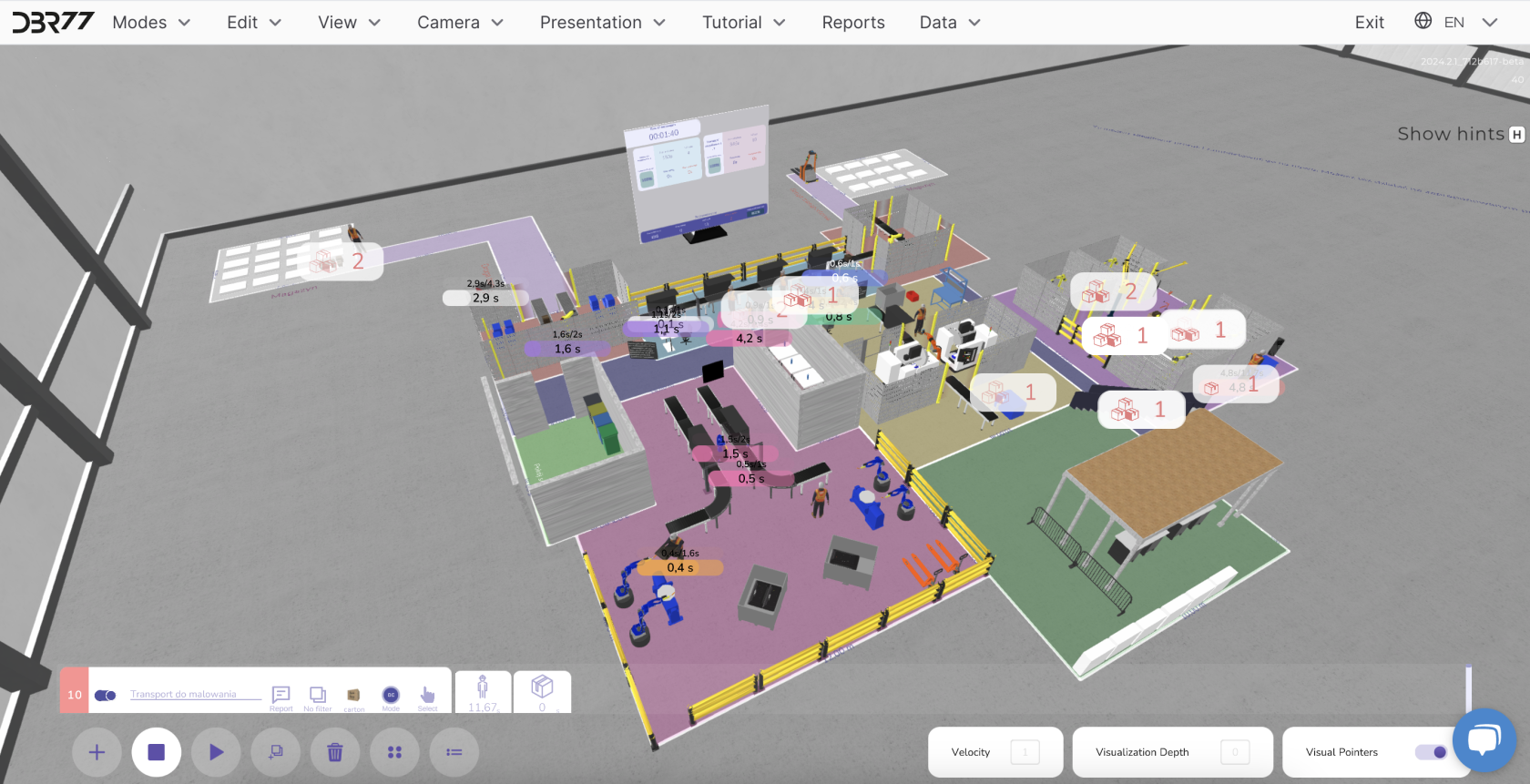](https://learn.dbr77.com/uploads/images/gallery/2024-07/9gJKRISx6YAoL1x2-image.png)
# Digital Twin Details
##### To view the details of your subscription, click "Details" on the desired tile.
[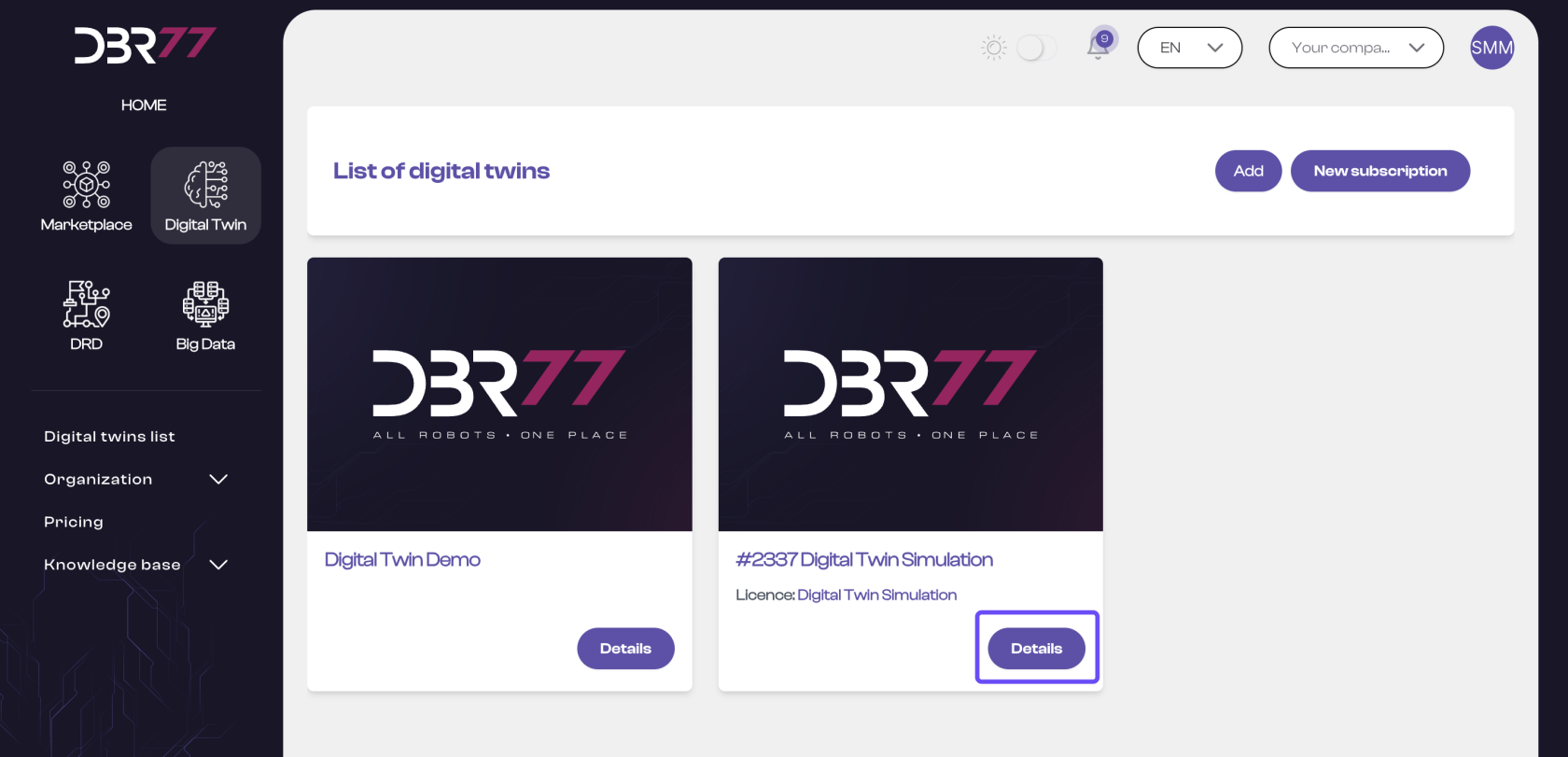](https://learn.dbr77.com/uploads/images/gallery/2024-07/BSZWS1PCT97t0jli-image.png)
In managing your Digital Twin, you can view and edit the following elements:
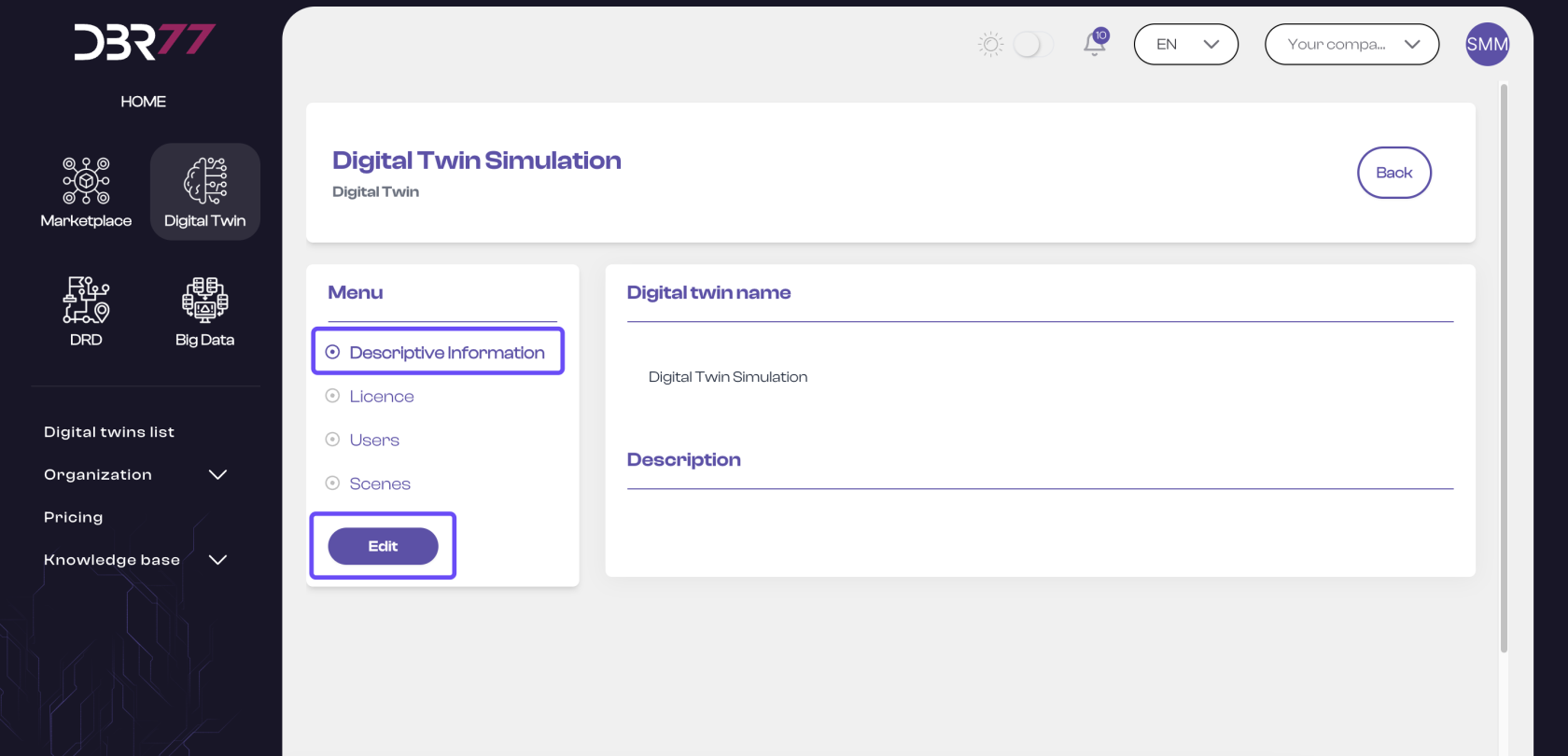
#### Descriptive Information
- Assign a custom name to the Digital Twin and add a description that outlines the project’s objective or project team, for example.
[](https://learn.dbr77.com/uploads/images/gallery/2024-07/8Hn7XerSgSdvnxGc-image.png)
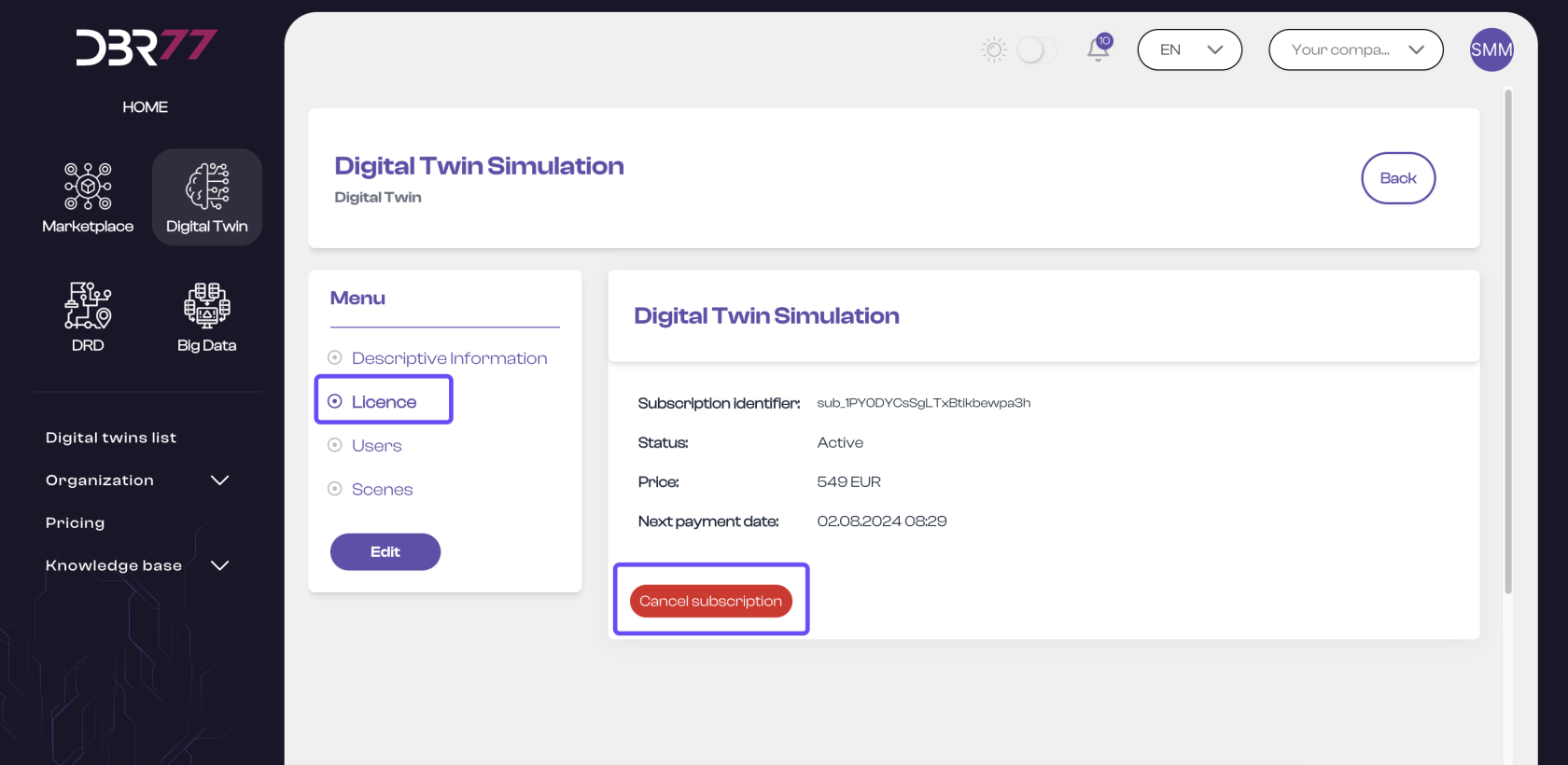
#### License
- Here, you will find information about the acquired license and can cancel or reactivate the subscription as needed.
[](https://learn.dbr77.com/uploads/images/gallery/2024-07/fLr5t7pEGSYPP1iA-image.png)
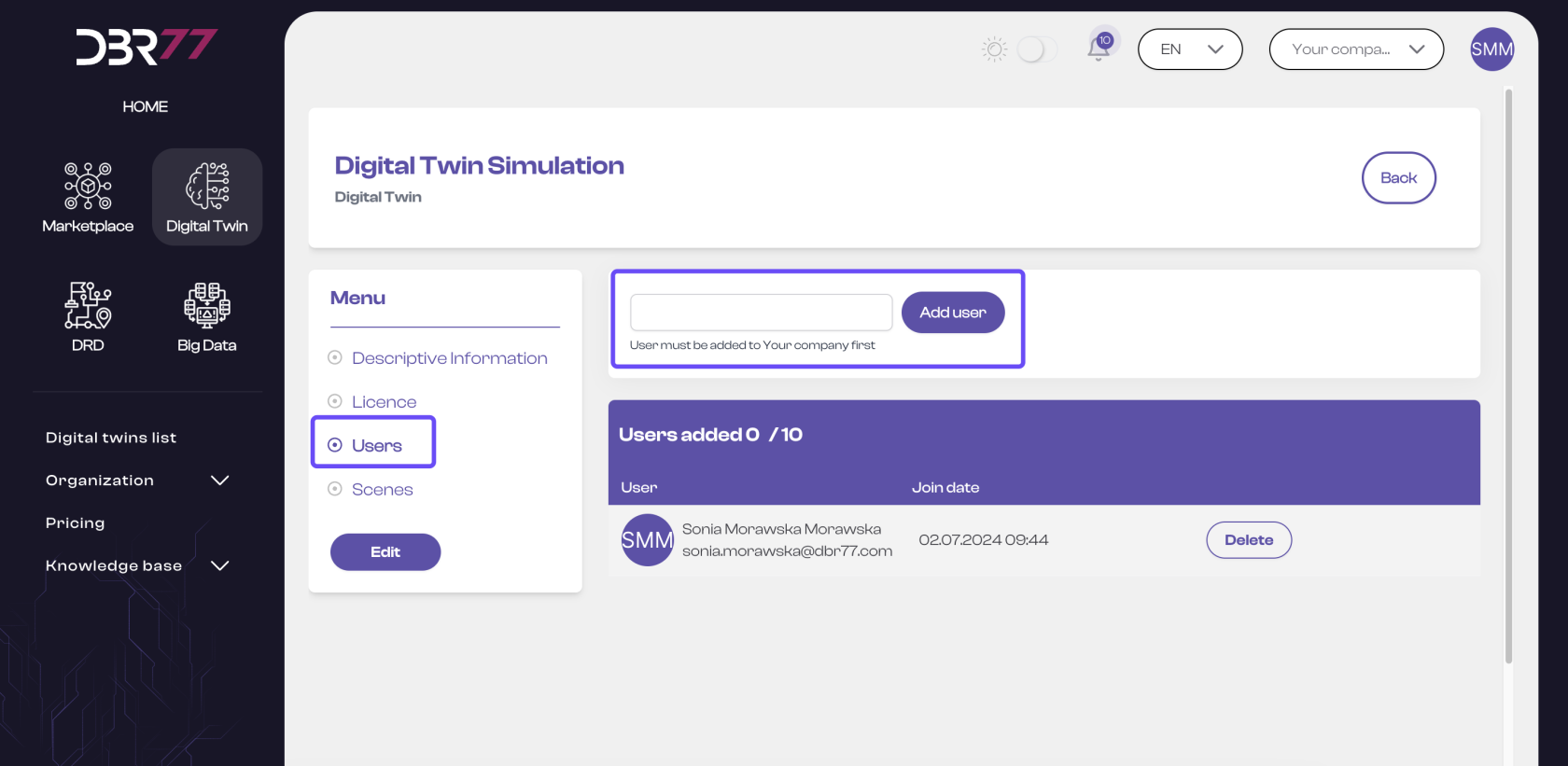
#### Users
- A section where you can add users to your Digital Twin. Each user requiring access must first be added to the organization through which the subscription was purchased.
[](https://learn.dbr77.com/uploads/images/gallery/2024-07/lf7y1TLb6FblPcJv-image.png)
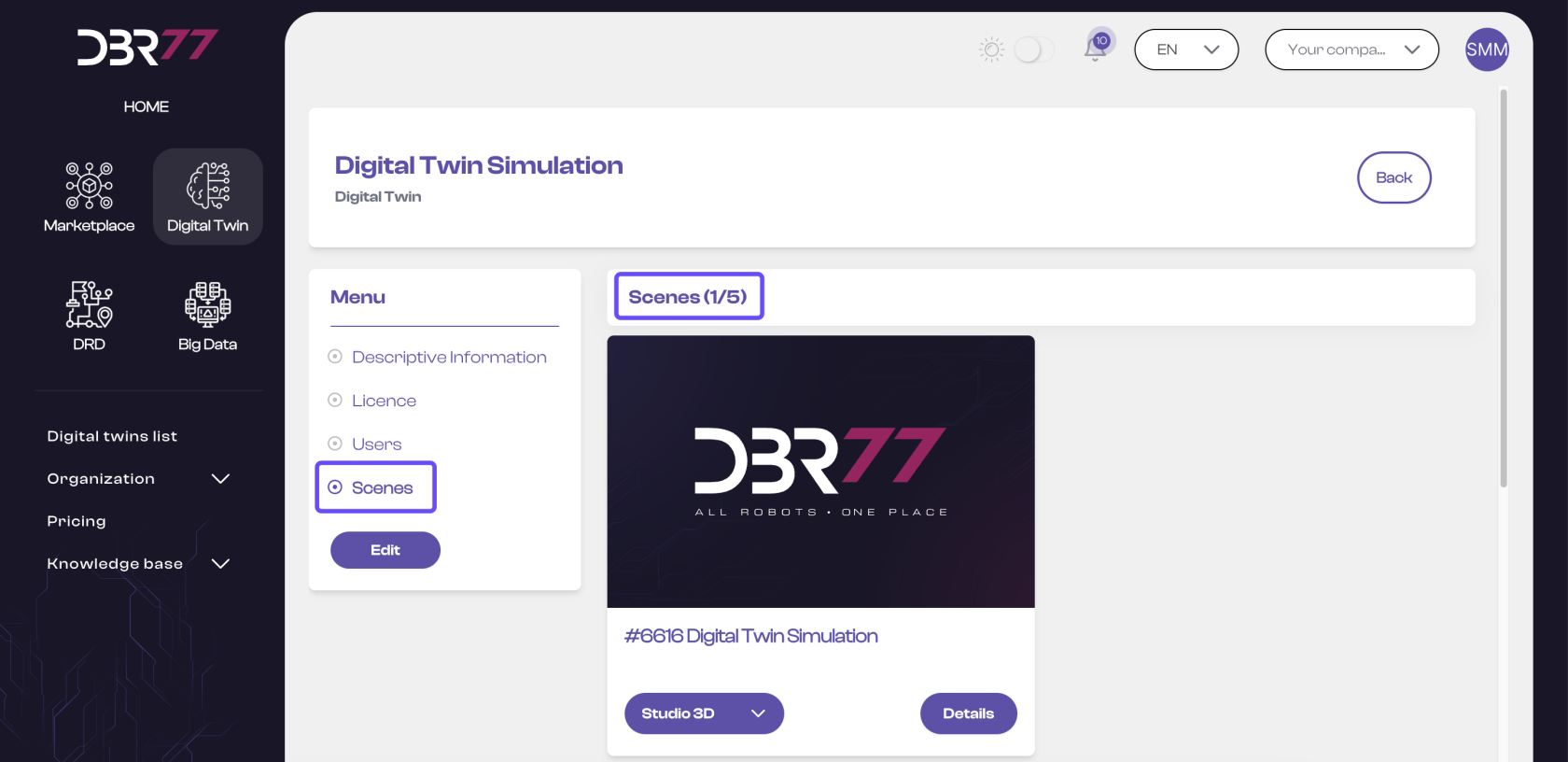
#### Scenes
- A list of scenes included in the subscription.
[](https://learn.dbr77.com/uploads/images/gallery/2024-07/PFdlSlGjH0v7Y50G-image.png)
# Digital Twin
# Descriptive Information
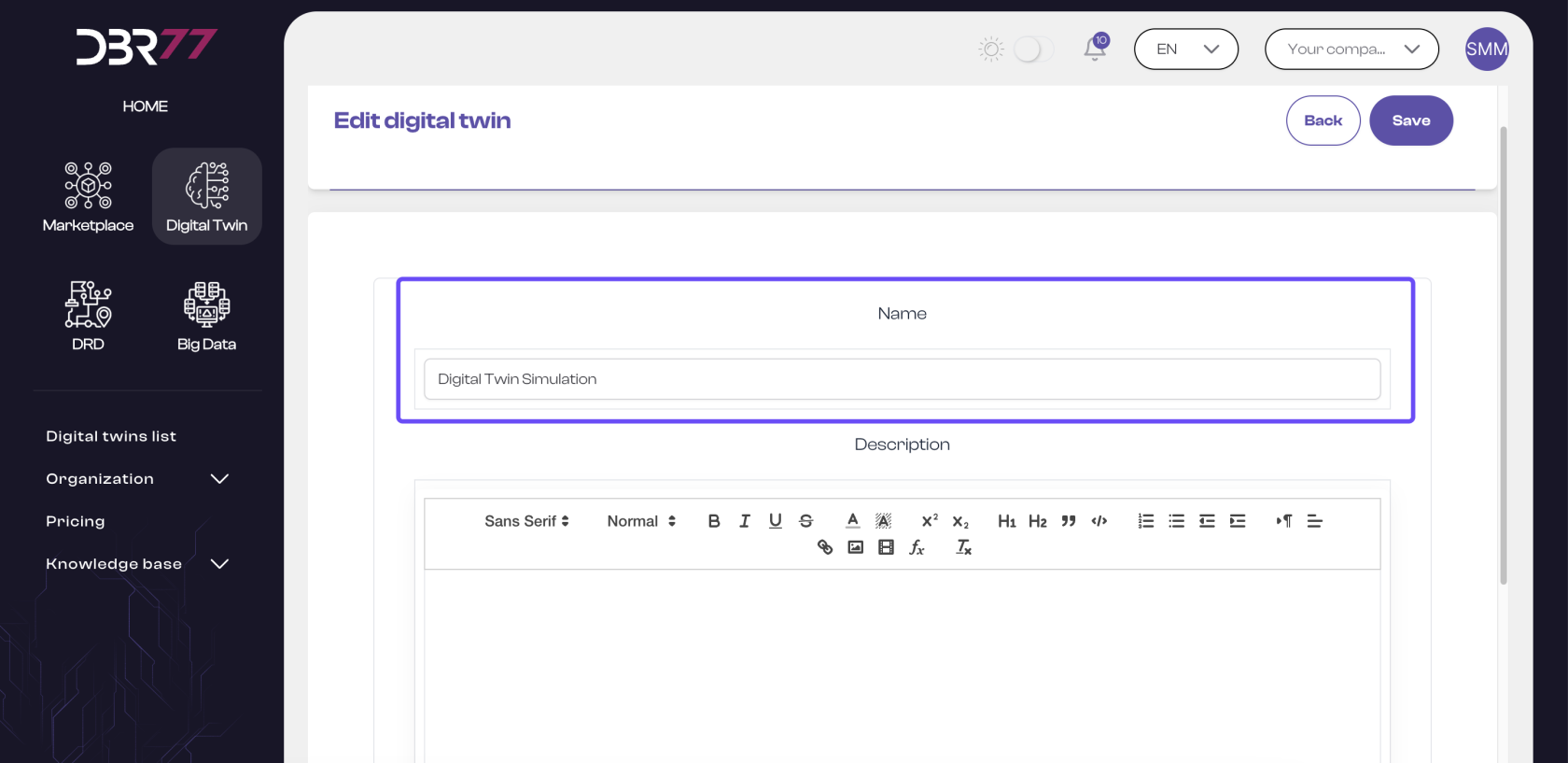
In the "Descriptive Information" tab, you can edit the name and description of your project. This information is essential for providing your entire team with the necessary details.
[](https://learn.dbr77.com/uploads/images/gallery/2024-07/8Hn7XerSgSdvnxGc-image.png)
#### Editing the Name
Give your project a unique and easily recognizable name that describes the purpose or function of the Digital Twin and facilitates identification within the team. The name should be short and concise.
[](https://learn.dbr77.com/uploads/images/gallery/2024-07/gdAlCrm7XOchXgk1-image.png)
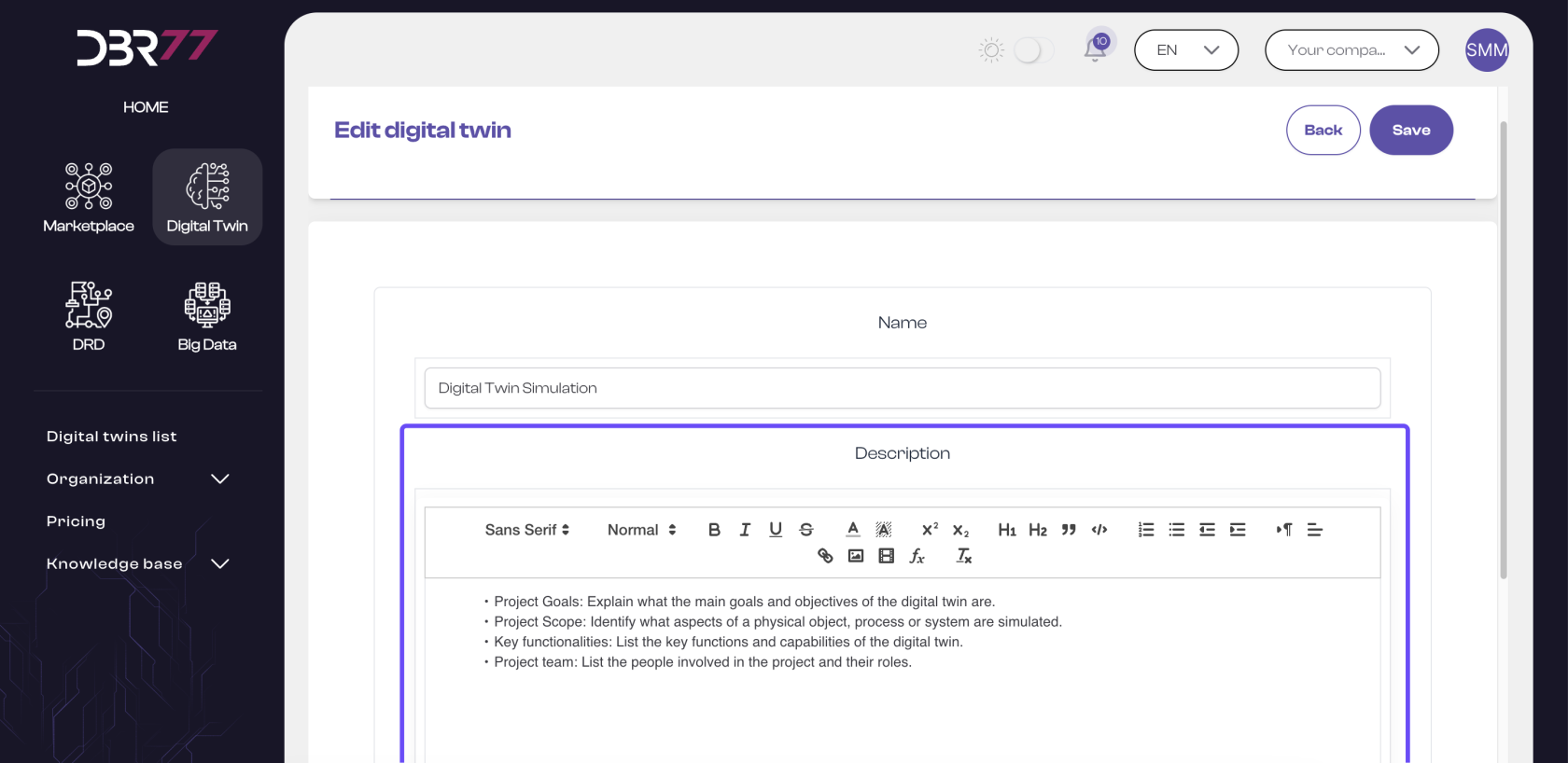
#### Project Description
In the project description section, you can provide detailed information about the Digital Twin, such as:
- **Project Goal**: Explain the primary objectives and tasks of the Digital Twin.
- **Project Scope**: Describe which aspects of the physical object, process, or system are being simulated.
- **Key Features**: Outline the essential functions and capabilities of the Digital Twin.
- **Project Team**: List the individuals involved and their roles.
[](https://learn.dbr77.com/uploads/images/gallery/2024-07/W5PIBnI5c7Mj7fHB-image.png)
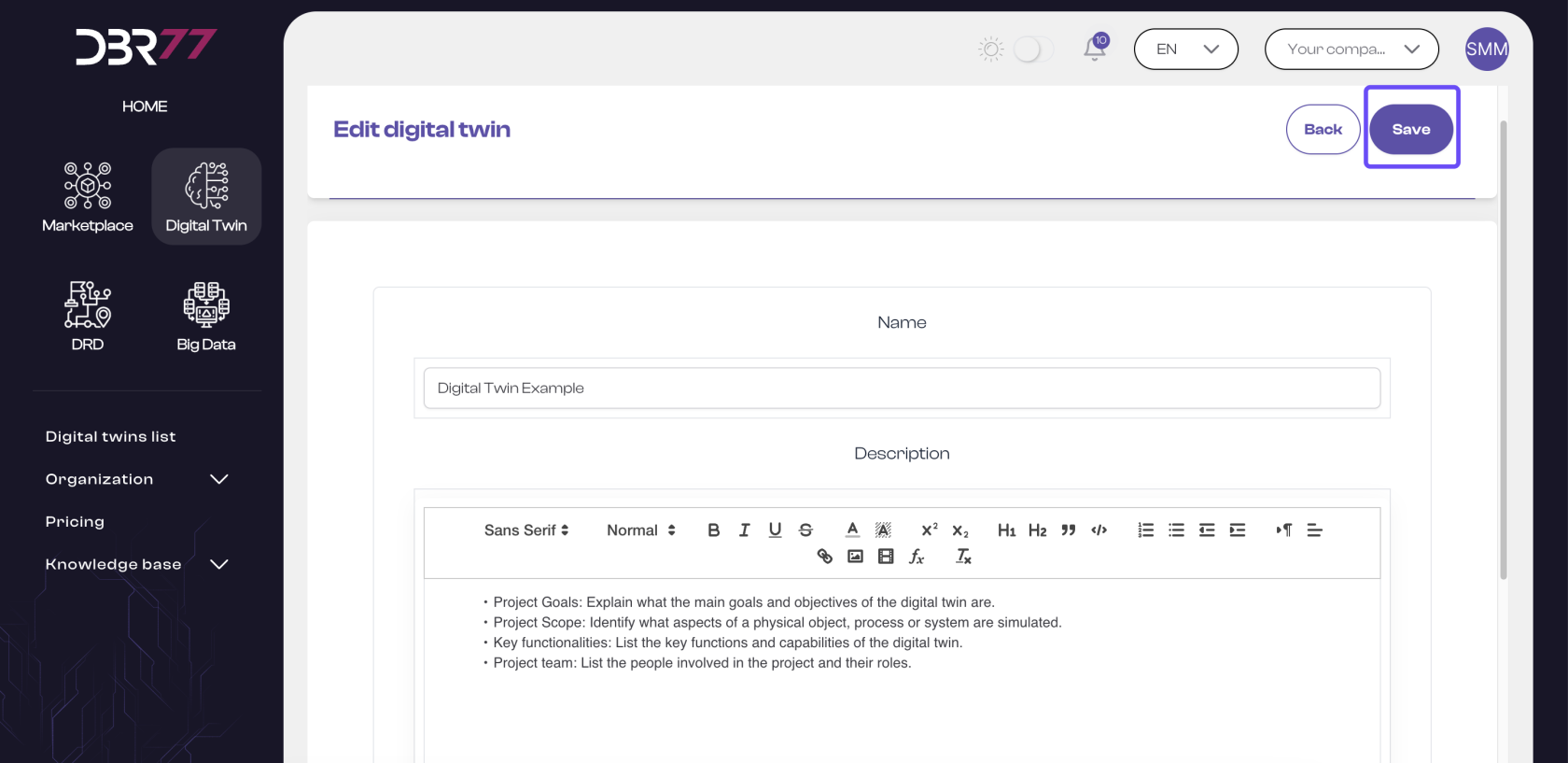
**REMEMBER** to save all changes you make.
[](https://learn.dbr77.com/uploads/images/gallery/2024-07/Q1hNOQD4hodWmkPw-image.png)
#### Benefits
A clear and detailed description helps all team members fully understand the project and facilitates collaboration, communication, and efficient project management.
# Subscription
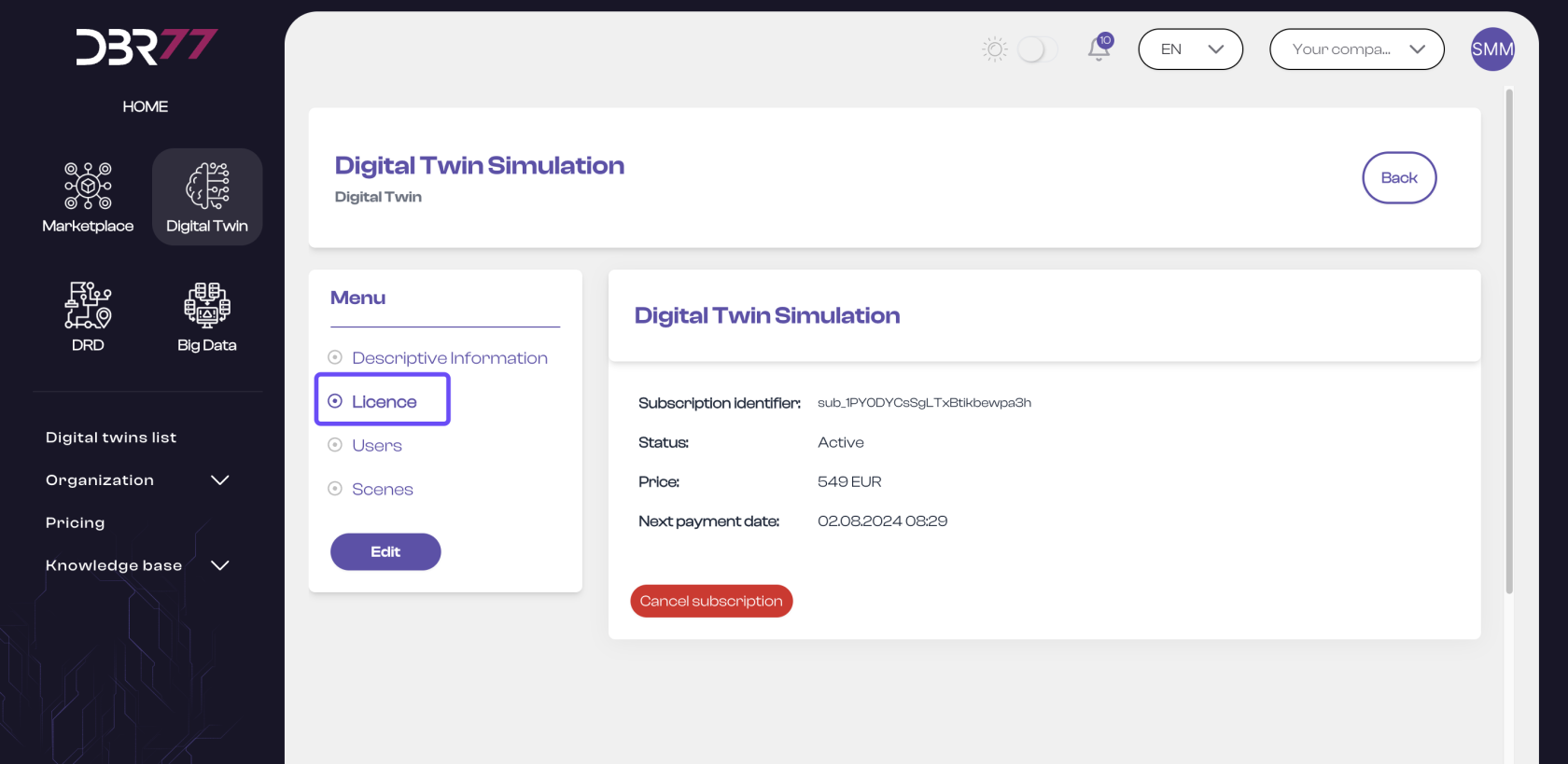
In the "License" tab, you will find all essential information about your Digital Twin subscription. Here are the details you can view and manage:
[](https://learn.dbr77.com/uploads/images/gallery/2024-07/6cyZIUQQm4ti8p3g-image.png)
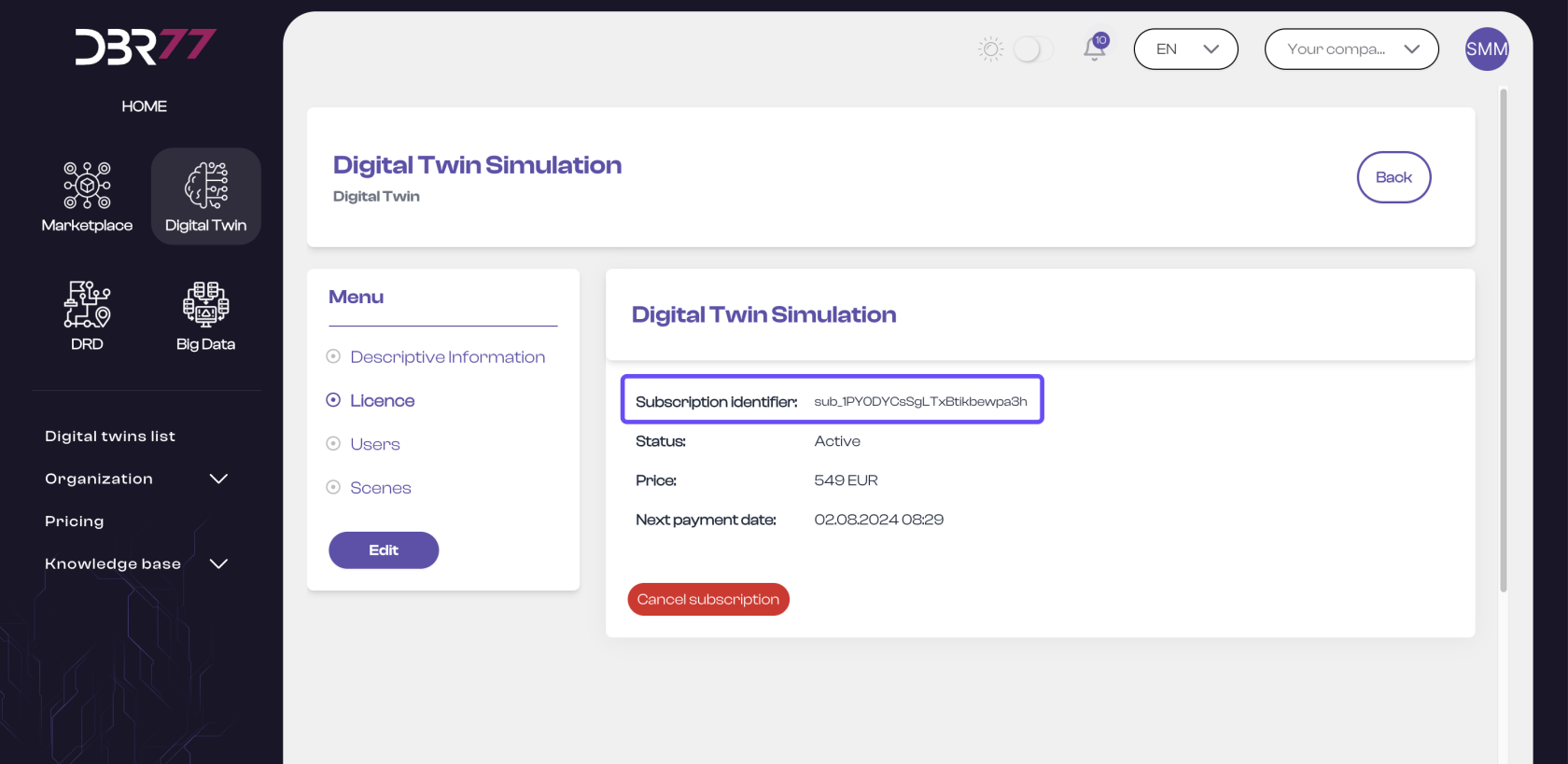
#### License Identifier:
- A unique code assigned to your license for identifying the subscription in our system.
[](https://learn.dbr77.com/uploads/images/gallery/2024-07/gLw2wOvuj9XIZoea-image.png)
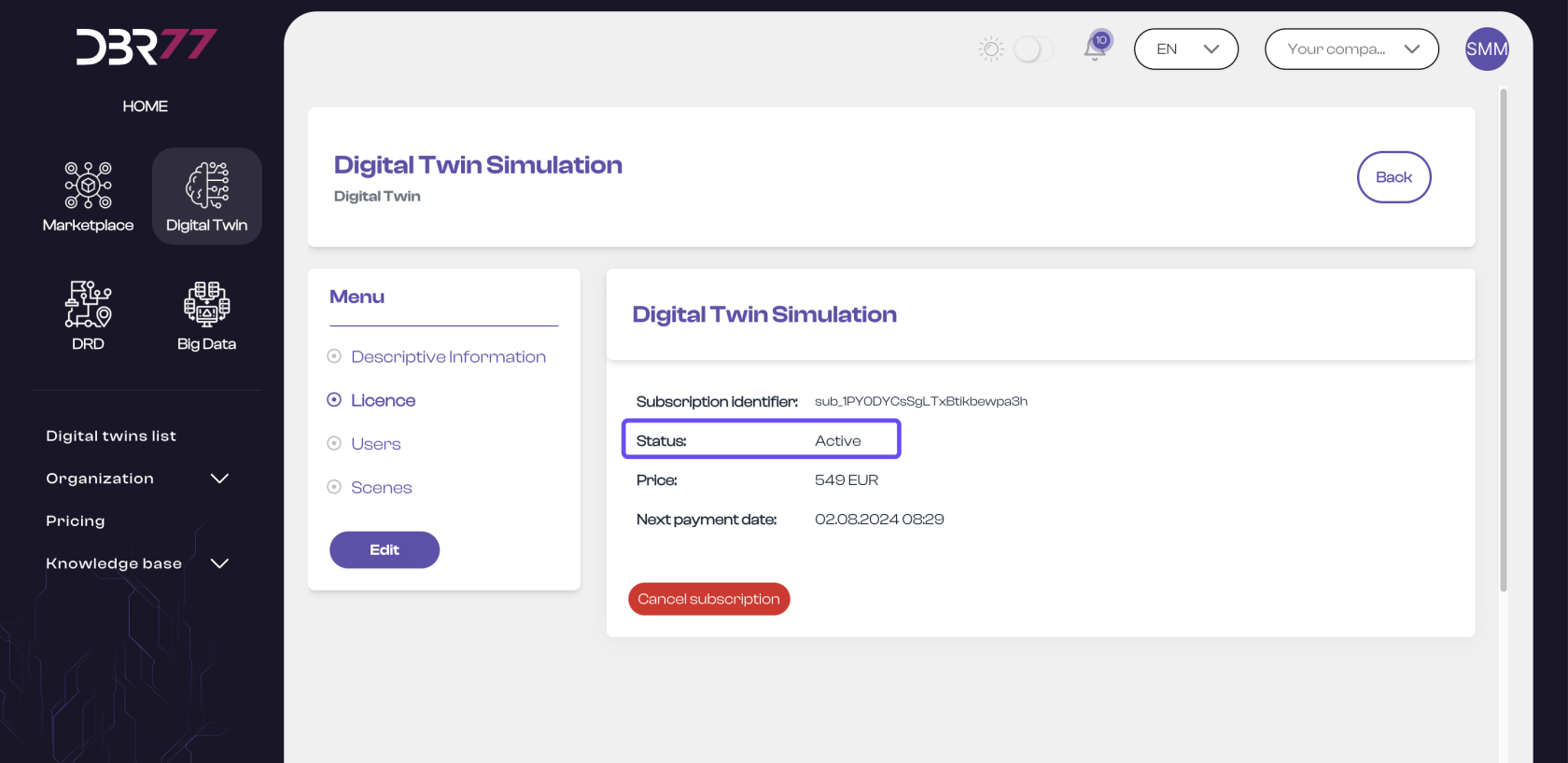
#### License Status:
- **Active**: The license is active, and you have access to all Digital Twin features.
- **Inactive**: The license is paused, and access is disabled. Project data is stored for 3 months.
[](https://learn.dbr77.com/uploads/images/gallery/2024-07/A7WT5Q6pPFaPxkXO-image.png)
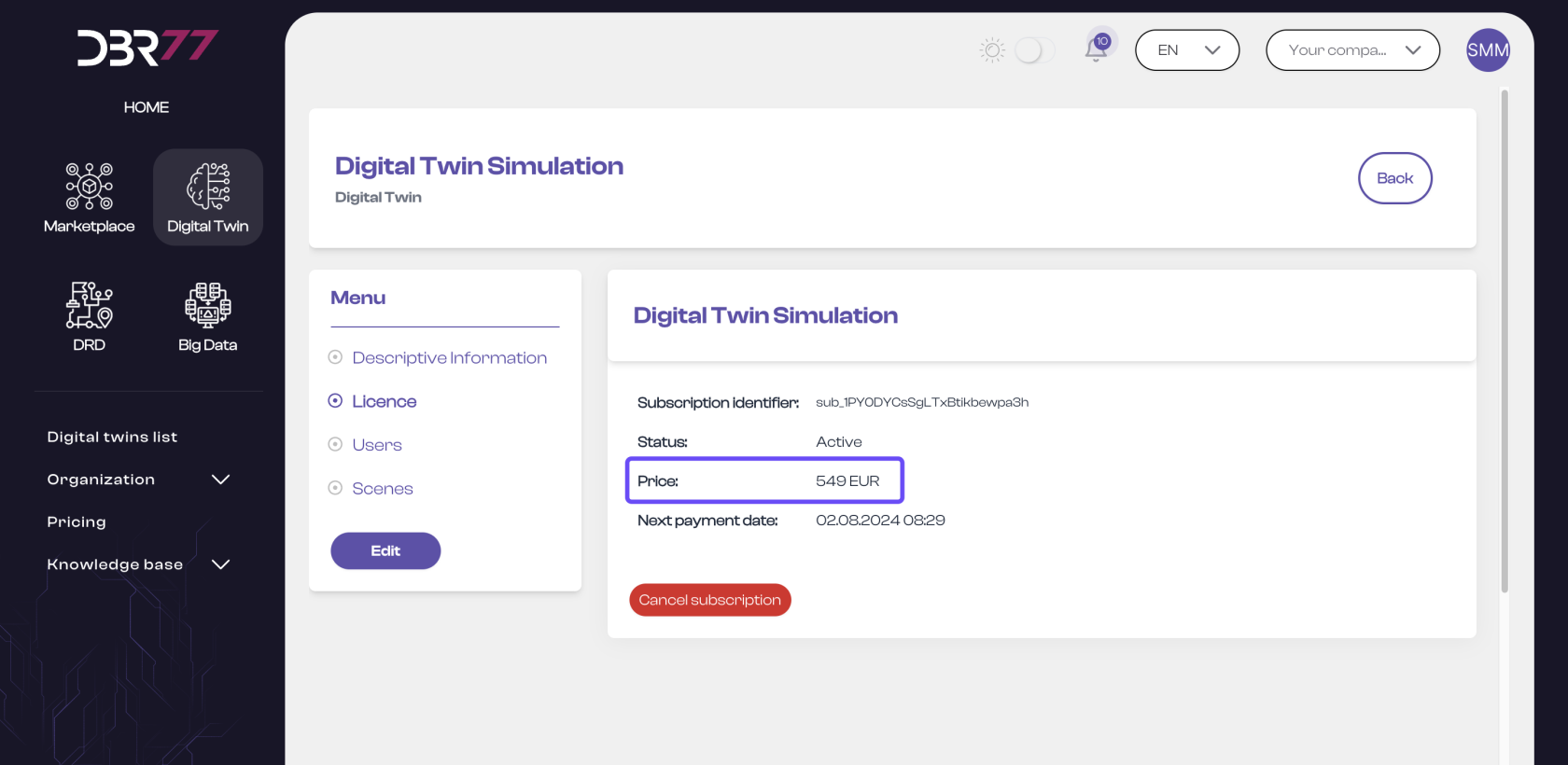
#### Price:
- Displays the cost of your subscription, billed according to the chosen payment method.
[](https://learn.dbr77.com/uploads/images/gallery/2024-07/i9VRriemxzGRqyzb-image.png)
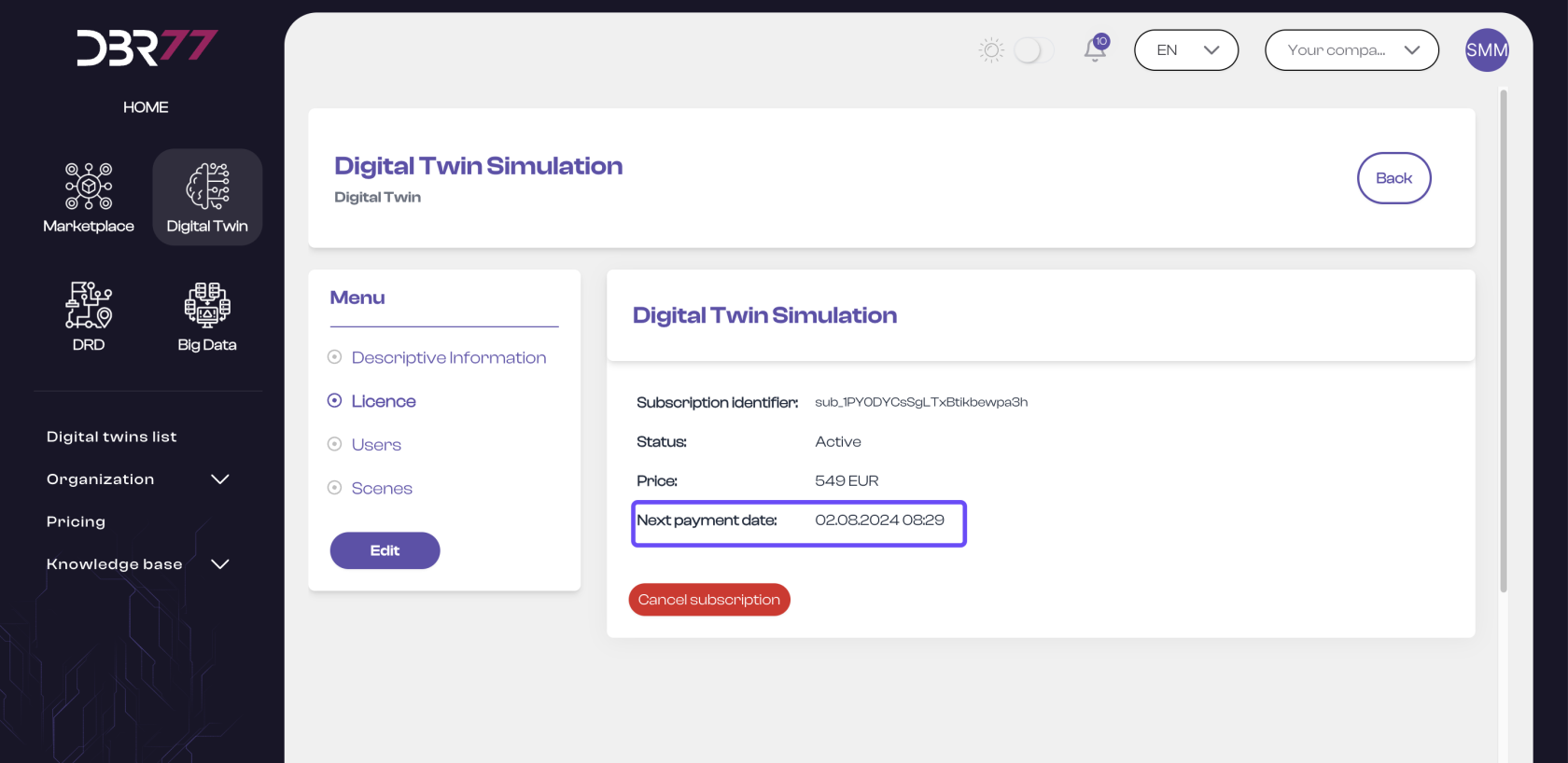
#### Next Payment Date:
- Indicates when the next subscription payment is due, helping you keep track of payment dates and ensure uninterrupted access.
[](https://learn.dbr77.com/uploads/images/gallery/2024-07/E0sQTLtQROmuIQrA-image.png)
### Subscription Management:
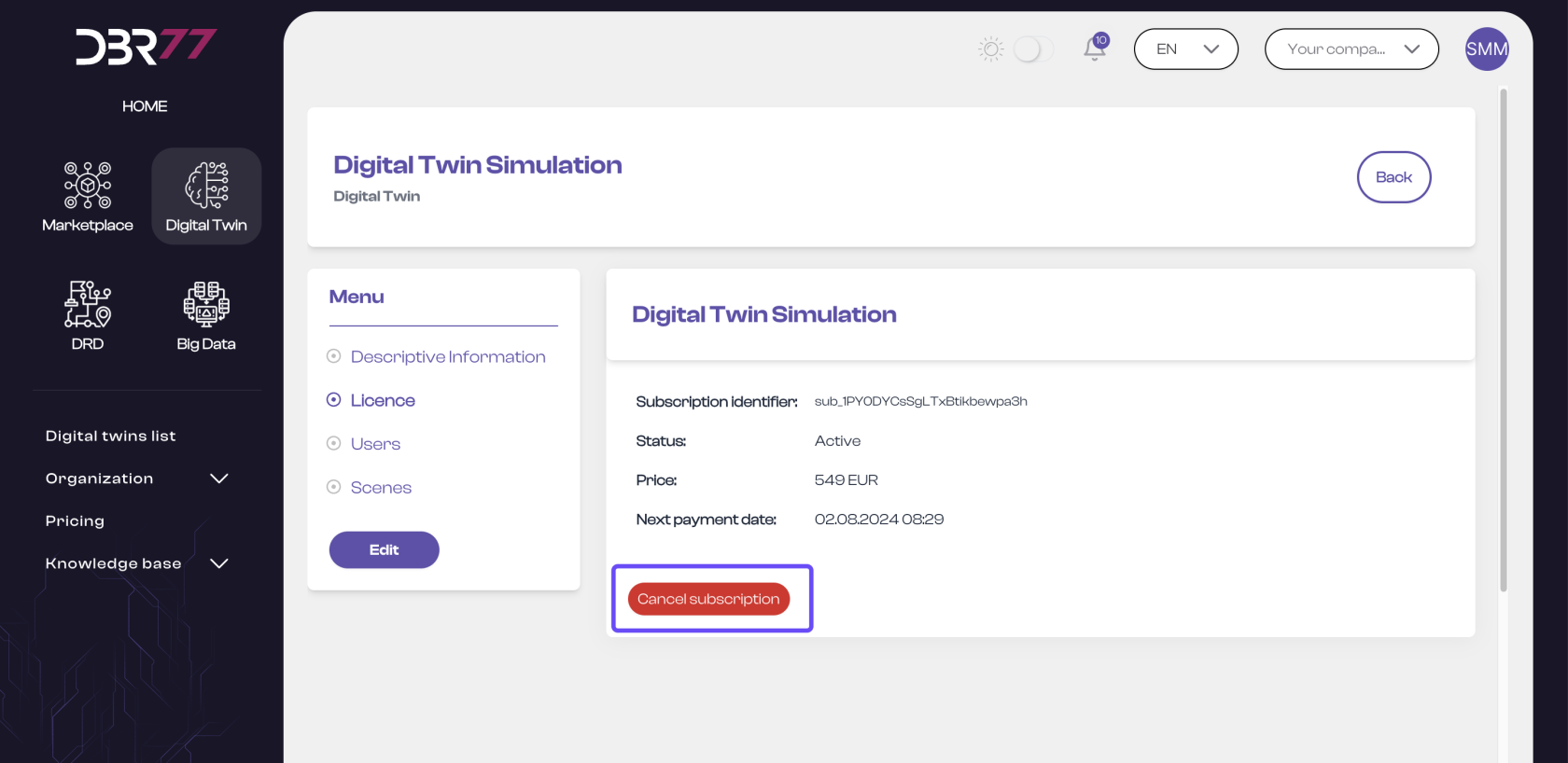
#### Cancel Subscription:
- End your subscription (except for the Enterprise package). Access will be disabled after cancellation.
[](https://learn.dbr77.com/uploads/images/gallery/2024-07/KO0YAGGKNJ0QxqZJ-image.png)
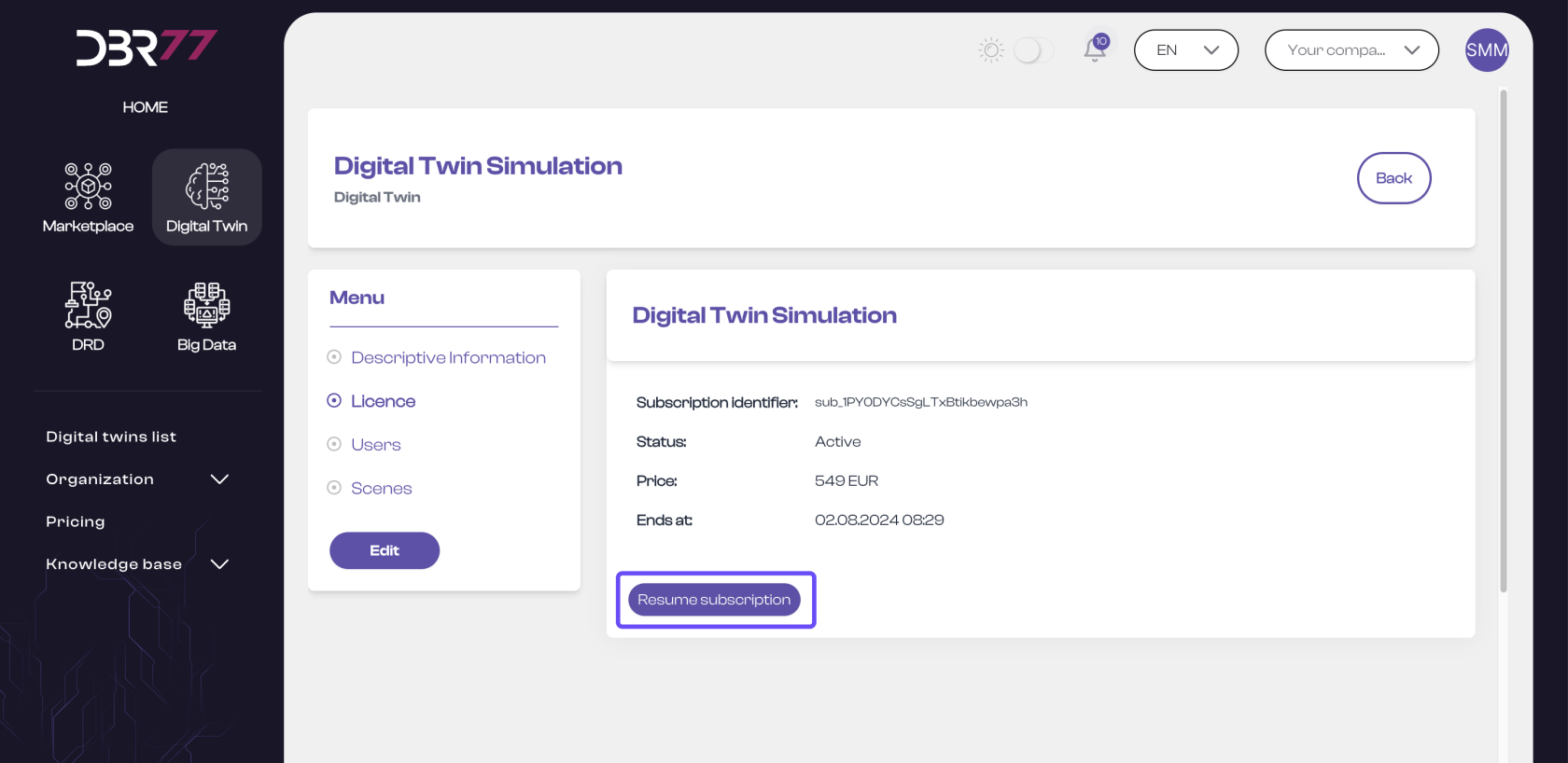
#### Renew Subscription:
- If your subscription is inactive, you can reactivate it here to regain access to all Digital Twin features (except for the Enterprise package).
[](https://learn.dbr77.com/uploads/images/gallery/2024-07/fEDePfhTpzrPHtCZ-image.png)
#### NOTE:
- The Enterprise subscription cannot be canceled or renewed directly through the platform. Please contact us for assistance.
# Users
To grant users access to Digital Twins on DBR77.com, you must assign the necessary permissions in the permissions panel and add them to the respective subscriptions they need access to. There are two ways to do this:
#### Via the "Users" Tab
#### Add Users:
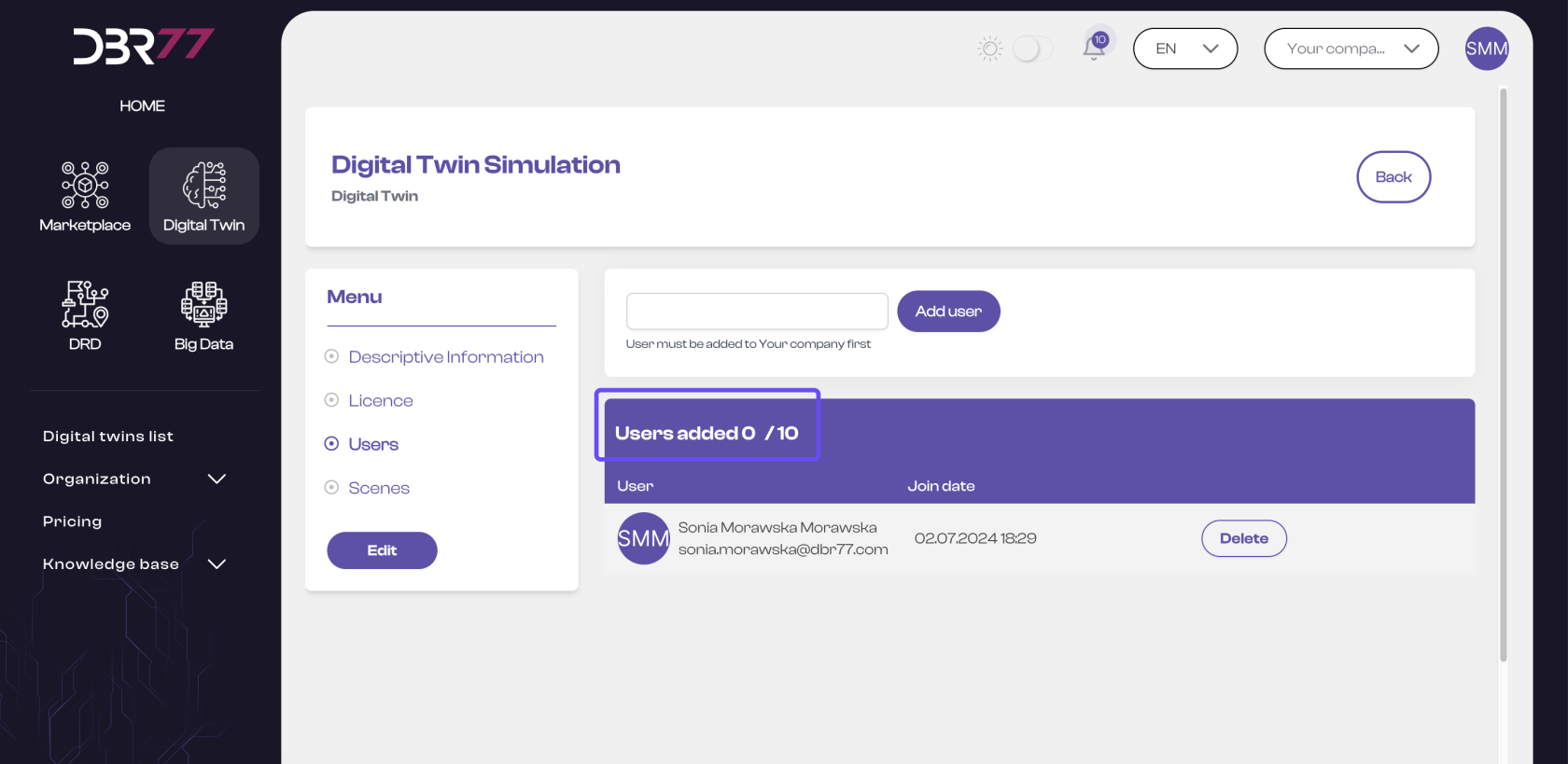
- Navigate to Digital Twin -> List of Twins and go to the details of the desired subscription.
- Select the Users tab from the menu, choose the user from the dropdown list (which appears after clicking on the text field), and click Add User.
- NOTE: The user must be a member of the organization for which the Twin was created and have the appropriate permissions.
Click **HERE** to learn how to add a new organization member and assign them permissions.
[](https://learn.dbr77.com/uploads/images/gallery/2024-07/lf7y1TLb6FblPcJv-image.png)
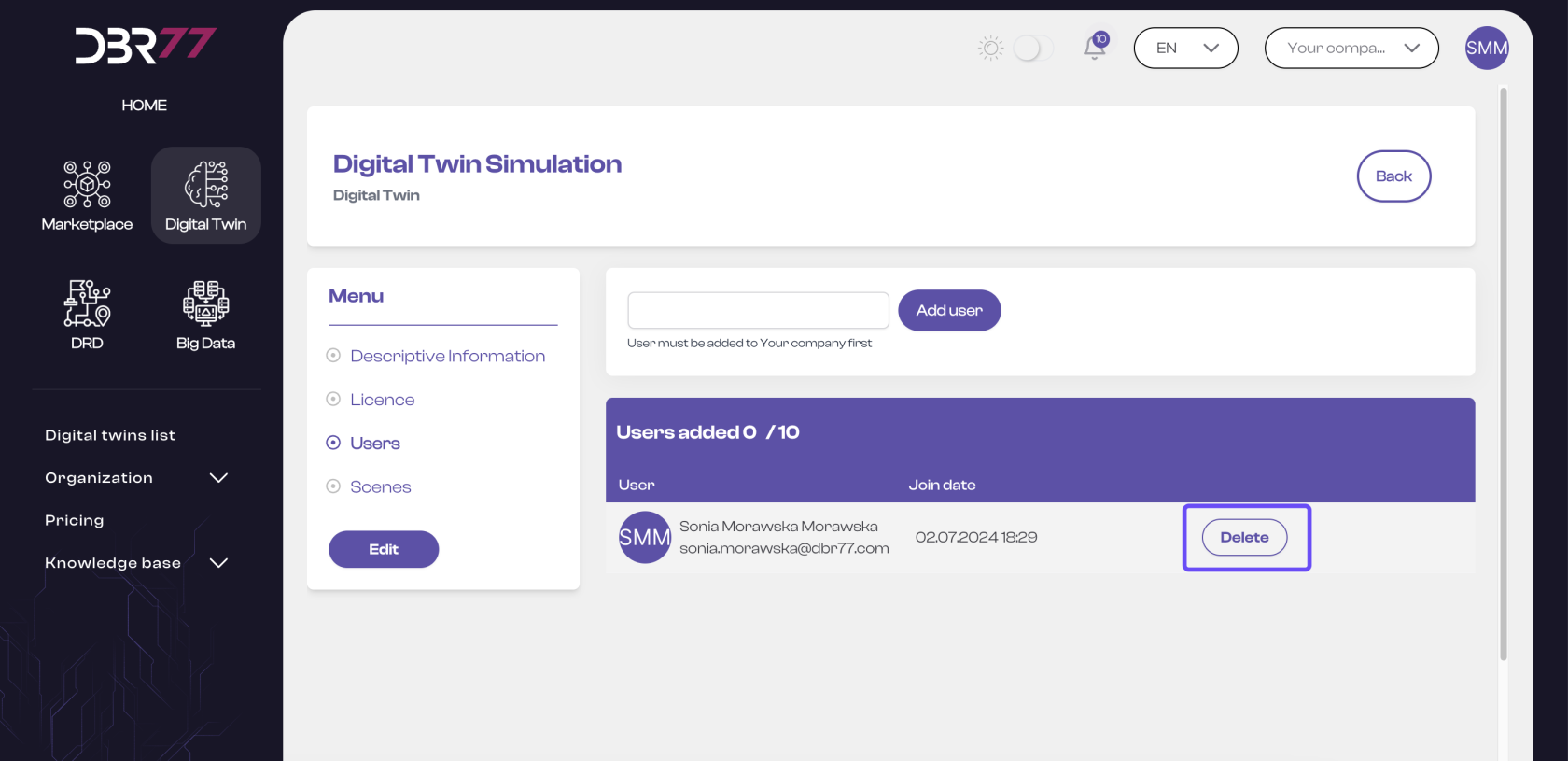
#### Remove Users:
- Click Delete to revoke a user's access rights. This action does not require confirmation.
#### [](https://learn.dbr77.com/uploads/images/gallery/2024-07/K2RvuX9rcwAftG4p-image.png)
#### Number of Users per Subscription:
- In the "Users" window, you can see how many accounts have already been added and the user limit for the Digital Twin. Contact us if you need to add more users.
[](https://learn.dbr77.com/uploads/images/gallery/2024-07/ti88e5mUqxNUYeFp-image.png)
### 2. Via the "Subscriptions" Tab
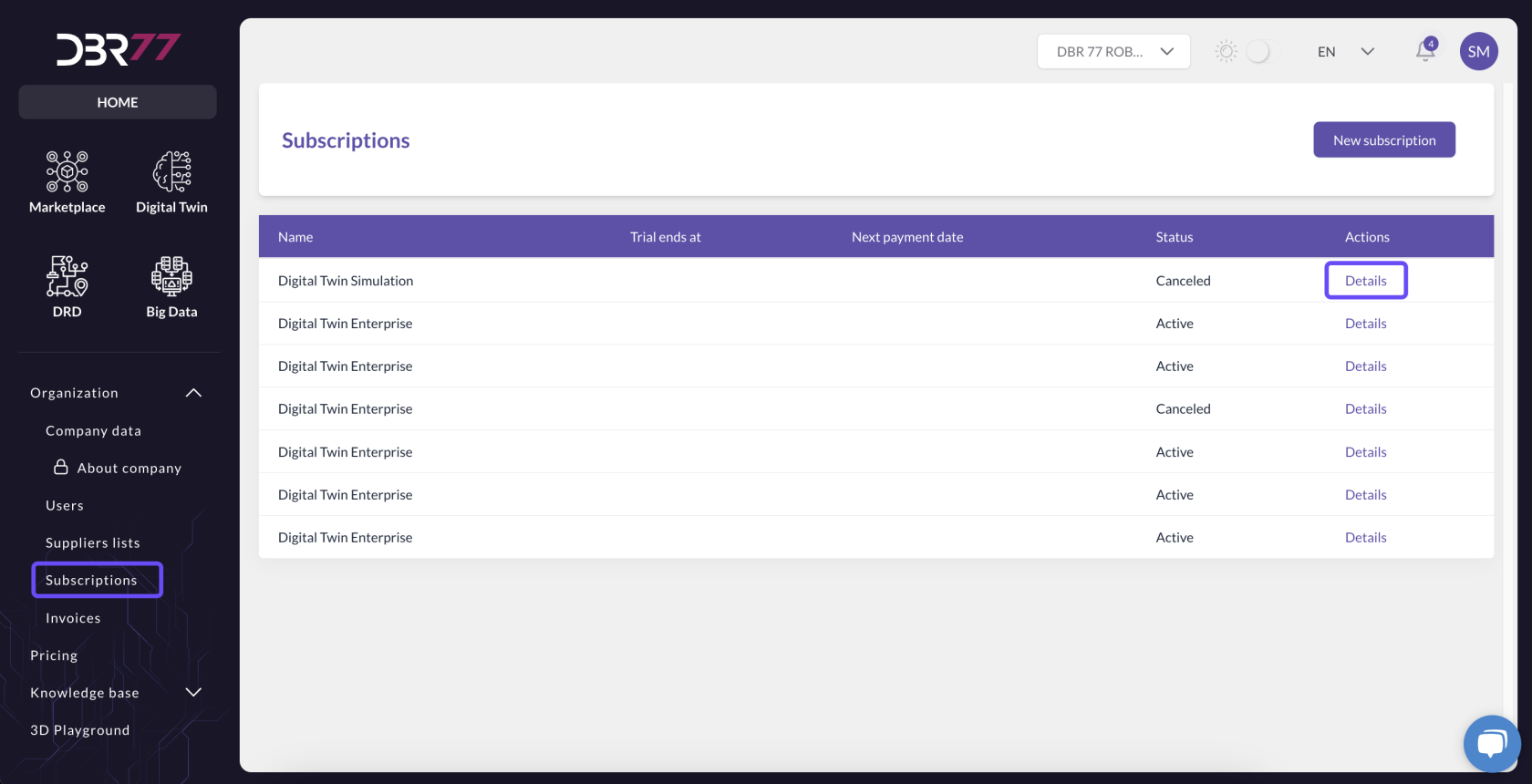
#### View Subscription Details:
- You can also add users by navigating to the subscription details under Subscriptions in the main menu on the left.
### [](https://learn.dbr77.com/uploads/images/gallery/2024-07/h6OR9VbX02q4KCEY-image.png)
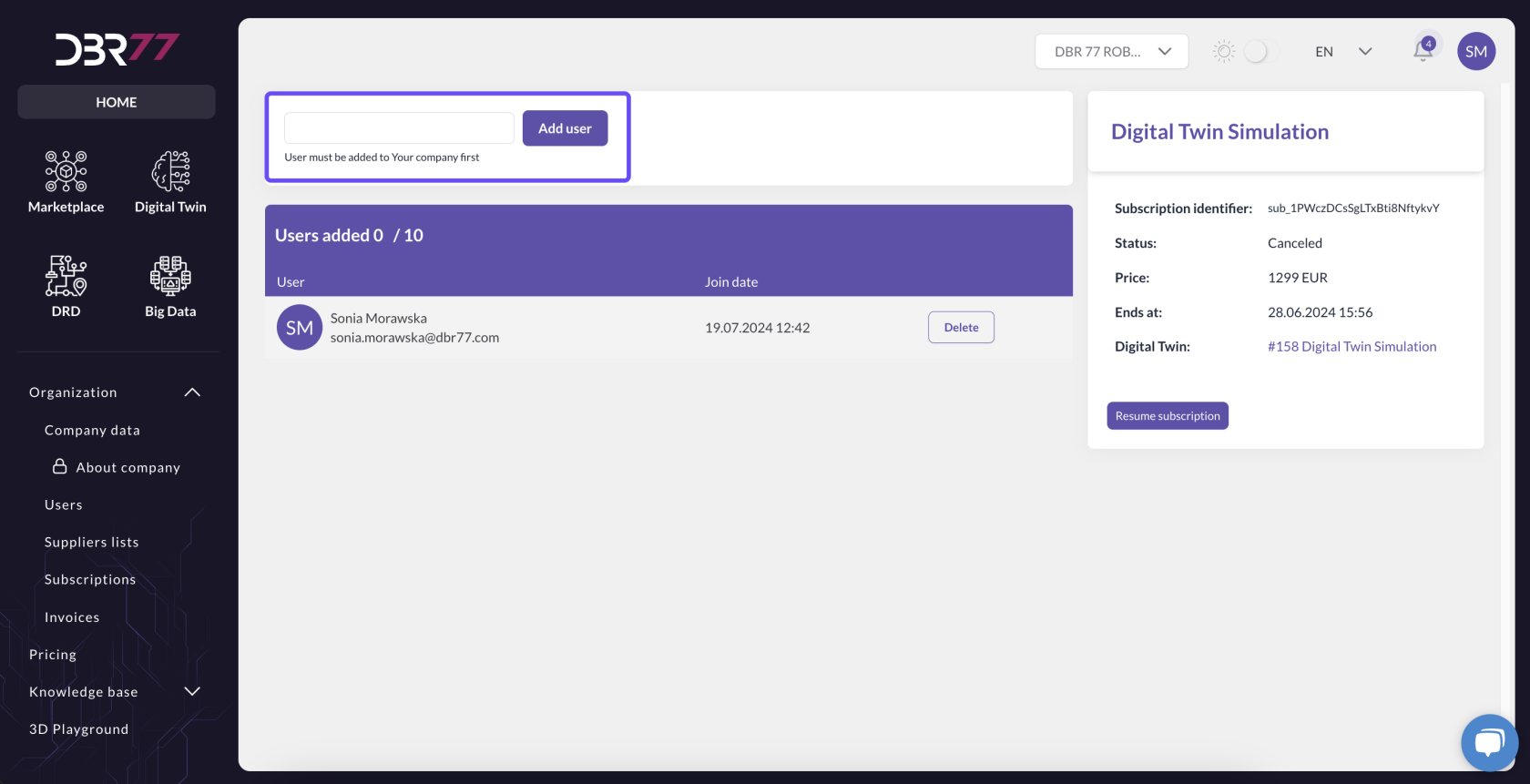
#### Add Users:
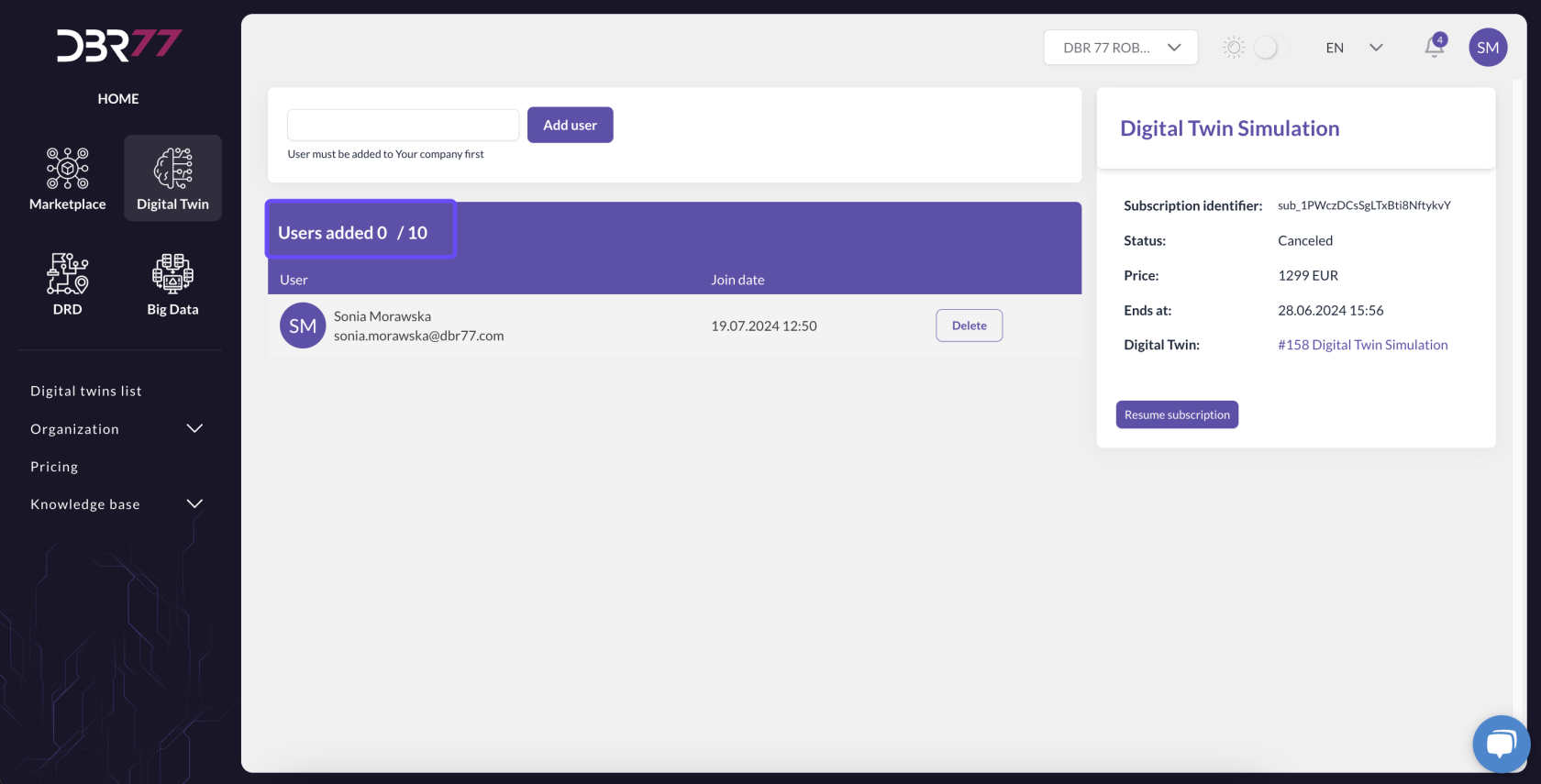
- Enter the email address of the desired user or select them from the dropdown list and click Add User.
- NOTE: The user must be a member of the organization for which the Twin was created and have the required permissions.
Click **HERE** to learn how to add a new organization member and assign them permissions.
[](https://learn.dbr77.com/uploads/images/gallery/2024-07/k2SUUWyN5ZfH81wb-image.png)
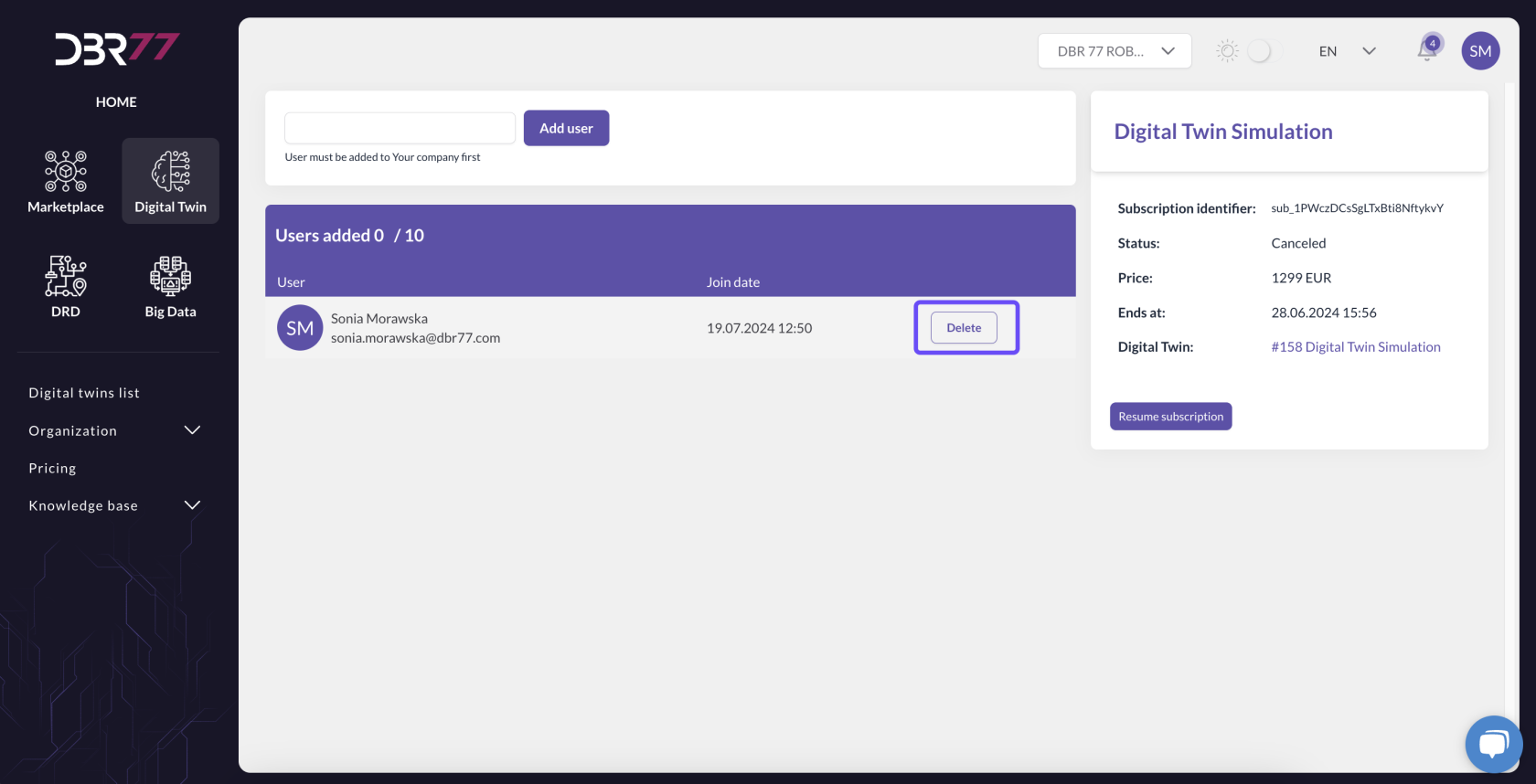
#### Remove Users:
- To remove a user, click Delete; the user will immediately lose access.
[](https://learn.dbr77.com/uploads/images/gallery/2024-07/U0VjfztnGfEy8pSL-image.png)
#### Number of Users per Subscription:
- This tab also displays the number of accounts already added and the user limit. Contact us if additional users are needed.
[](https://learn.dbr77.com/uploads/images/gallery/2024-07/2N4Ab7U45N6Npnrj-image.png)
# Scenes
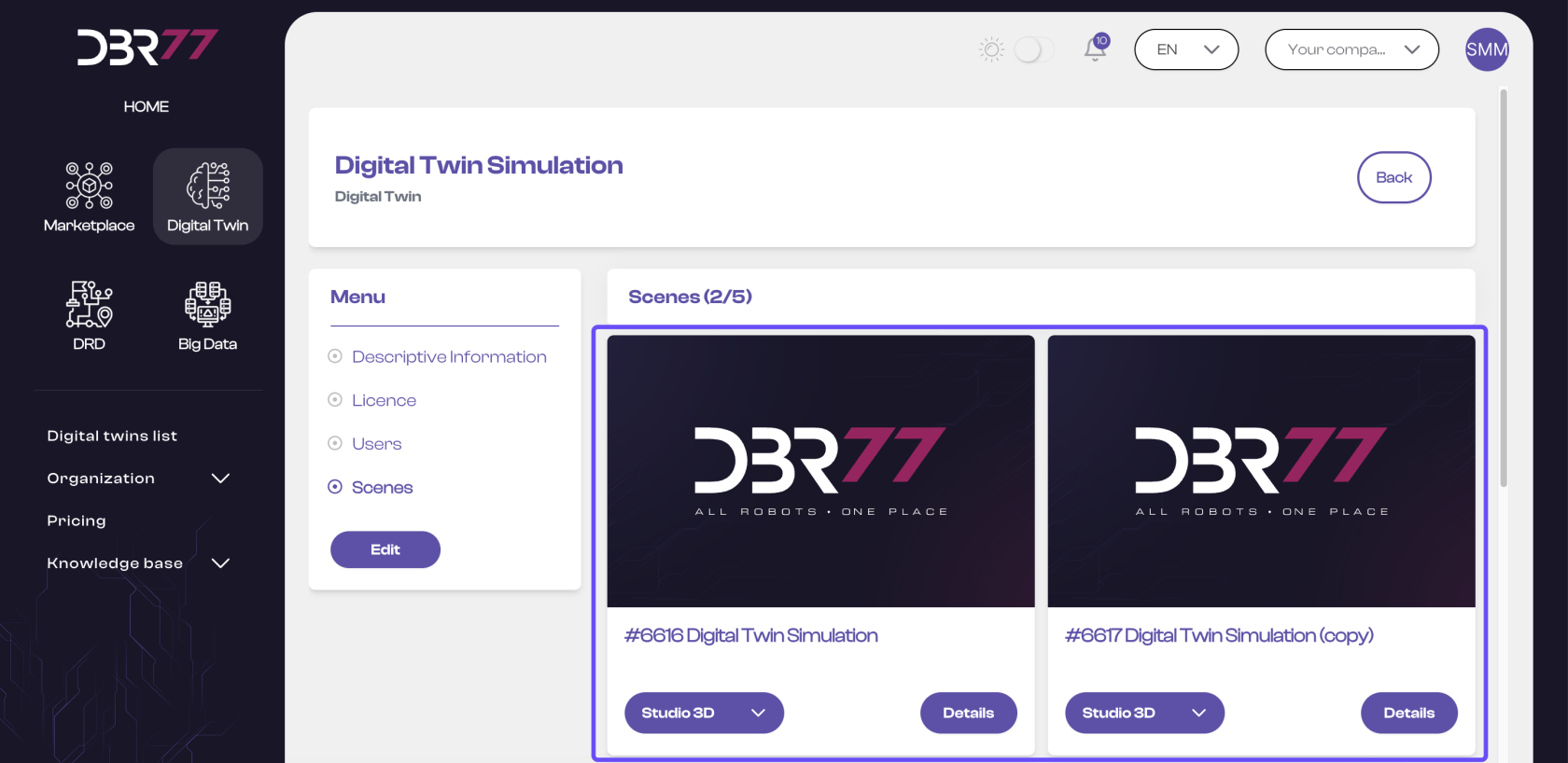
In the "Scenes" tab, you can see how many scenes can be created as part of your Digital Twin subscription.
[](https://learn.dbr77.com/uploads/images/gallery/2024-07/PFdlSlGjH0v7Y50G-image.png)
You will also find the complete list of scenes created within the subscription. Learn more about managing scenes **HERE**.
[](https://learn.dbr77.com/uploads/images/gallery/2024-07/ZnsCKmniqX4aKiRT-image.png)
# Scene
# 3D Studio
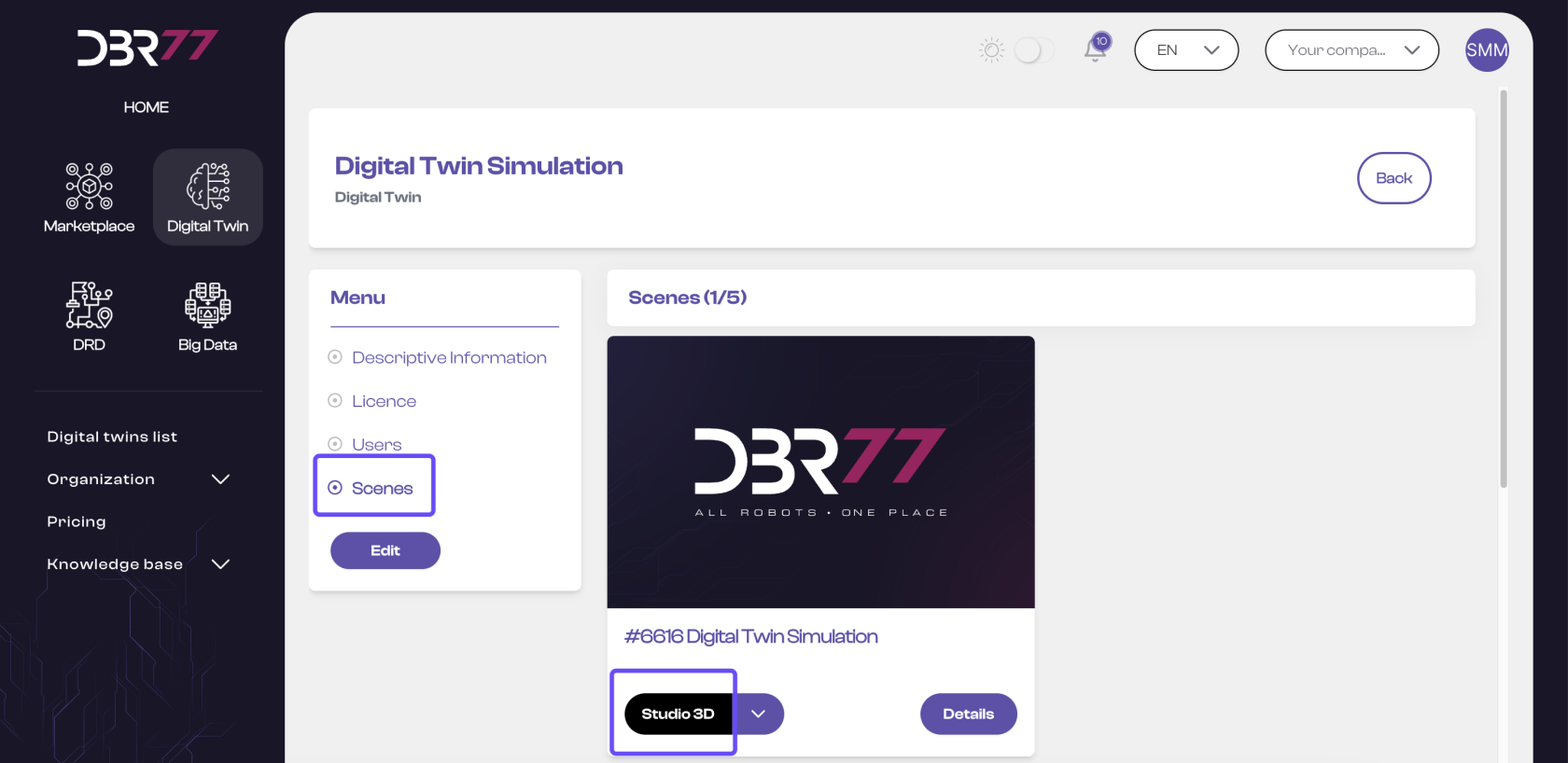
The 3D Studio is the area where the visualization of the Digital Twin is created. To view the scene, click on “3D Studio.”
[](https://learn.dbr77.com/uploads/images/gallery/2024-07/sNcqb4ax0OuU1U5f-image.png)
#### In the 3D Studio, you can:
- Create and edit layouts
- Build visualizations of the plant site
- Create process animations
- Add production data
- Generate reports based on animations or data
# Removing a scene
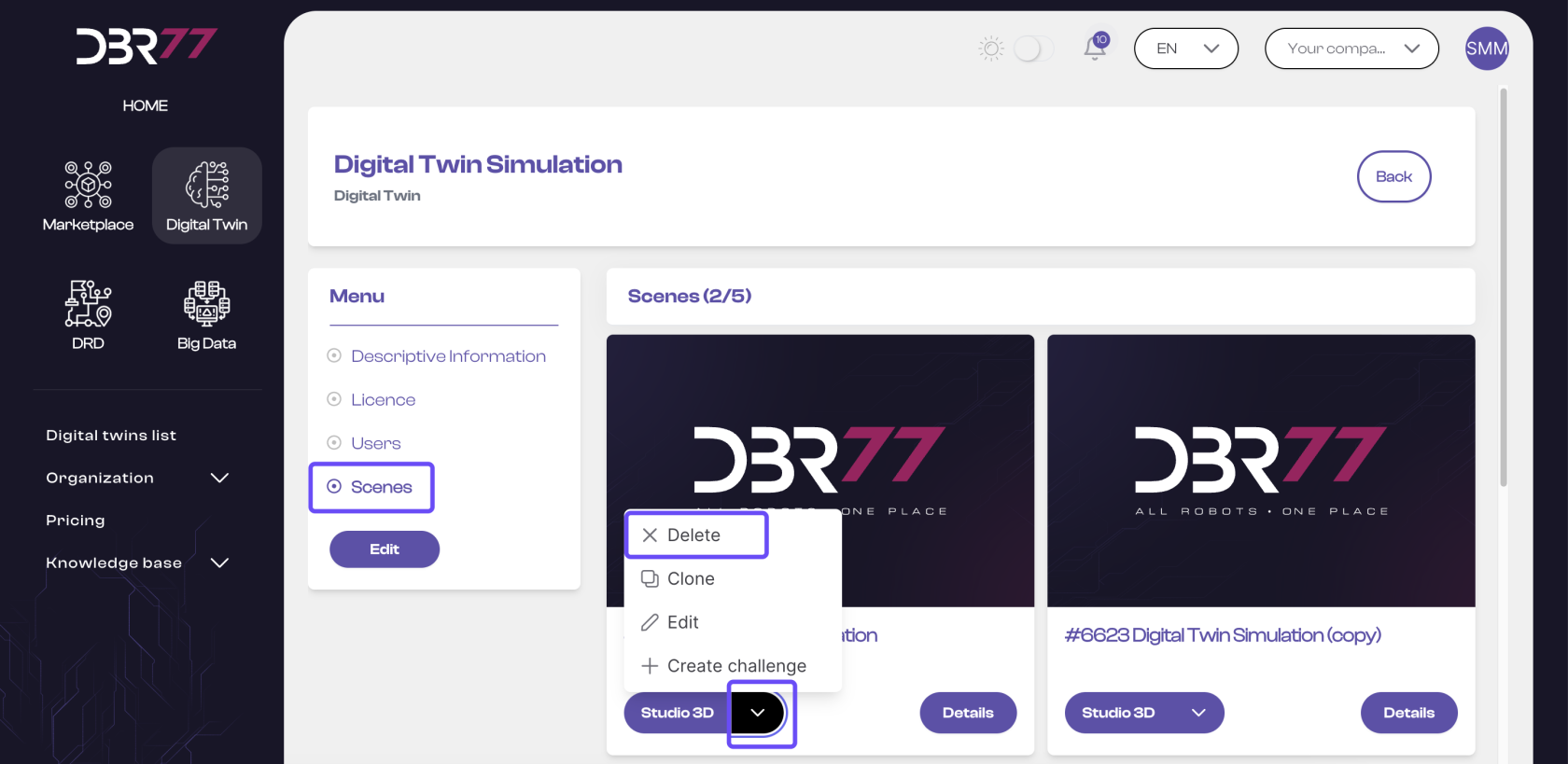
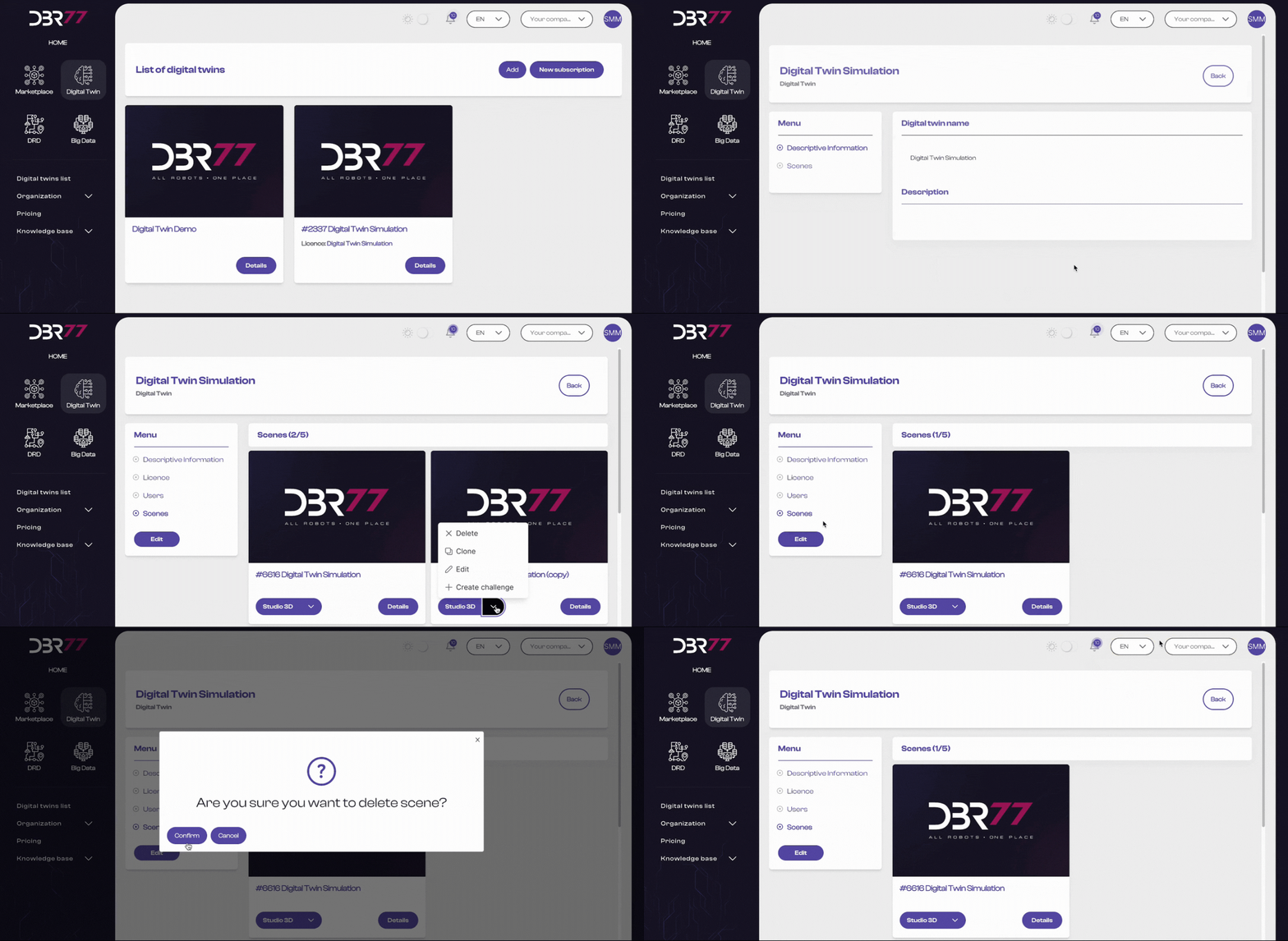
To remove a scene from your subscription, select the "Delete" option in the dropdown menu of the respective scene and confirm your decision to permanently delete the scene.
[](https://learn.dbr77.com/uploads/images/gallery/2024-07/2k1K3F6oaUqNg0vi-image.png)
**Note:** At least one scene must always remain in your subscription!
[](https://learn.dbr77.com/uploads/images/gallery/2024-07/2x7WazcbWN38Iq6s-projekt-bez-nazwy-17.gif)
Deletion a scene can be useful if you no longer need this version of the Digital Twin or want to make room for new projects if your subscription's scene limit has been reached.
#### If you wish to upgrade your Digital Twin package, feel free to contact us.
# Duplicate
As part of your subscription, you can create a set number of scenes in the 3D Studio. The number of available scenes varies depending on your subscription type.
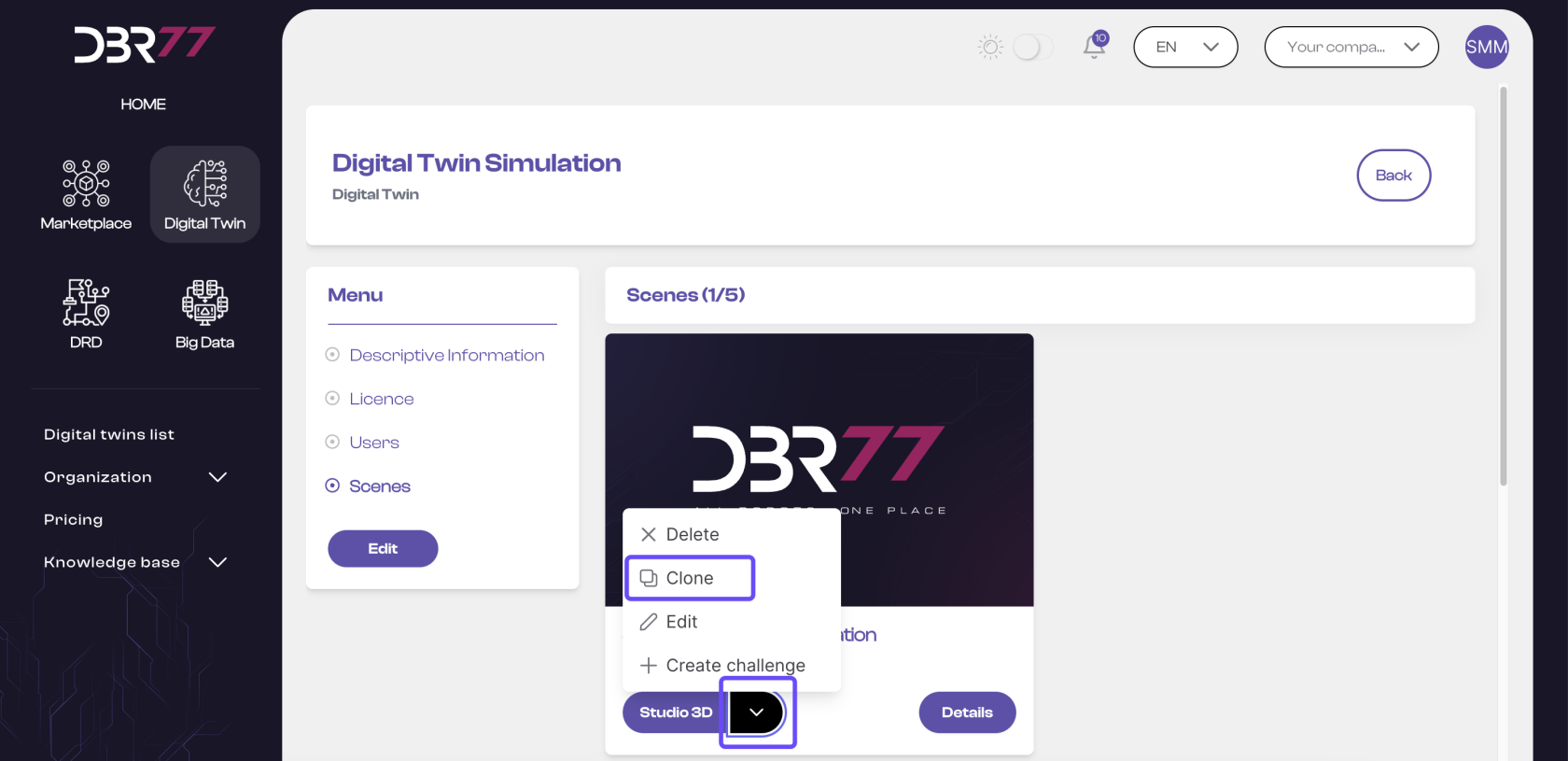
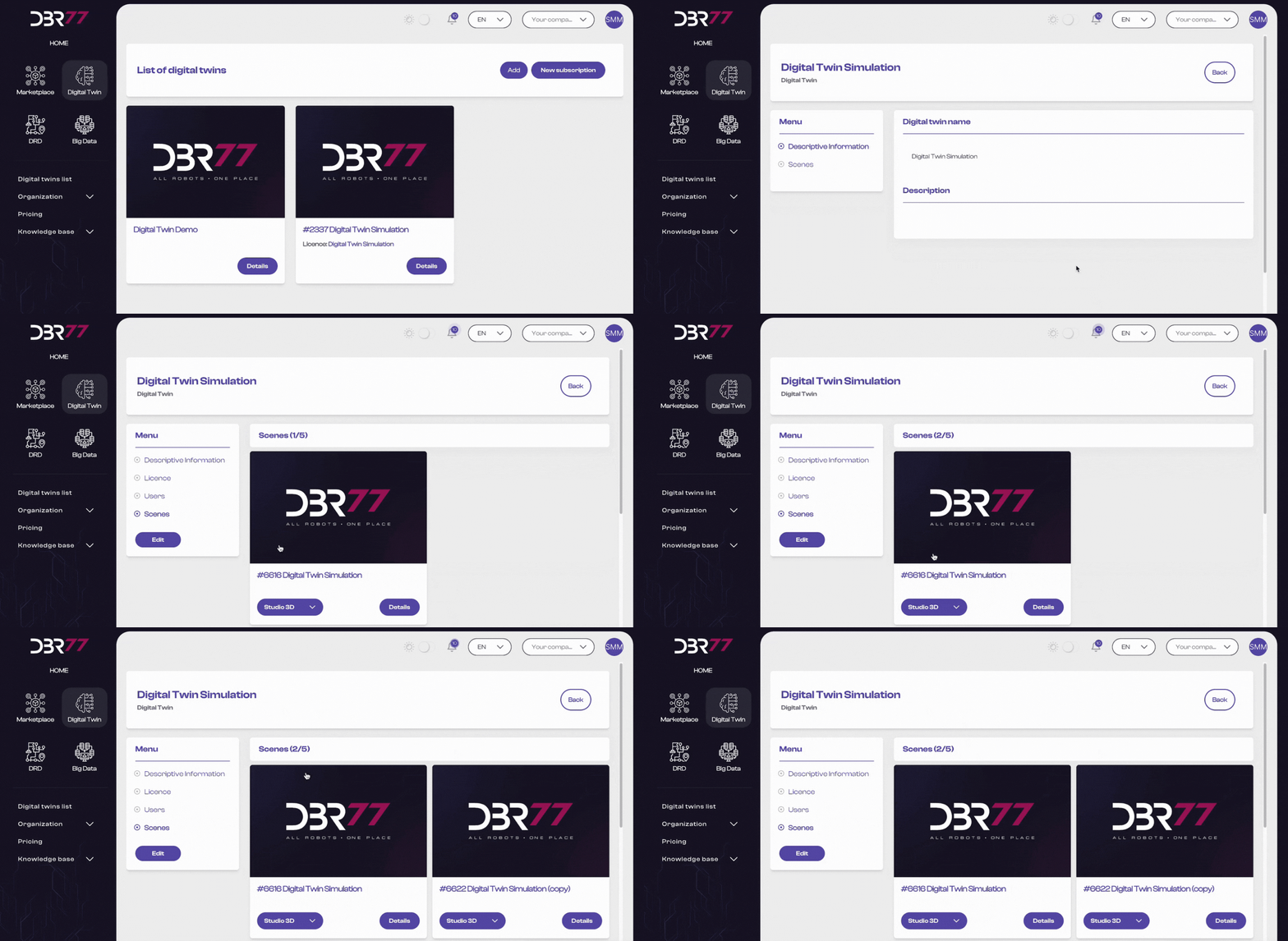
To create a new scene, you must clone an existing one. To do this, click on the dropdown menu of the desired scene and select the "Clone" option.
[](https://learn.dbr77.com/uploads/images/gallery/2024-07/d8lxpkh3MlaeN1SG-image.png)
The cloned scene will be added as a new scene, and the scene counter will increase by 1. You can then edit the new scene and add a new description. Learn how to do this **HERE**.
[](https://learn.dbr77.com/uploads/images/gallery/2024-07/5RMo84J1QBWdbbo3-projekt-bez-nazwy-16.gif)
# Edit Scene
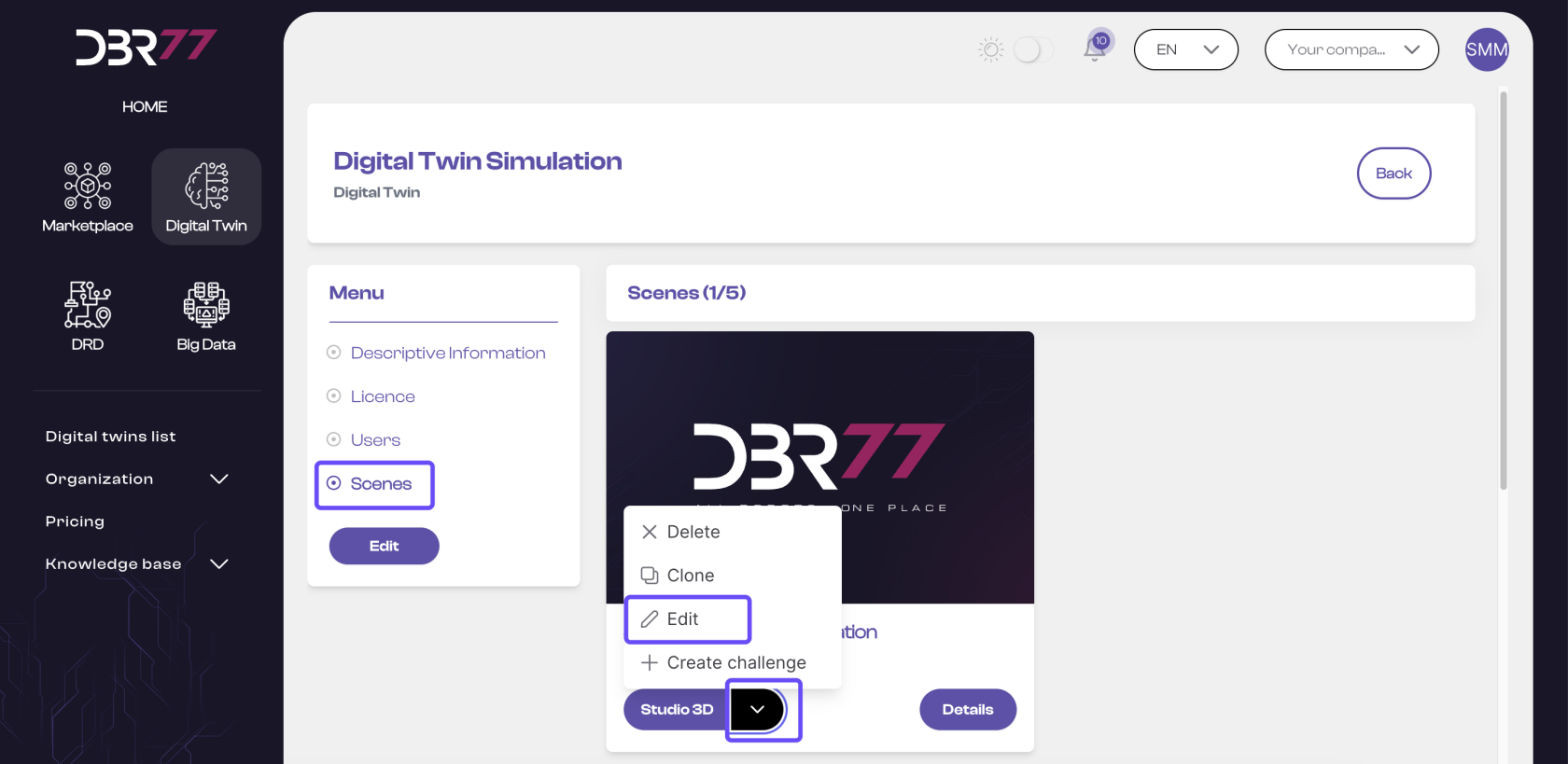
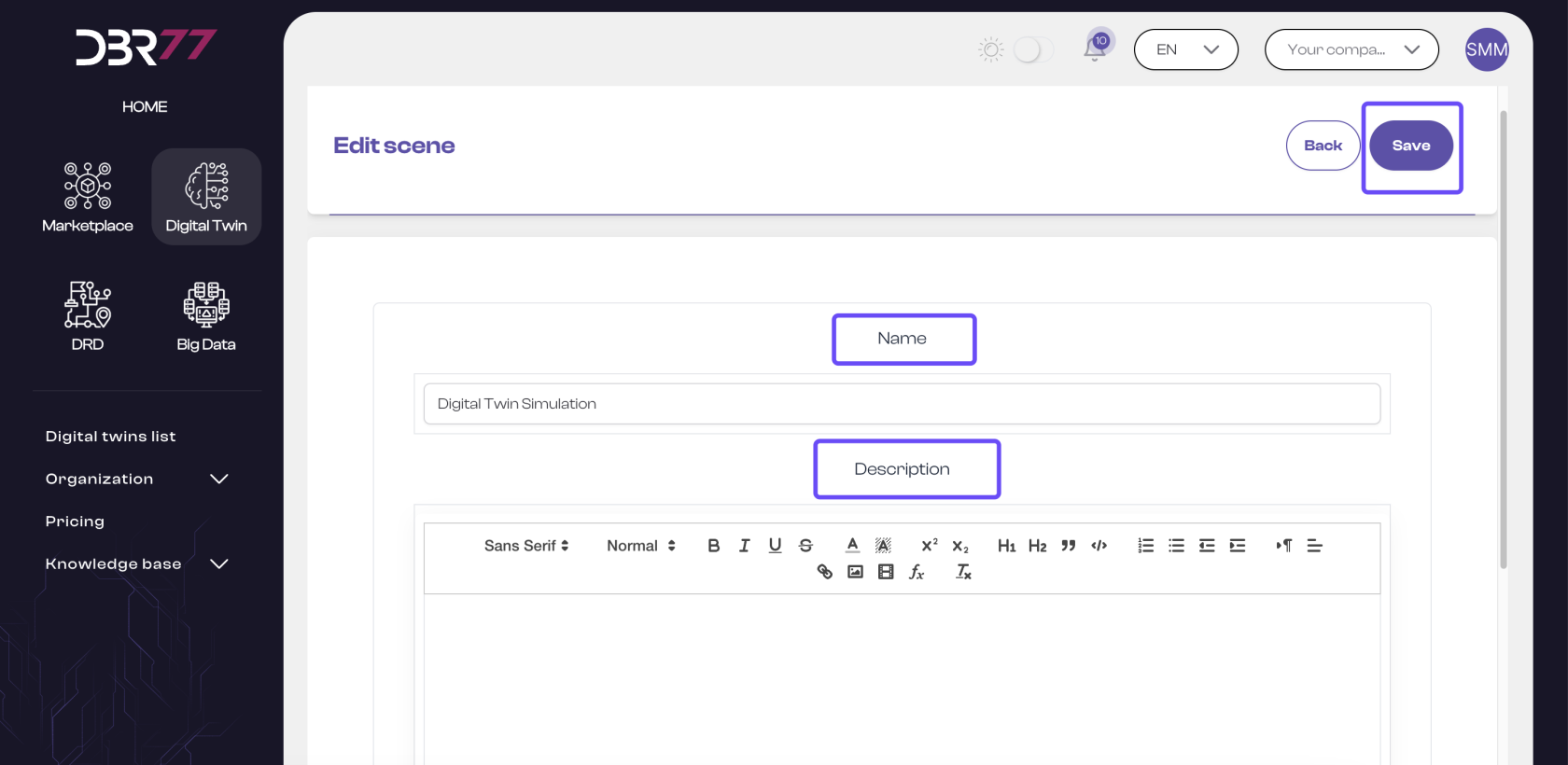
When editing a Digital Twin scene, you can change its name and description to make it easier to distinguish scenes within the subscription.
[](https://learn.dbr77.com/uploads/images/gallery/2024-07/GwNmIrKMRcD3SqVD-image.png)
**Important**: Don’t forget to save your changes in the edit window after modifying the name and adding a description.
[](https://learn.dbr77.com/uploads/images/gallery/2024-07/zbMmboGzeUPNdpsi-image.png)
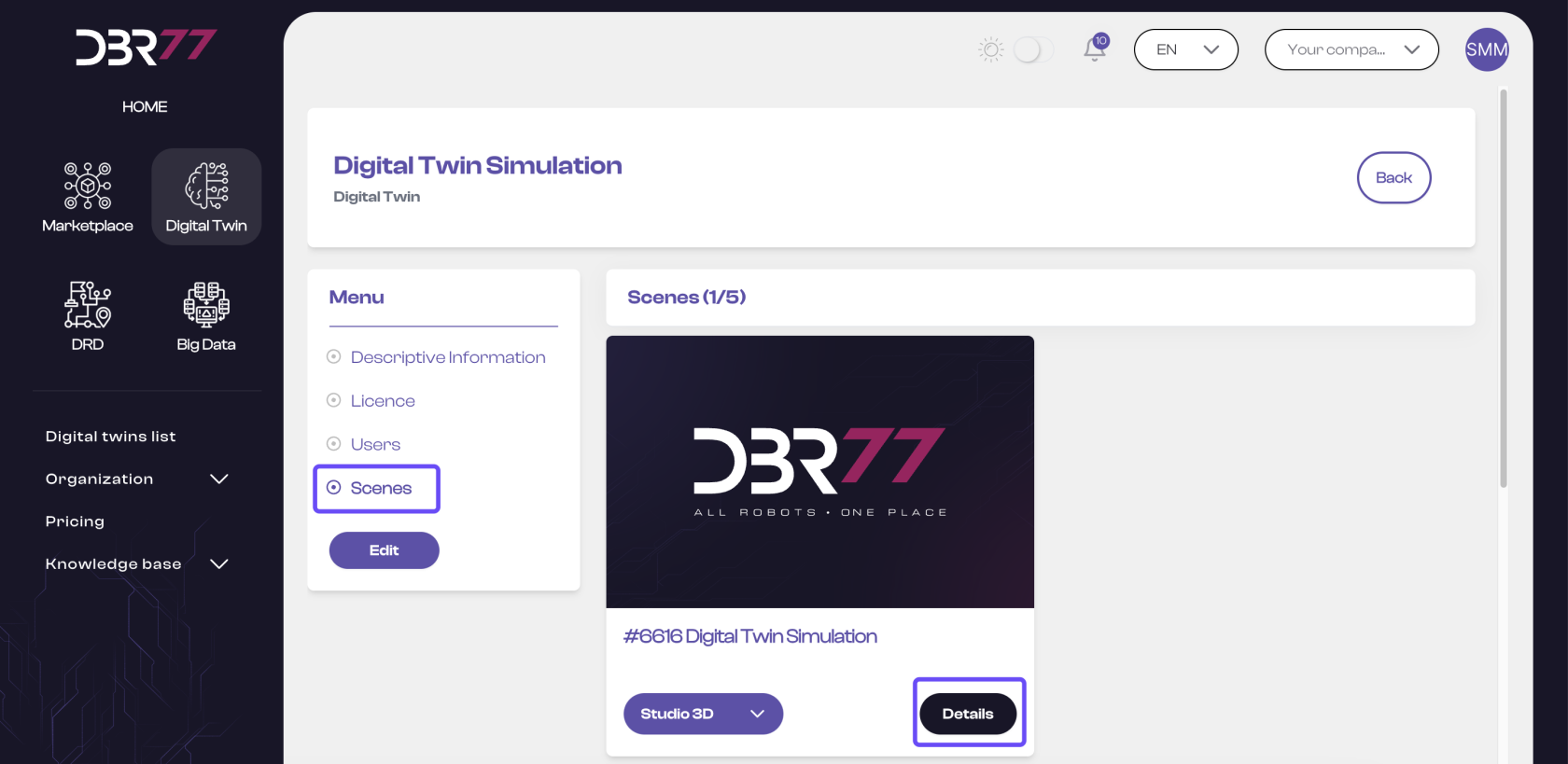
You can view the scene details by clicking the "Details" button.
[](https://learn.dbr77.com/uploads/images/gallery/2024-07/yNhteQUXdl8i1aAL-image.png)
# Create a Challenge
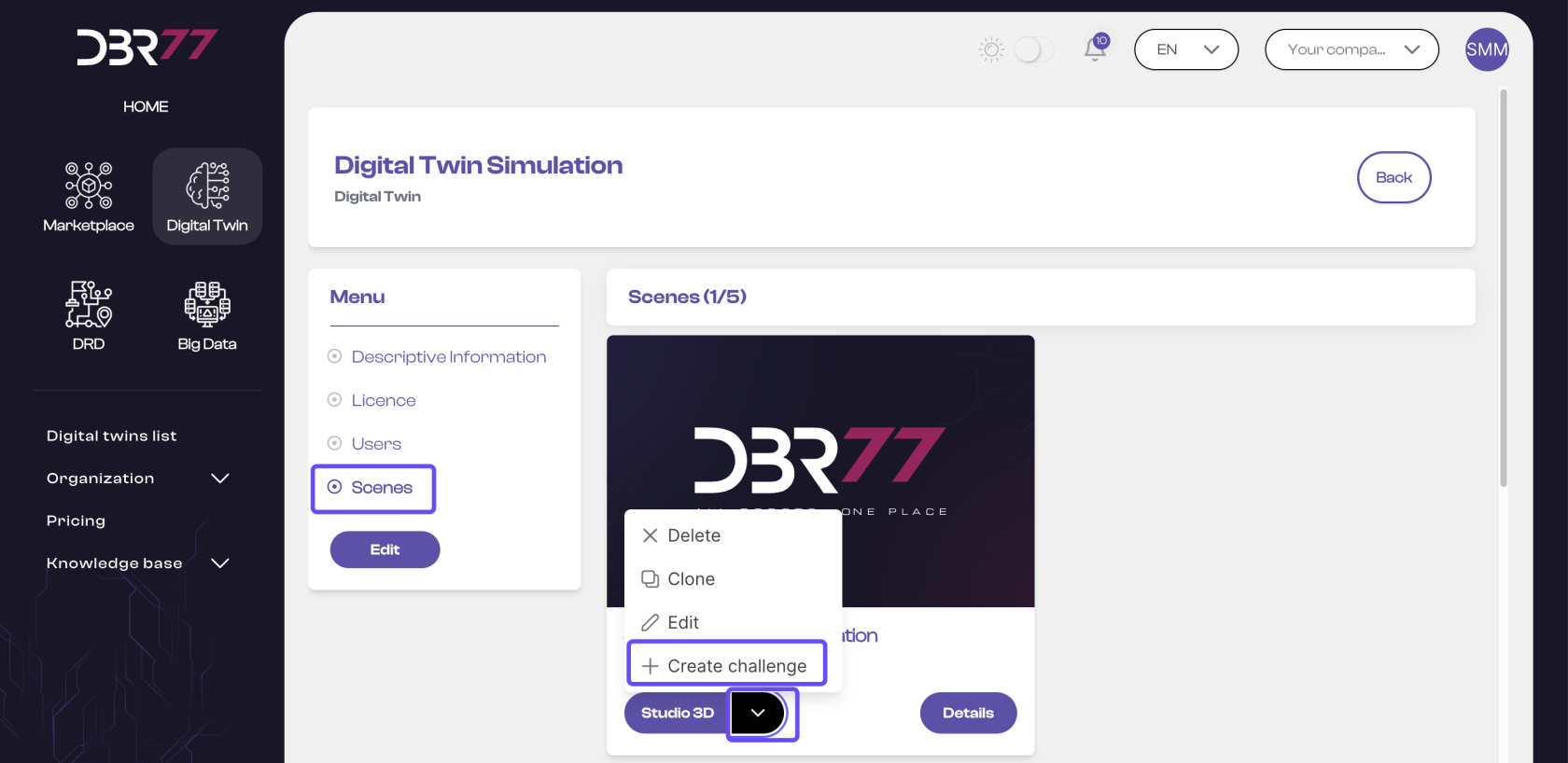
From each scene created within the Digital Twin, you can publish a technological challenge in the Marketplace and gather ideas for technological solutions from integrators on the DBR77 platform.
To do this, click on the dropdown menu of the desired scene and select "Create Challenge."
[](https://learn.dbr77.com/uploads/images/gallery/2024-07/12mcH7Wp1oEe0XJw-image.png)
You will be redirected to the Marketplace and prompted to enter the required information for the challenge. All details on creating a challenge can be found under Marketplace -> Challenges.
This section includes:
- How to add a challenge
- How to publish a challenge
- How to edit a challenge
**Note**: After creating a challenge from a Digital Twin, you must reassign permissions for users who will be working in the Marketplace. A reminder on how to do this can be found under Getting Started -> Users.
# Details
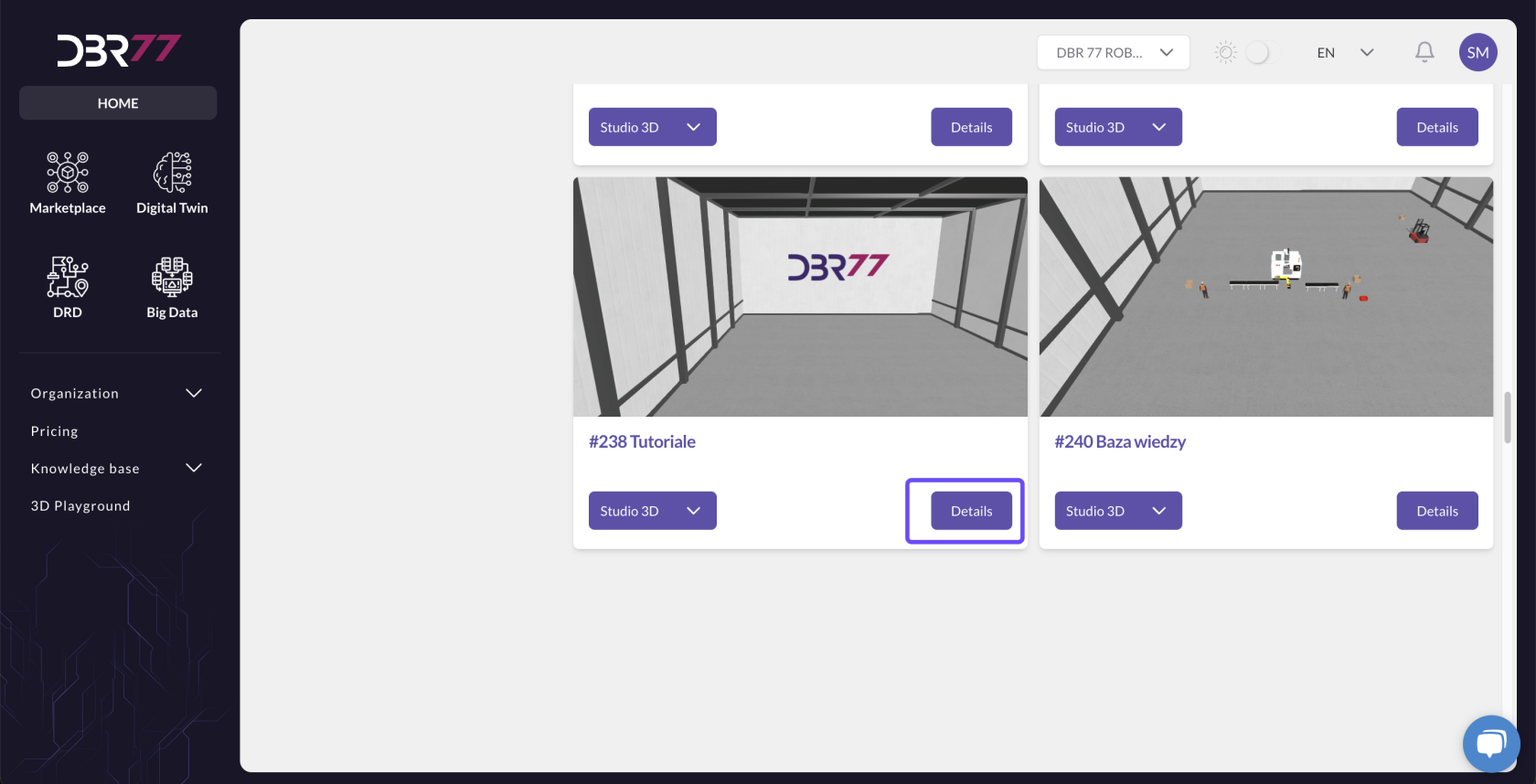
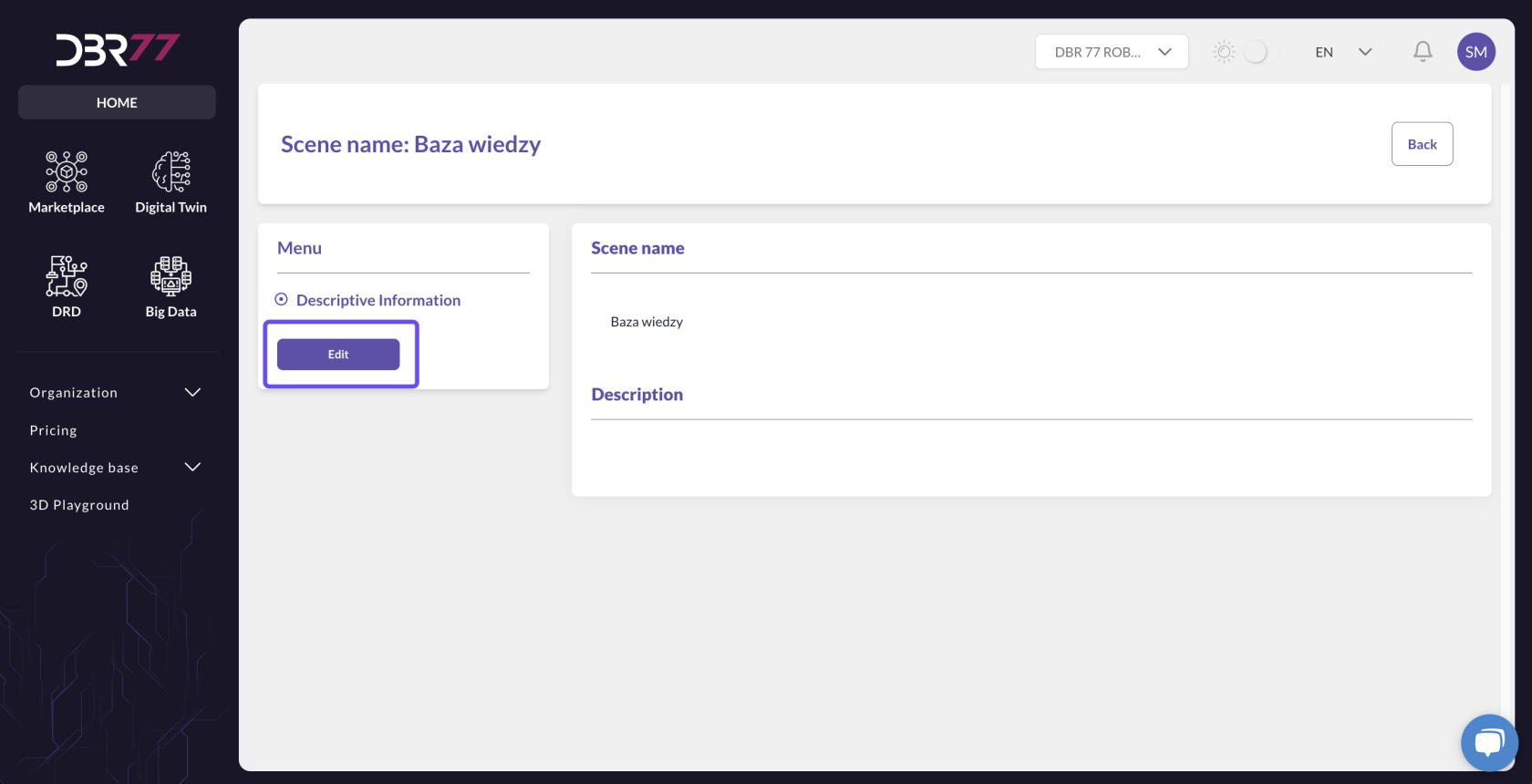
In the DBR77 3D Studio, the “Details” option allows you to view and edit key information about a specific scene. You can view the scene’s name and description and make changes if you have the necessary permissions.
#### Viewing Scene Details
- **Accessing Details**: To view the details of a specific scene, select the "Details" option.
- A window will open displaying the scene's name and description.
[](https://learn.dbr77.com/uploads/images/gallery/2024-08/Xb3hLiQz6dx87QhD-image.png)
#### Editing Scene Details
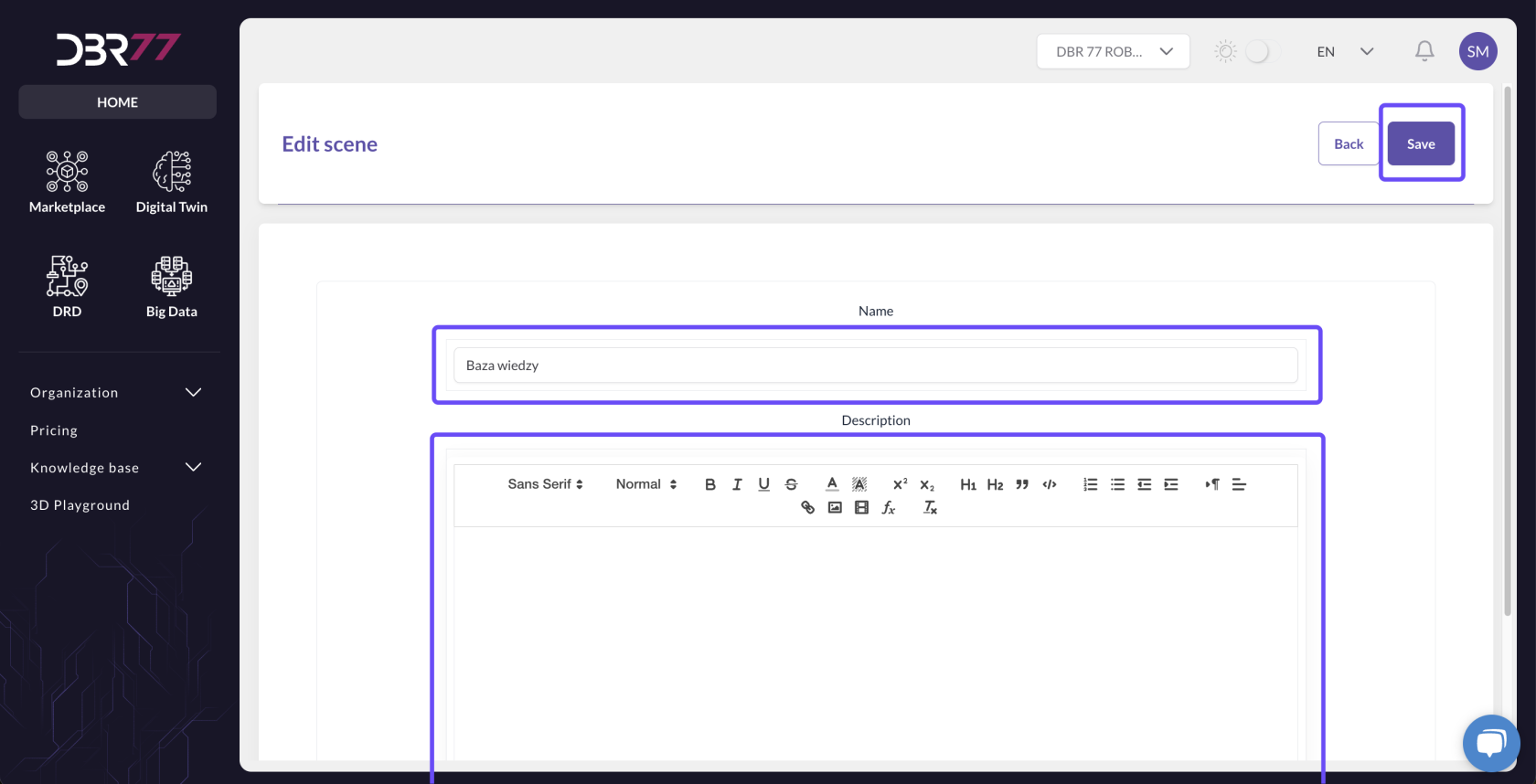
Edit Name and Description:
- In the details window, you can edit the scene’s name and description to align with current project requirements.
- Remember to click “Save” after making any changes.
[](https://learn.dbr77.com/uploads/images/gallery/2024-08/uUJjgq4fbQrLUuRz-image.png)
[](https://learn.dbr77.com/uploads/images/gallery/2024-08/YybLcGVB198SJPyF-image.png)
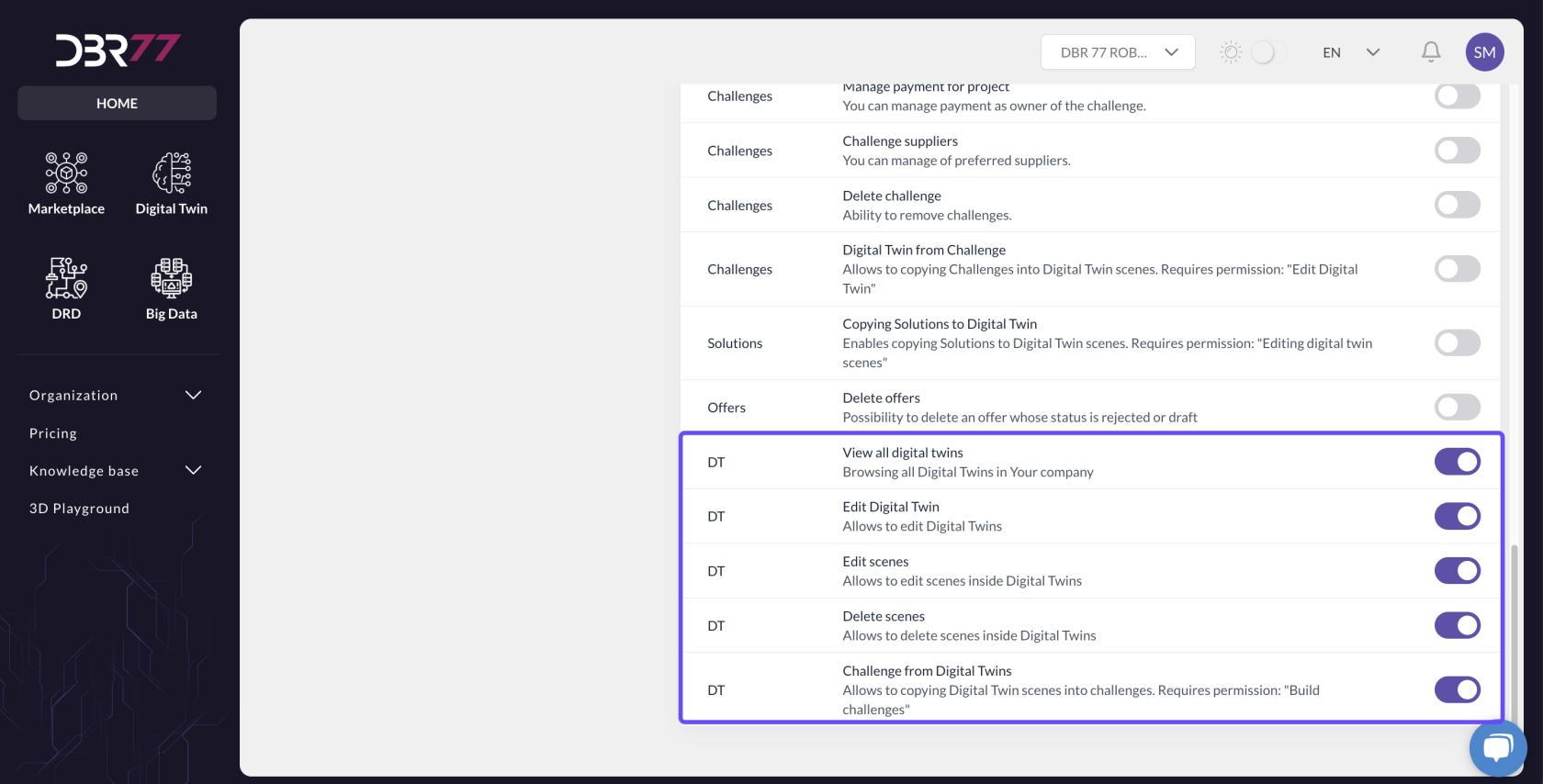
#### Editing Permissions
- Required Permissions: Only users with the appropriate permissions can edit scene details.
- These permissions can be granted by the organization owner or project administrator.
[](https://learn.dbr77.com/uploads/images/gallery/2024-08/KrToWjNSdFgM4jz5-image.png)
# the organization
# Company Data
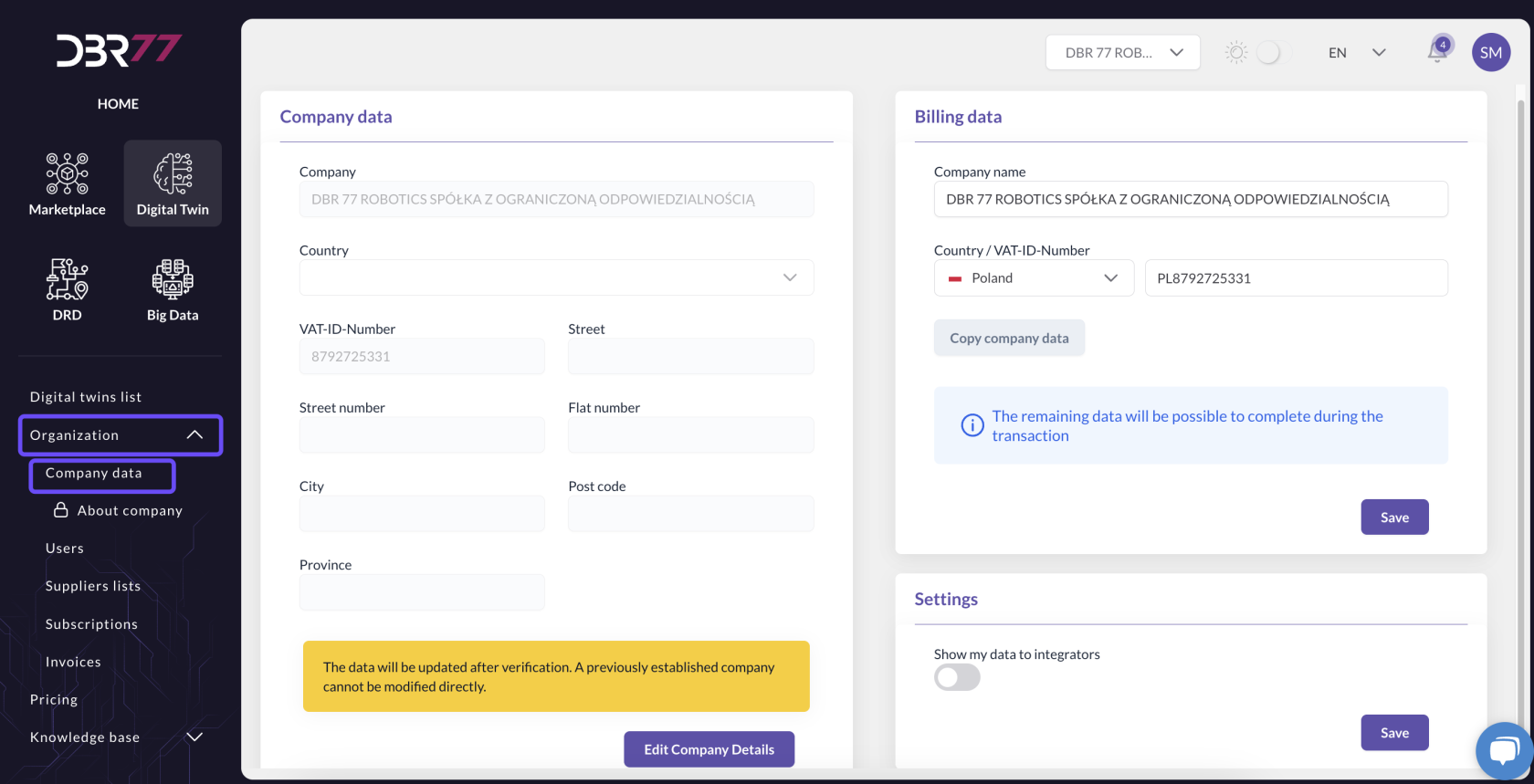
To access the Company and Billing Data section, click on “Organization” in the left sidebar, then select “Company Data.”
[](https://learn.dbr77.com/uploads/images/gallery/2024-07/qMU3A4sDTwGsTkAz-image.png)
### Company Data
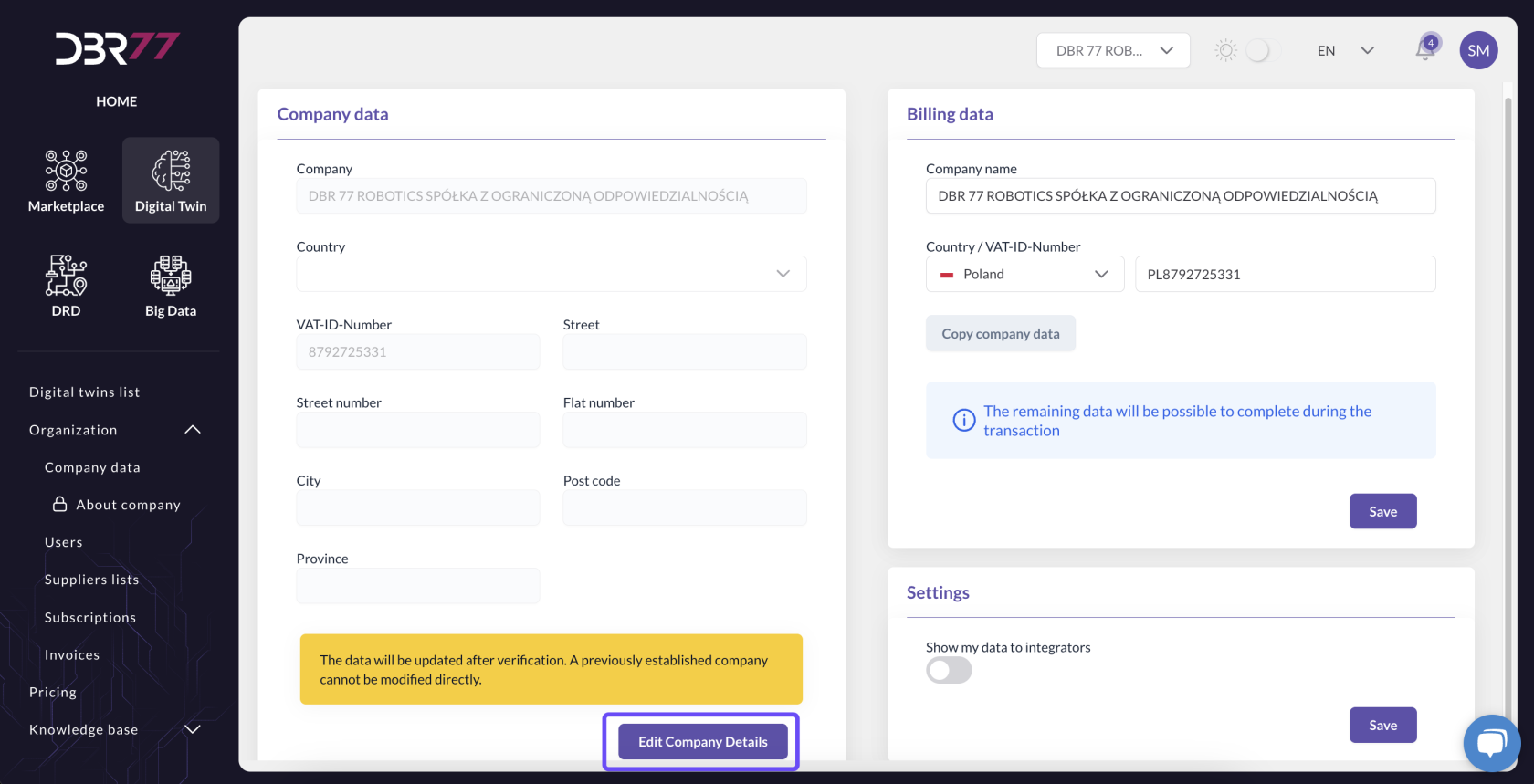
The company data consists of essential information about the organization, completed during account setup on the DBR77 platform. This defines the subscription holder and the organization authorized to operate within the subscription.
#### Editing Company Data
- Click on "Edit Company Data."
[](https://learn.dbr77.com/uploads/images/gallery/2024-07/TxtKrGArK8Jh3Db4-image.png)
- Make changes in the relevant fields and confirm them.
[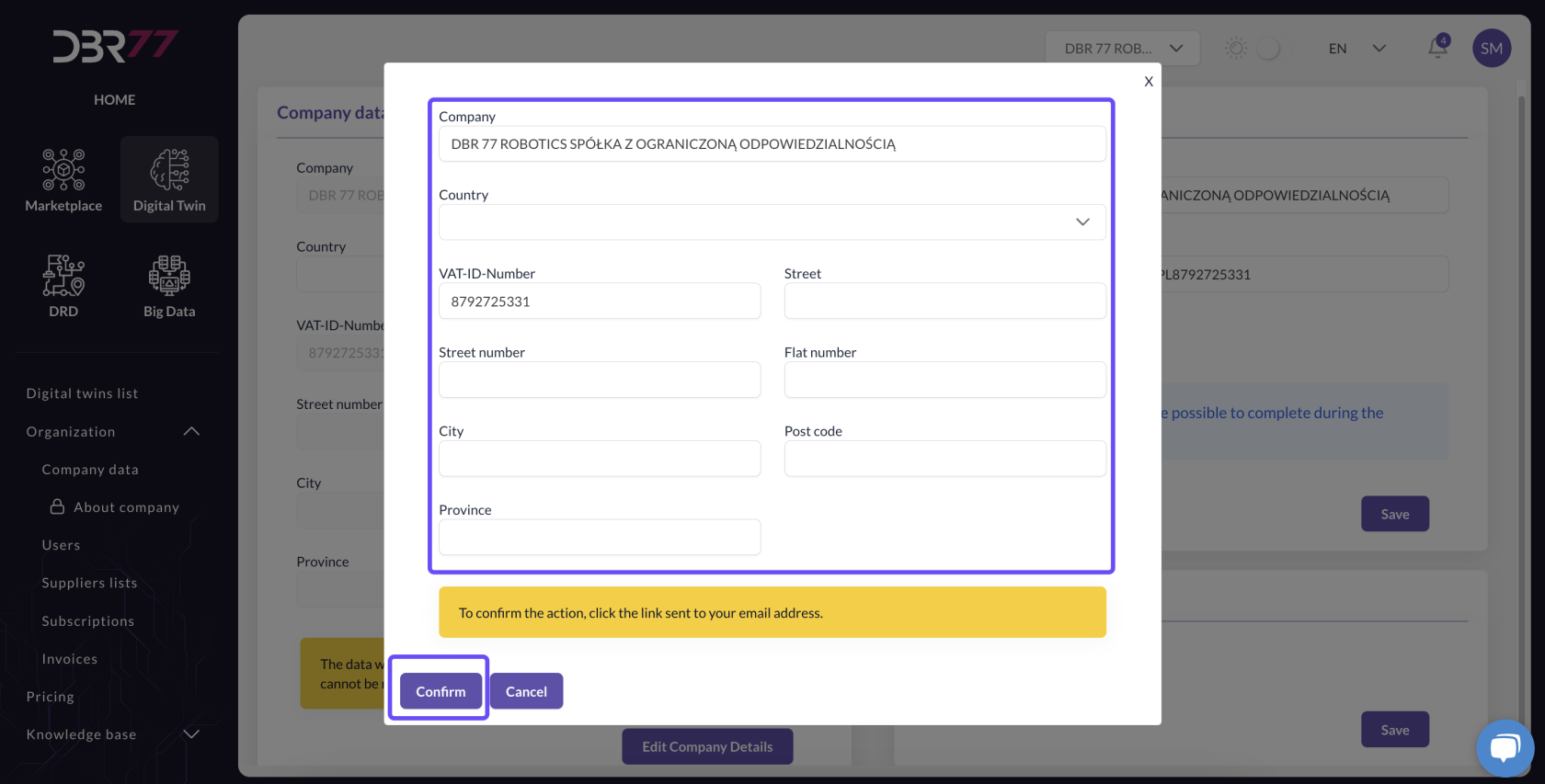](https://learn.dbr77.com/uploads/images/gallery/2024-07/GSjZXSIPshKC3QdZ-image.png)
- After confirmation, you will receive an email with a confirmation link.
- Click the link to verify the changes.
- Changes will take effect after verification.
### Billing Data
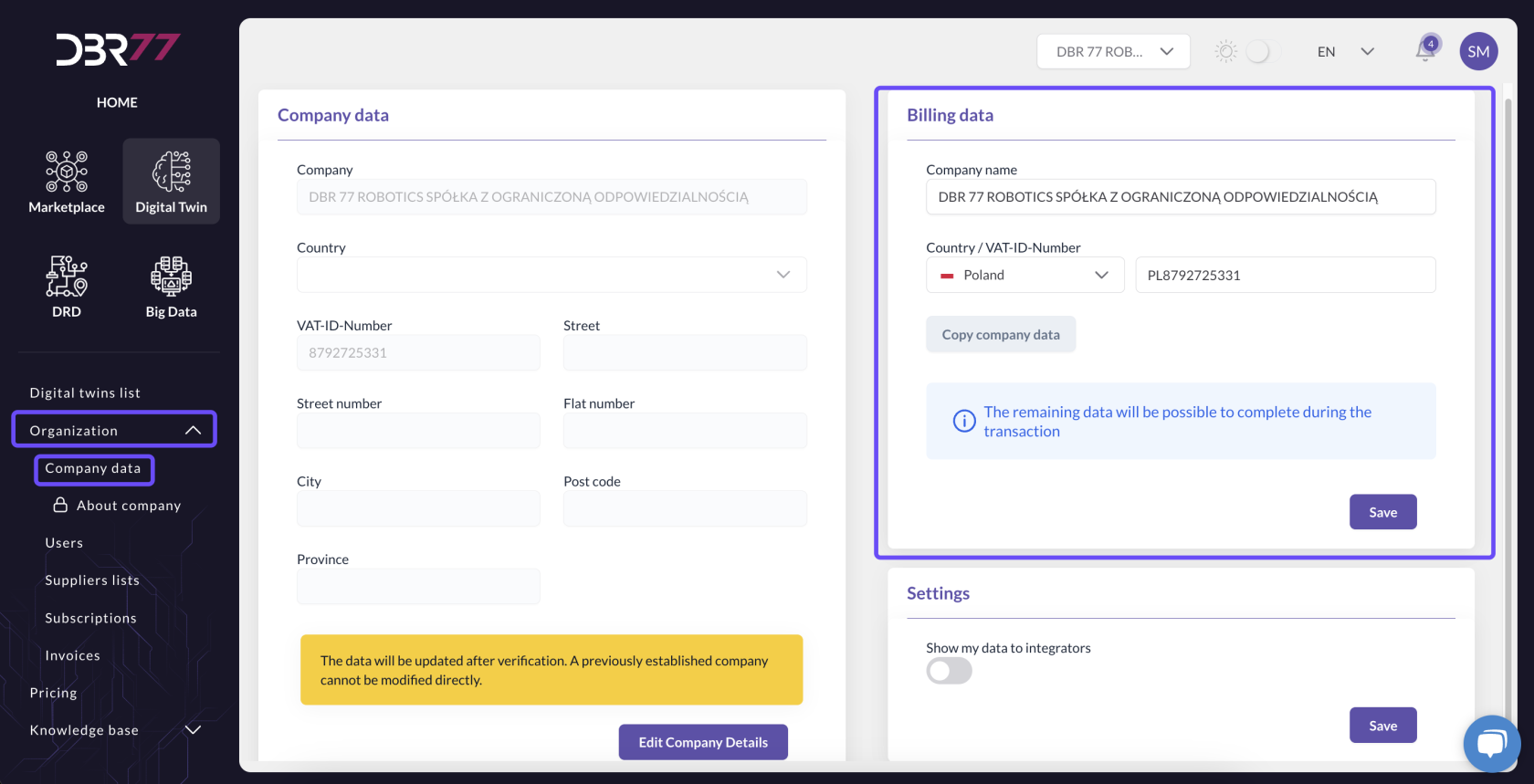
Billing data is required for issuing invoices for the Digital Twin subscription and may differ from the subscription holder’s company data.
#### Filling Out and Editing Billing Data
Entering Billing Data:
- These details should be entered when purchasing the subscription or via the “About the Company” section.
[](https://learn.dbr77.com/uploads/images/gallery/2024-07/tzZJATTcjHfFGZSk-image.png)
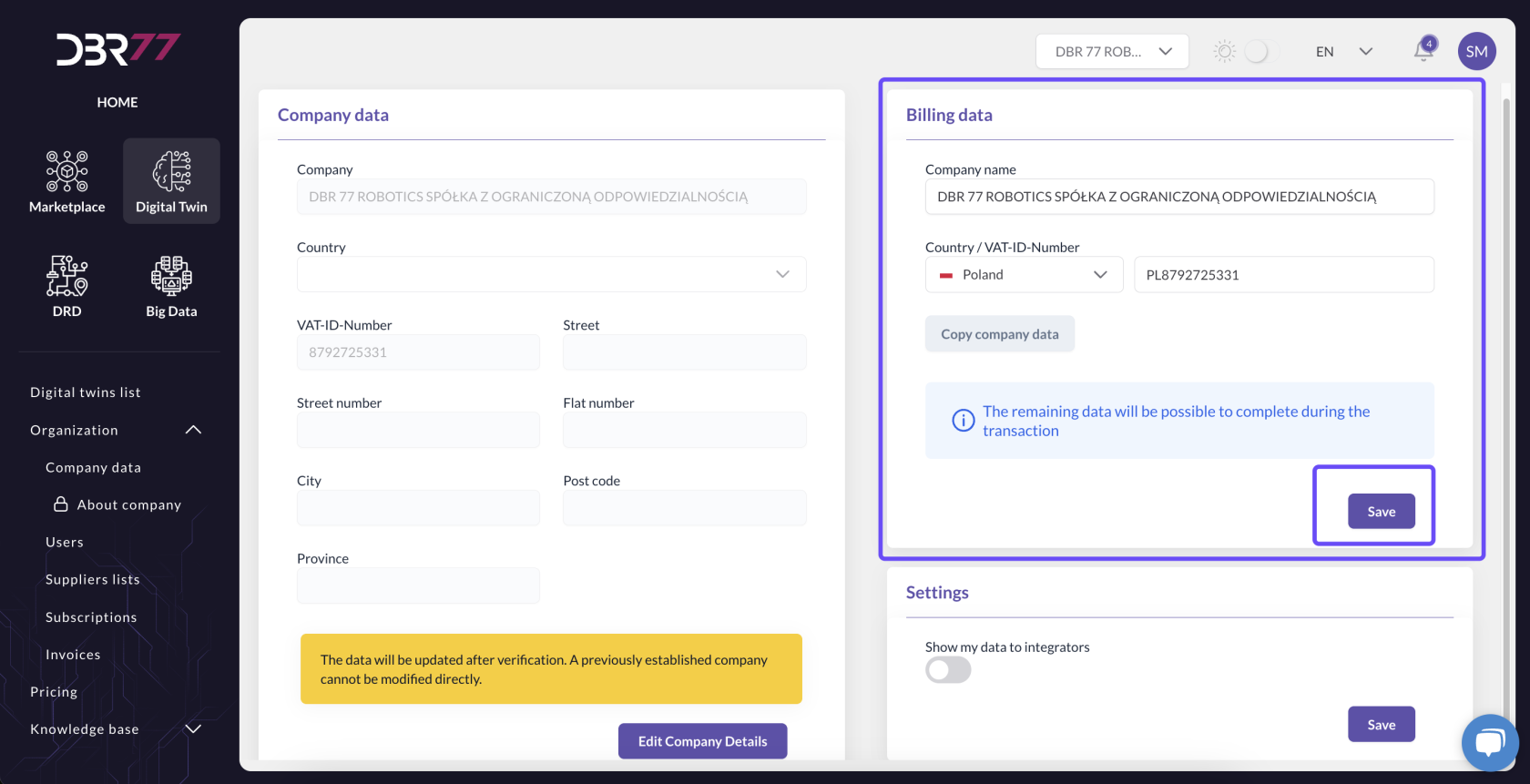
#### Editing Billing Data:
- Enter the new data in the appropriate fields and click “Save.”
- Remember that billing data may differ from the organization’s company data.
[](https://learn.dbr77.com/uploads/images/gallery/2024-07/jU5aUXreCgxfNmuz-image.png)
#### Important:
- Company and billing data apply to all subscriptions on the DBR77 platform.
- Changes to billing data affect all future invoices, which will be issued based on the updated billing details.
#### Summary
Up-to-date and accurate company and billing data are essential for managing subscriptions and billing on the DBR77 platform. For more information, see Getting Started -> Company Data.
# User
#### Users Tab
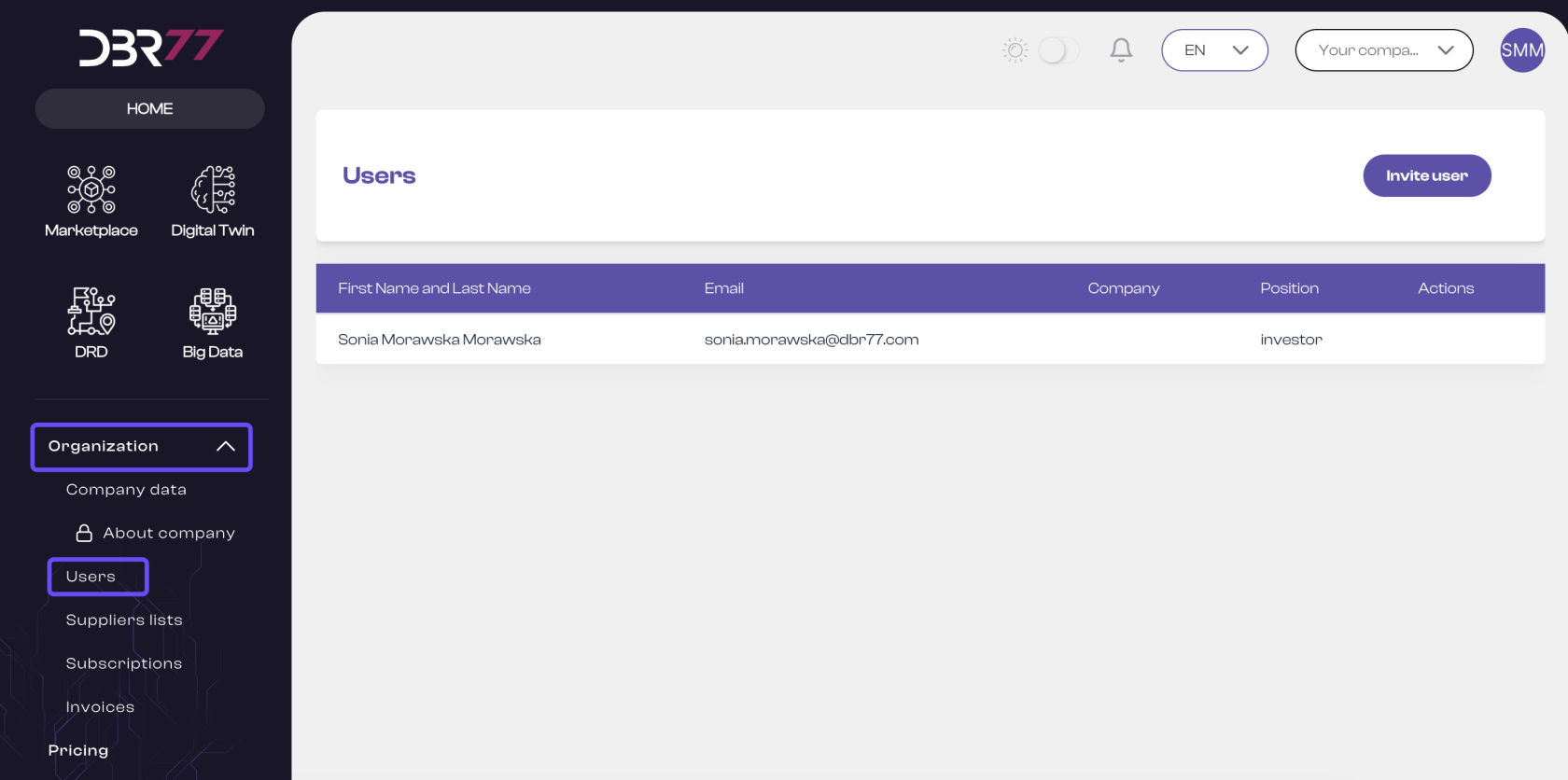
The “Users” tab enables authorized personnel to manage the team associated with the organization. Here, you can add new team members and assign them the necessary permissions to use the DBR77 platform.
[](https://learn.dbr77.com/uploads/images/gallery/2024-07/d4TZMnZqeXd4Uo4t-image.png)
#### Adding Users to the Organization
1. Adding New Users:
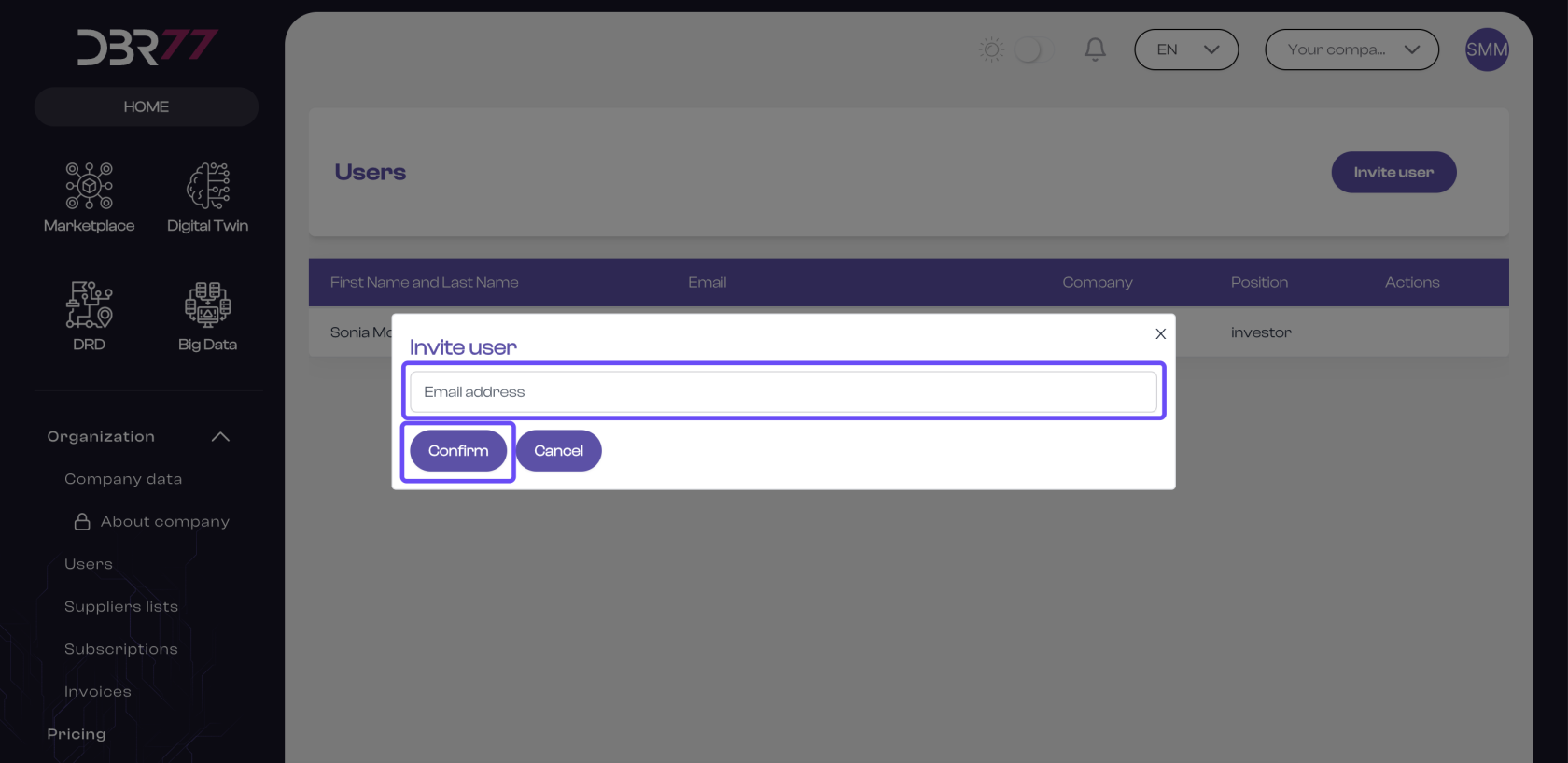
- Go to the “Users” tab and click on “Invite User.”
- Enter the email address of the user you wish to add to the organization.
- Ensure the email address belongs to a registered user on the DBR77 platform (otherwise, a notice will appear indicating that the email address does not exist).
- Click “Confirm” to send the invitation to the organization.
[](https://learn.dbr77.com/uploads/images/gallery/2024-07/tU1vgH58wVrAcfGd-image.png)
#### 2. Verification and Confirmation:
- The added user will receive an email with an invitation to the organization.
- Upon accepting the invitation, the user will automatically be added to the organization’s member list.
#### Assigning Permissions
1. Assign Permissions:
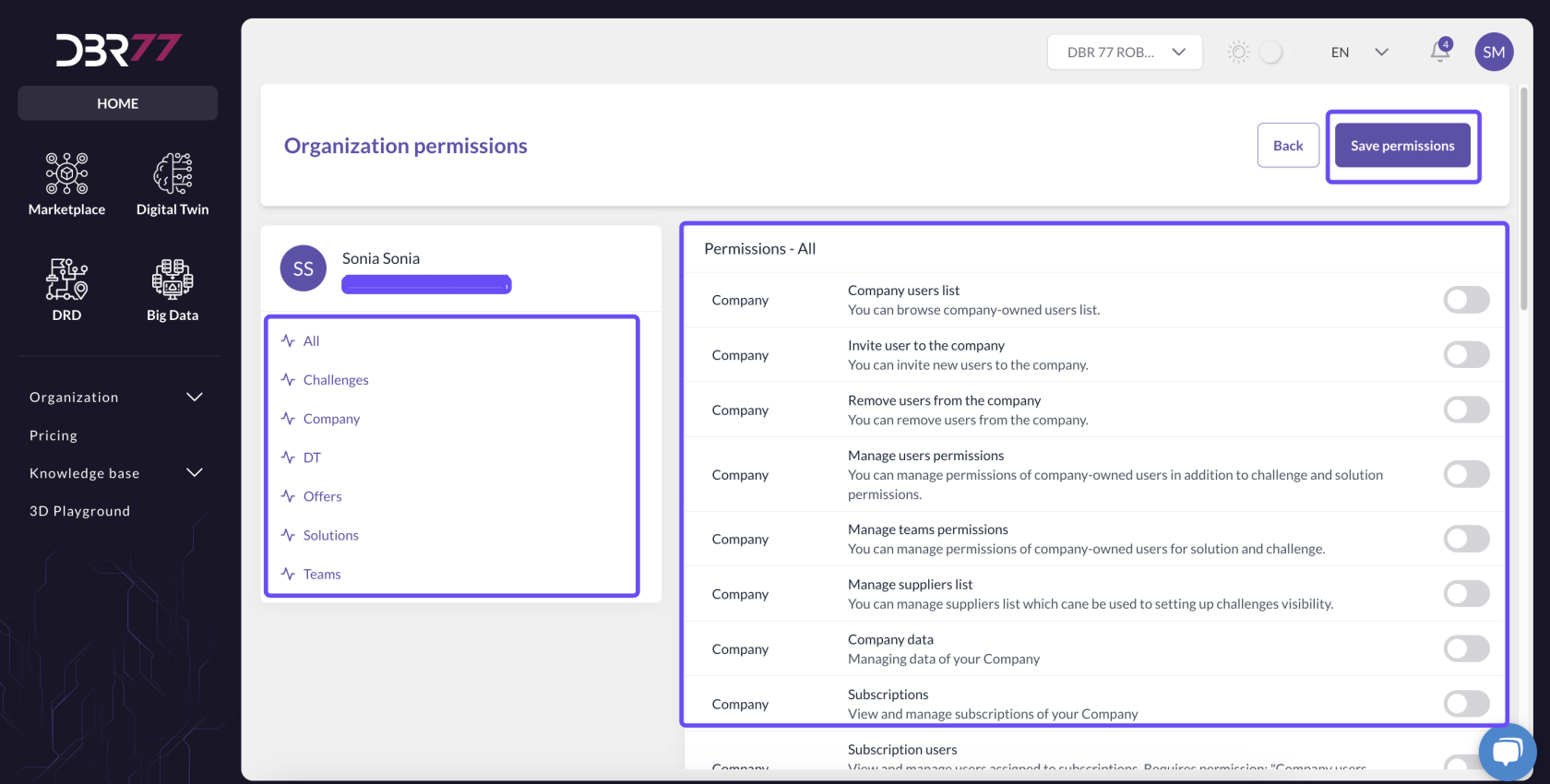
- In the “Users” tab, you can manage the permissions of individual team members.
- Select the user whose permissions you want to modify.
- Check the appropriate permission options to set the user’s access to DBR77 platform features.
#### 2. Types of Permissions:
- The DBR77 platform allows for the assignment of various access levels, depending on the user’s role in the organization.
- Possible permissions include access to subscription management, project editing, report creation, or management of company data.
#### [](https://learn.dbr77.com/uploads/images/gallery/2024-07/3eZvIiLejZmVQalN-image.png)
#### Important Information
#### Platform Registration:
- Only users who are already registered on the DBR77 platform can be added to the organization.
- If the desired person is not yet registered, please ask them to register on the platform first.
#### Summary
- Managing users in the “Users” tab is essential for efficient collaboration within the organization on the DBR77 platform.
- The ability to add users and assign appropriate permissions ensures that each team member has access to the tools and functions needed for project execution.
The “Users” section is described in detail in the tab Getting Started -> Users.
# Subscriptions
The "Subscriptions" section is described in detail in the tab [Getting Started - ENG -> Subscriptions.](https://learn.dbr77.com/books/getting-started-eng/page/subscriptions)
# Invoices
The "Invoices" section is described in detail in the tab [Getting Started - ENG -> Invoices.](https://learn.dbr77.com/books/getting-started-eng/page/invoices)
# Price List
# Digital Twin Subscription Options
[](https://learn.dbr77.com/uploads/images/gallery/2024-10/Fe6yqIbNOk0Ymu3z-image.png)
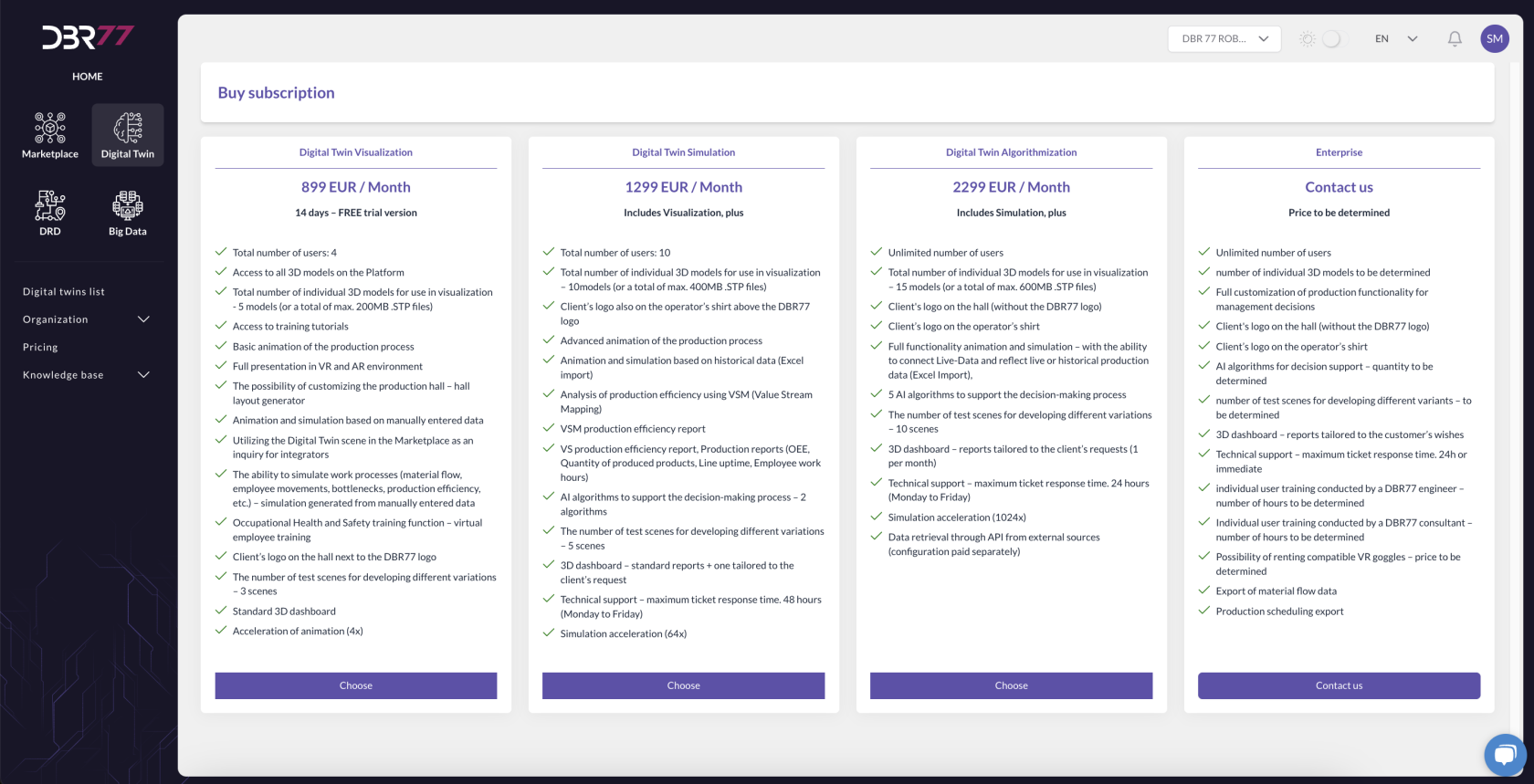
The price overview offers four different subscription options for the Digital Twin, each with unique functionalities and user limits:
#### 1. Digital Twin Visualization (€899/month)
- 14-day free trial
- Limit: 4 users
- Access to all platform 3D models
- Visualization of up to 5 models (or up to 200 MB STP files)
- Basic process animation
- Full VR and AR presentation
- Workflow simulation based on manually entered data
- Simulation of workflows, employee movements, bottlenecks, etc.
- Company logo displayed alongside DBR77 logo in the virtual hall
- 3 test scenes for variant development
- Animation speed up to 4x
#### 2. Digital Twin Simulation (€1299/month)
Includes all Visualization features, plus:
- Limit: 10 users
- Visualization of up to 10 models (or up to 400 MB STP files)
- Advanced process animation
- Simulation and animation based on historical data (Excel import)
- Efficiency analysis with Value Stream Mapping (VSM)
- Production reports (OEE, downtimes, working hours)
- 2 supporting decision algorithms
- 5 test scenes for variant development
- Animation speed up to 64x
#### 3. Digital Twin Algorithmization (€2299/month)
Includes all Simulation features, plus:
- Unlimited number of users
- Visualization of up to 15 models
- Full simulation with real-time or historical data integration
- 5 decision algorithms
10 test scenes for variant development
- Technical support with a 24-hour response time
- Animation speed up to 1024x
- Data access via API
#### 4. Enterprise (price on request)
- Unlimited number of users
- Number of models and features customizable
- Fully tailored reports and animations
- Custom decision algorithms
- Technical support with response times of up to 24 hours or immediate
- Compatible VR headset support on request
- Data export from the simulation
#### Comparison of Options:
- Each higher subscription option offers expanded features, including a larger number of users, models, and test scenes.
- The Simulation and Algorithmization options include more comprehensive data analysis and decision support.
- The Enterprise package provides the highest level of customization with flexible features and on-demand support.